How to Make a Gradient Background in Canva (Guide)
Learn how to make a gradient background in Canva with this simple step by step guide, perfect for creating clean and professional designs fast.

Dudu
Jan 21, 2026
Last Updated Jan 21, 2026
Image Credit: Toolfolio
A gradient background can instantly make a design look clean, modern, and professional. It adds depth without noise and works well for social posts, presentations, websites, and thumbnails. Many people think gradients are hard to create, but Canva makes the process simple.
If you are trying to figure out how to make a gradient background in Canva, this guide is for you. You do not need design skills or paid tools to get started. Canva gives you built in options that let you create smooth gradients in just a few clicks.
In this guide, you will learn the easiest ways to create a gradient background in Canva. You will see how to customize colors, adjust direction, and apply gradients to any design.
By the end, you will be able to create gradient backgrounds that look polished and ready to use.
Step by Step: How to Create a Gradient Background in Canva
Step 1: Create or Open Your Design
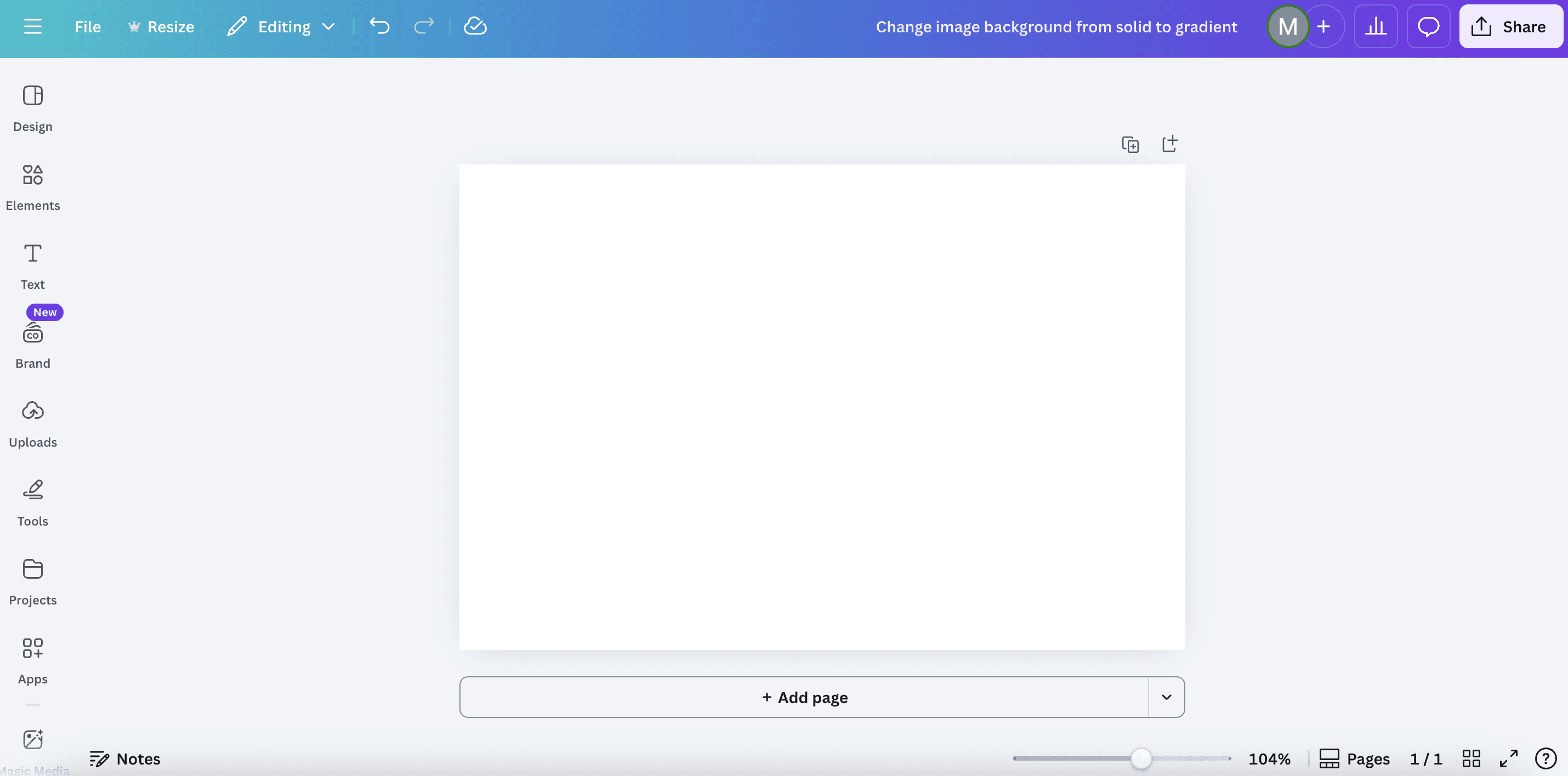
Open Canva and either start a new design or open an existing one.
Choose the canvas size you need, such as a social post, presentation slide, or banner.
Step 2: Select the Background or Element
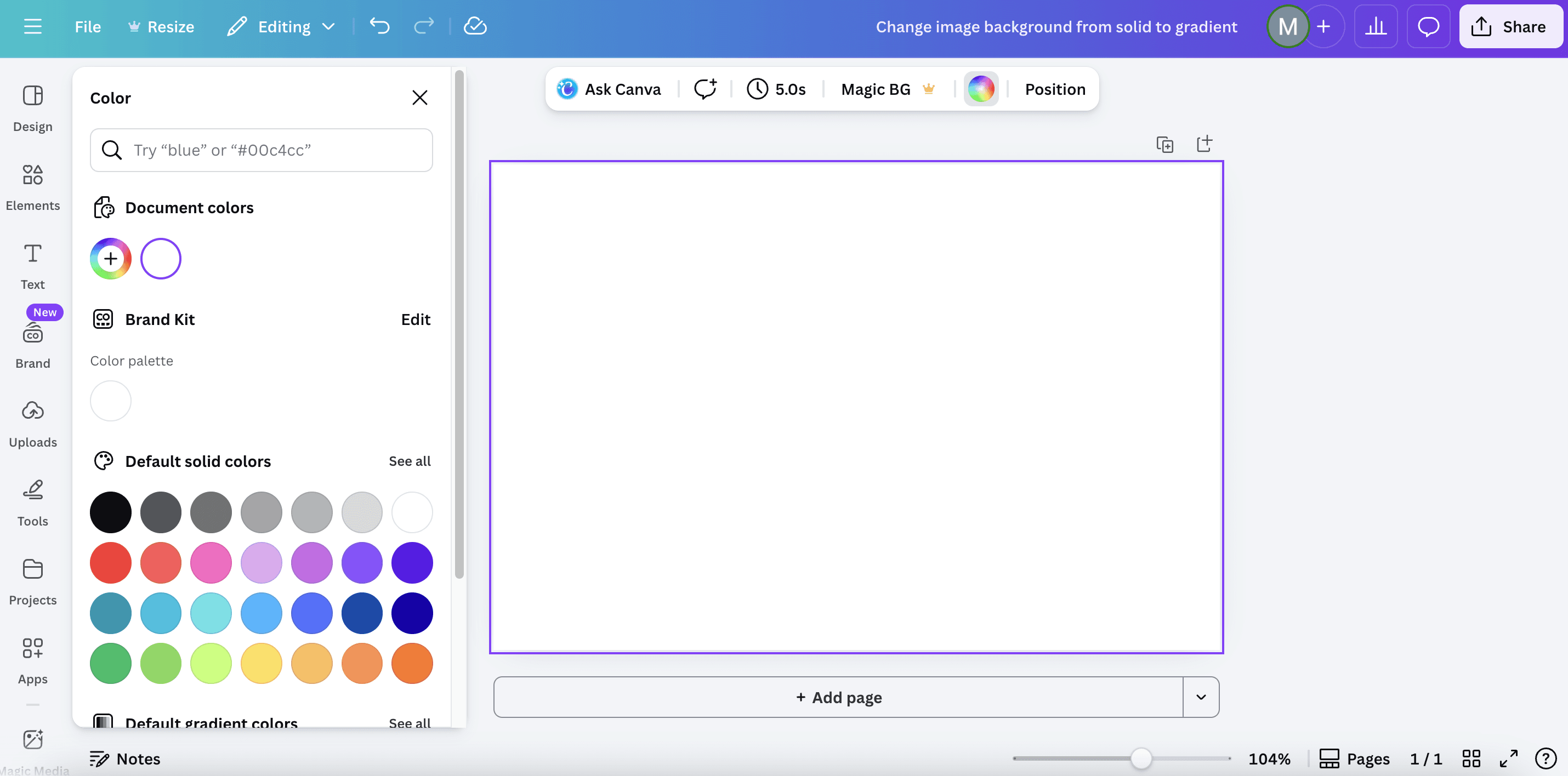
Click on the background of your design or select the element where you want to apply the gradient.
Make sure it is active so Canva shows the editing options at the top.
Step 3: Open the background color settings
Go to the top edit toolbar and click on Background colour.
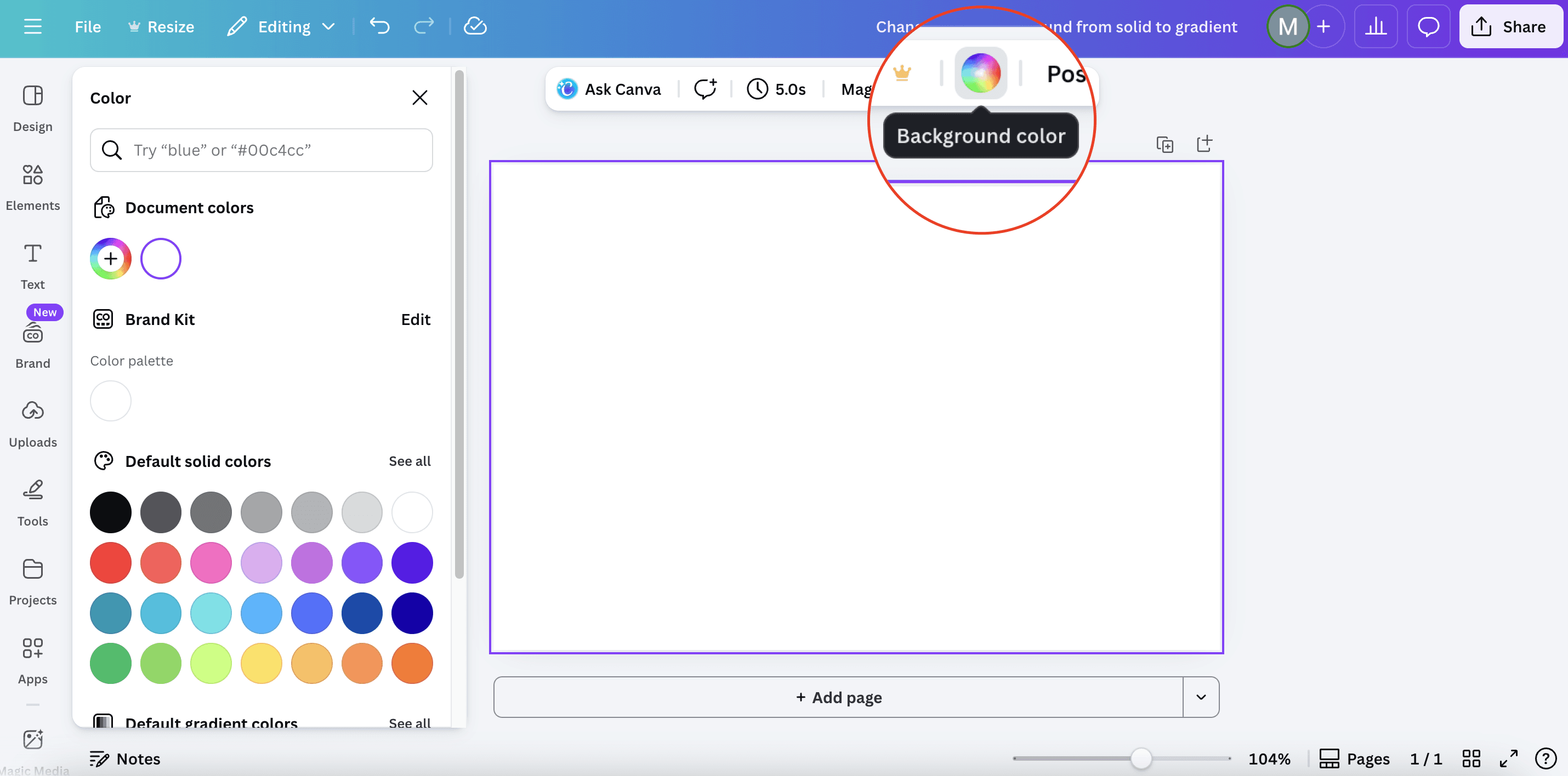
This opens the color panel where you can manage solid colors and gradients.
Step 4: Add a New Color
Under Document colours, click the Addition icon to add a new color.
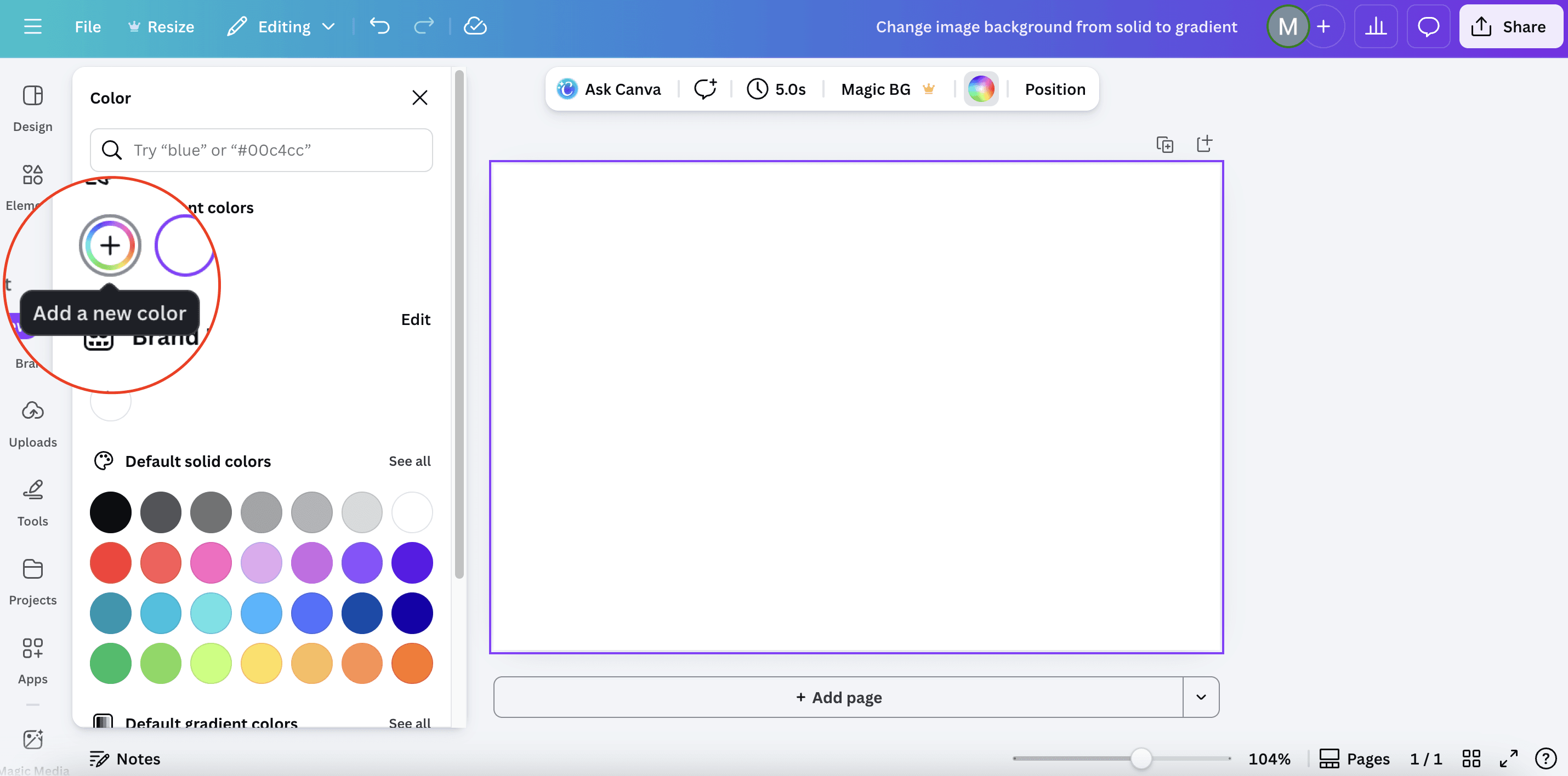
This allows you to start building a custom gradient instead of using preset ones.
Step 5: Switch to the Gradient tab and add gradient colors
In the color panel, move to the Gradient tab.
Here you can choose existing gradients or create your own from scratch.
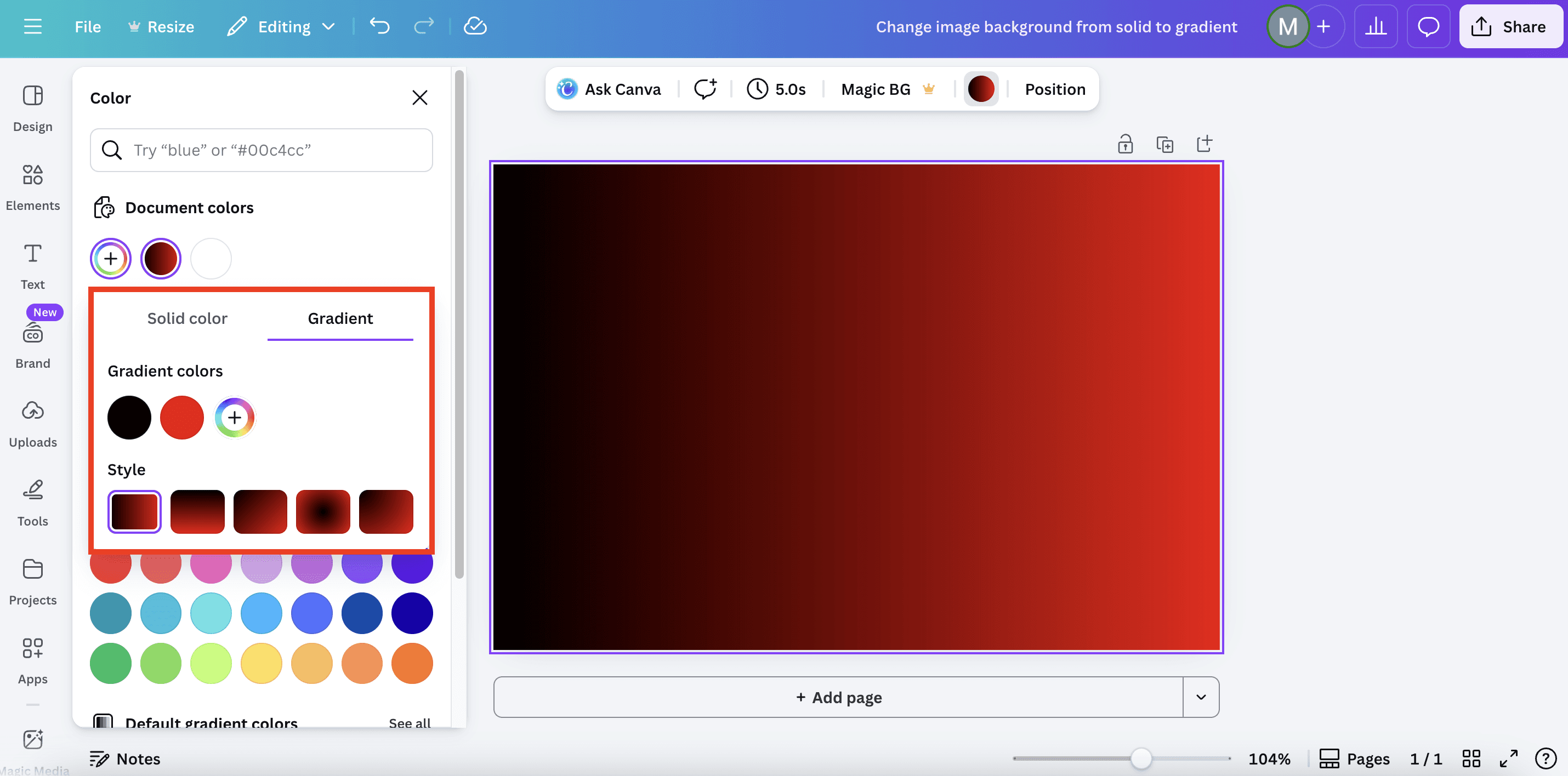
Under Gradient colours, click the Addition icon to add a new gradient color. You can add up to 10 colors to create smooth or bold transitions depending on your design.
Wrapping Up: Making a Gradient Background in Canva
Creating a gradient background in Canva is quick and beginner friendly. With just a few clicks, you can add smooth color transitions that make your designs look modern and polished. Whether you are working on social media posts, presentations, or thumbnails, gradients help your content stand out without extra effort.
If you found this guide useful, check out our other tutorials and posts to learn more simple design tips, Canva guides, and beginner friendly design workflows:
You May Also Like











Featured Tools







Newest Additions



















AI Image & Video Generation





























Vibe Coding Library















































Screenshot & Screen Recording Tools