How to Save All Open Tabs in Google Chrome (Step-by-Step Guide)
Learn how to save all open tabs in Google Chrome using simple methods. Bookmark, restore, and manage your tabs in seconds with this easy guide.

Dudu
Apr 12, 2026

Last Updated Apr 12, 2026
Image Credit: Toolfolio
You often end up with dozens of tabs open while working, researching, or browsing. Closing them by mistake or losing them after a crash can break your flow and waste time trying to find everything again.
Chrome does not make this obvious, but it offers simple ways to save all your open tabs at once. You can store them as bookmarks, reopen them later, or keep your session ready every time you launch the browser.
This guide shows the fastest and most reliable ways to save all open tabs in Google Chrome. You will be able to recover your tabs anytime without losing your progress.
1. Save All Tabs Using Chrome (Quick but Limited)
Chrome lets you save all open tabs in seconds using built-in options. The fastest way is to bookmark everything at once.
Press Ctrl + Shift + D (Windows) or Cmd + Shift + D (Mac), give your folder a name, and save it.
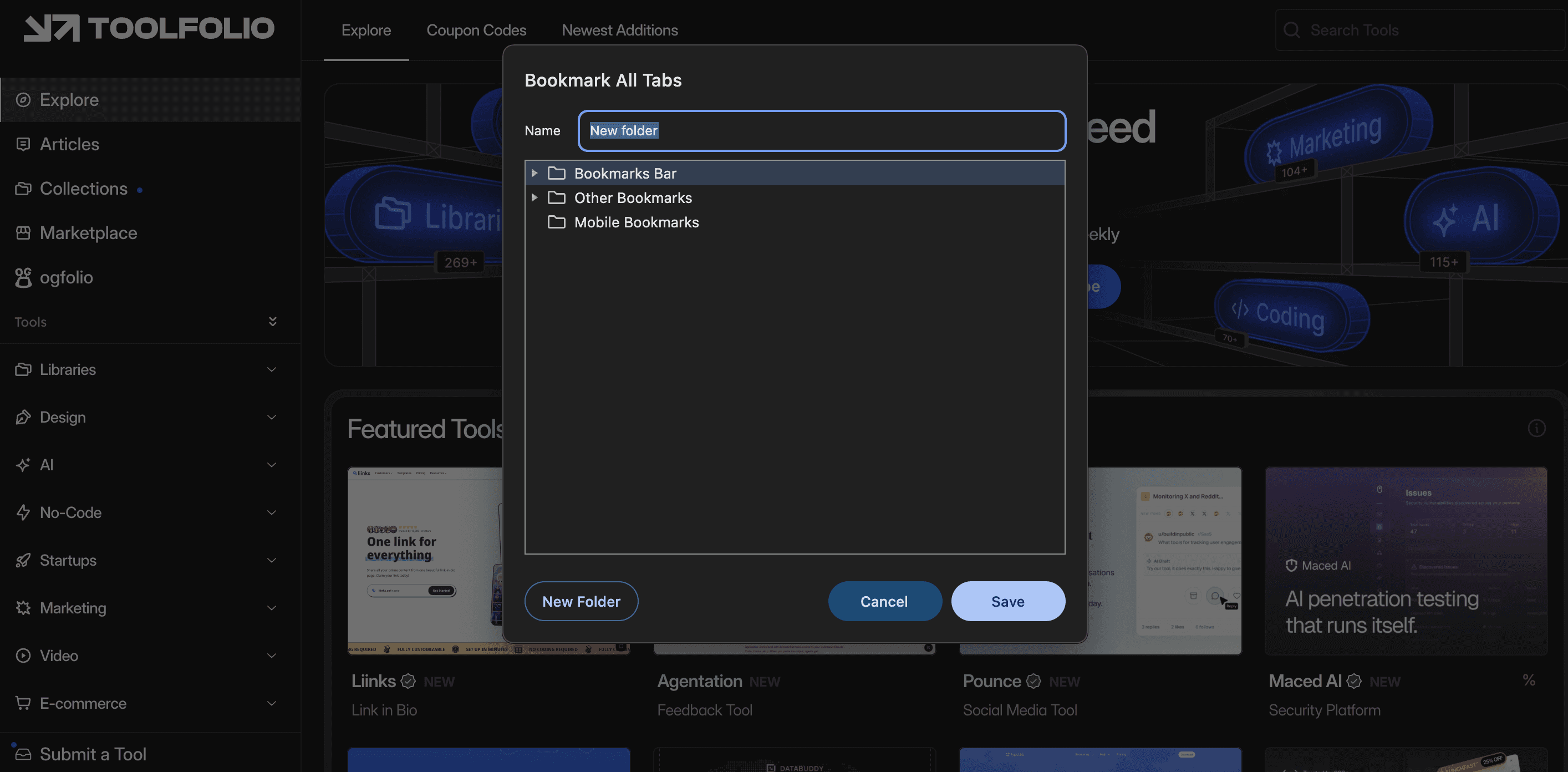
When you need those tabs again, right-click the folder and select Open all. You can also use Tab Groups to organize tabs and enable Save Group so they stay in your bookmarks bar.
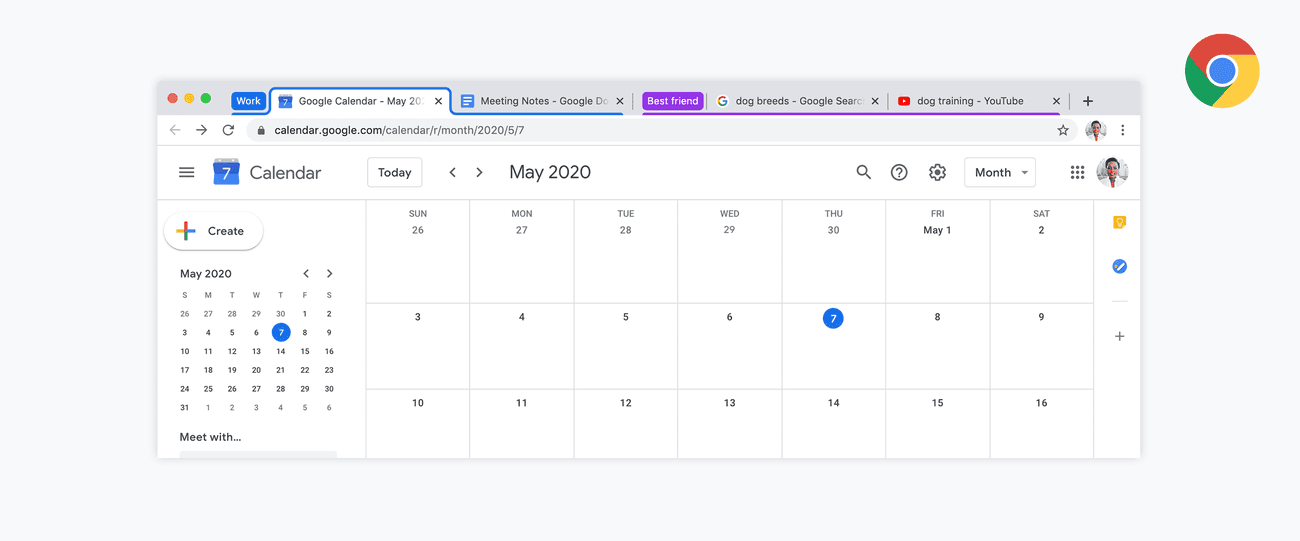
This works well for quick use, but it fails as a long-term solution. Bookmarked tabs quickly become cluttered, especially if you repeat this often. There is no proper way to manage multiple saved sessions, rename them clearly, or track what you saved and when.
Tab Groups also depend on manual handling and can break your workflow if you forget to save them properly. Over time, this method becomes messy and unreliable for managing large or ongoing work sessions.
2. Auto-Restore Tabs on Startup (Convenient but Risky)
Chrome has a built-in option that automatically reopens your last session. To enable it, open the three-dot menu, go to Settings, find the On startup section, and select Continue where you left off. Once turned on, Chrome will bring back your previously open tabs every time you restart the browser.
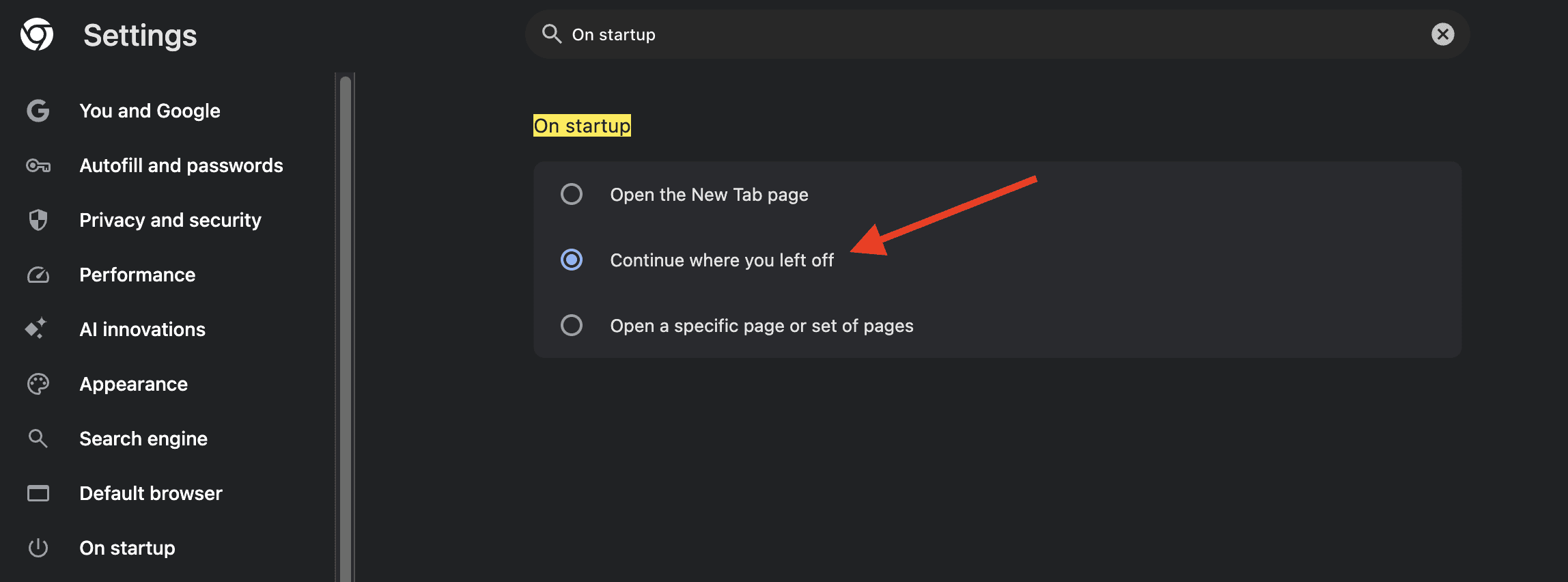
This sounds useful, but it is not dependable. It only restores the tabs that were open at the moment you closed Chrome. If you accidentally closed something earlier, it is already lost. More importantly, this method depends on a proper shutdown.
If Chrome crashes, your system shuts down suddenly, or something goes wrong, your tabs may not come back at all.
For basic use, it works. But for anything important, it is not a safe way to store or manage your tabs.
3. Use a Tab Manager Extension Like Tabsurfer (Most Reliable)
If you want a proper solution, a tool like Tabsurfer solves the problem completely. Instead of just saving tabs, it lets you organize, search, and restore them in a clean and structured way.
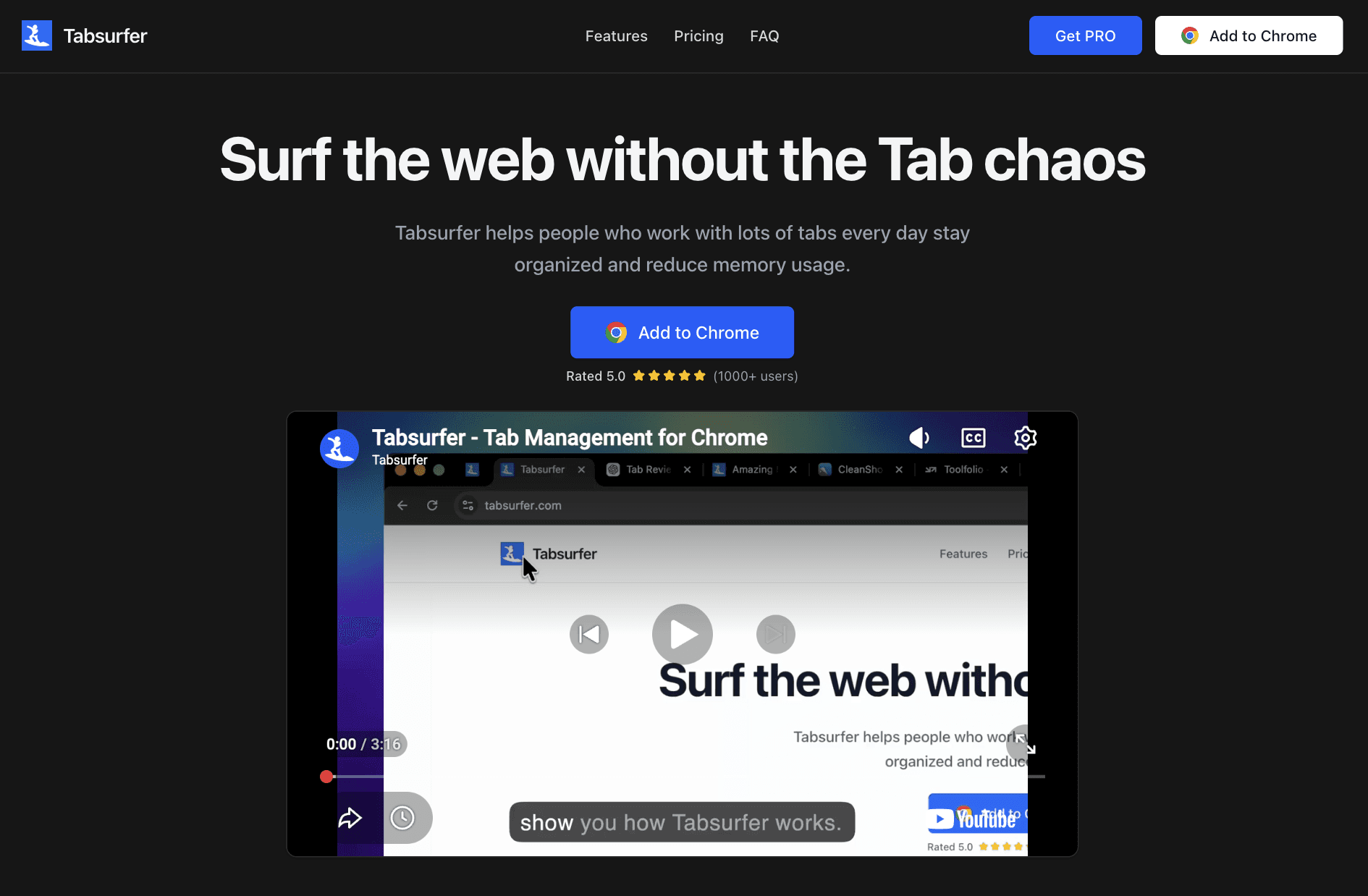
It is built for people who keep many tabs open and want to stay in control without slowing down their browser.
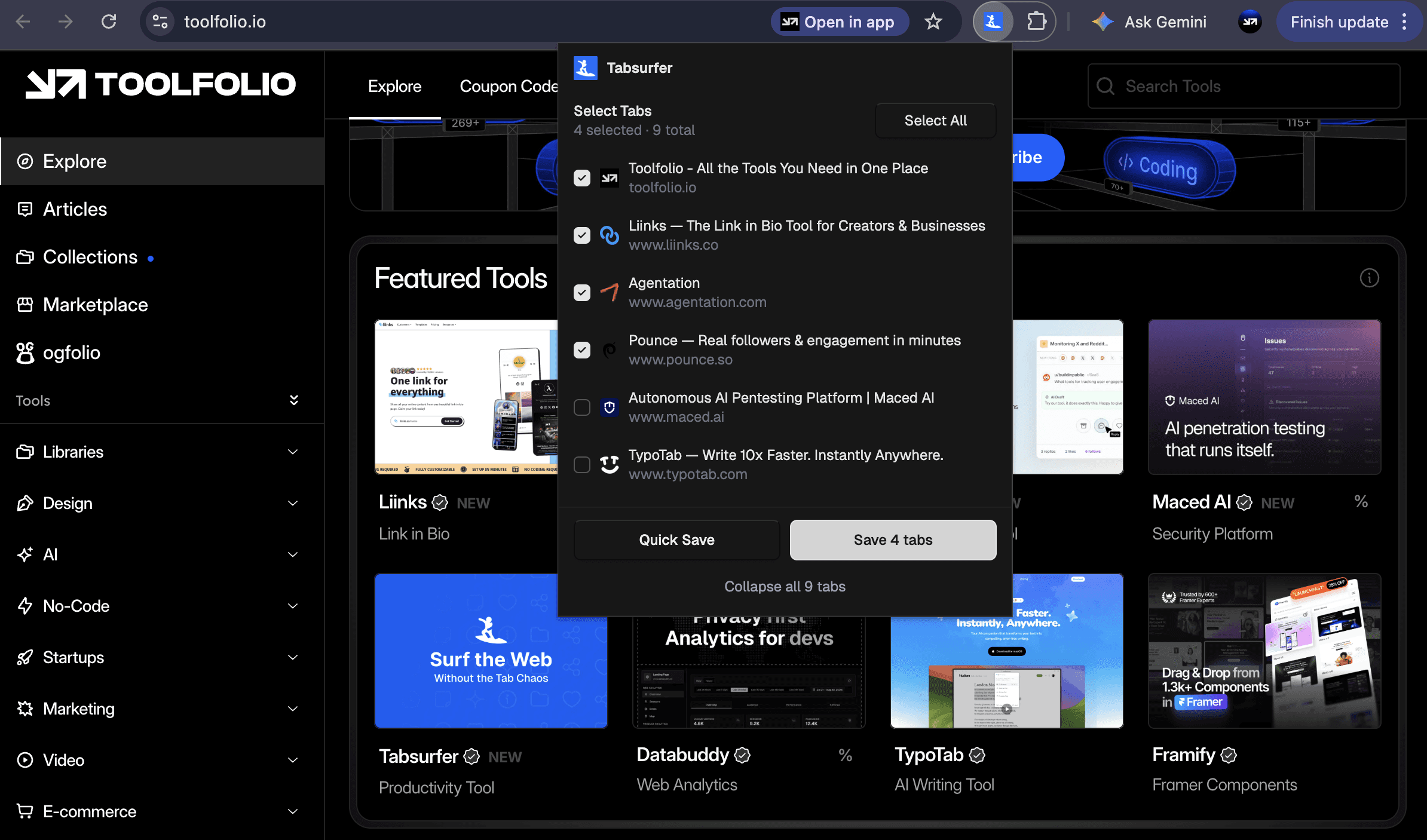
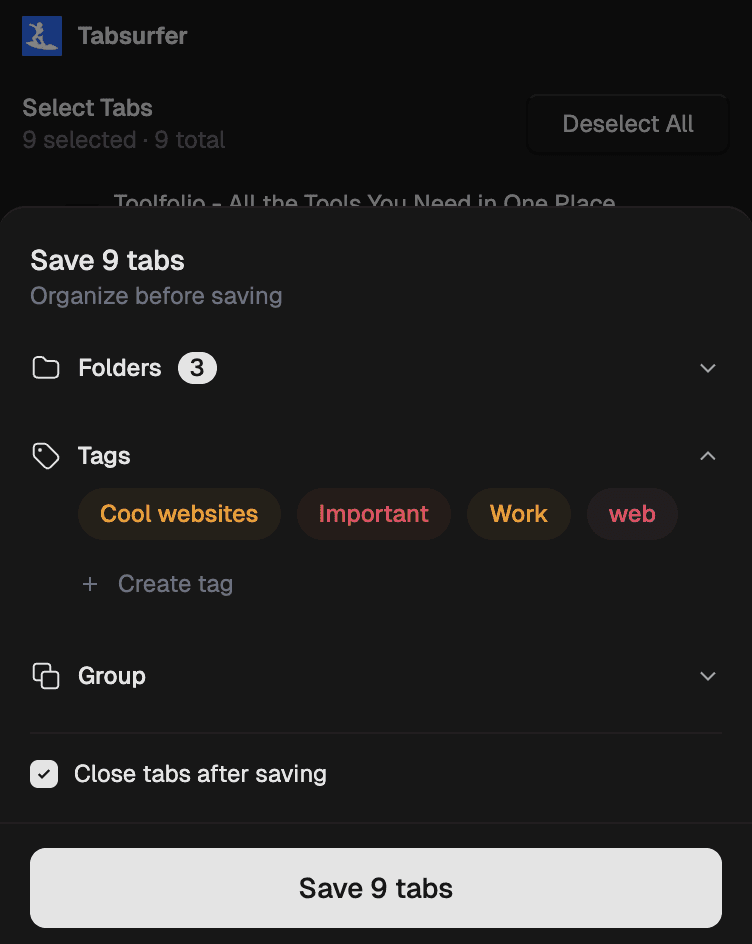
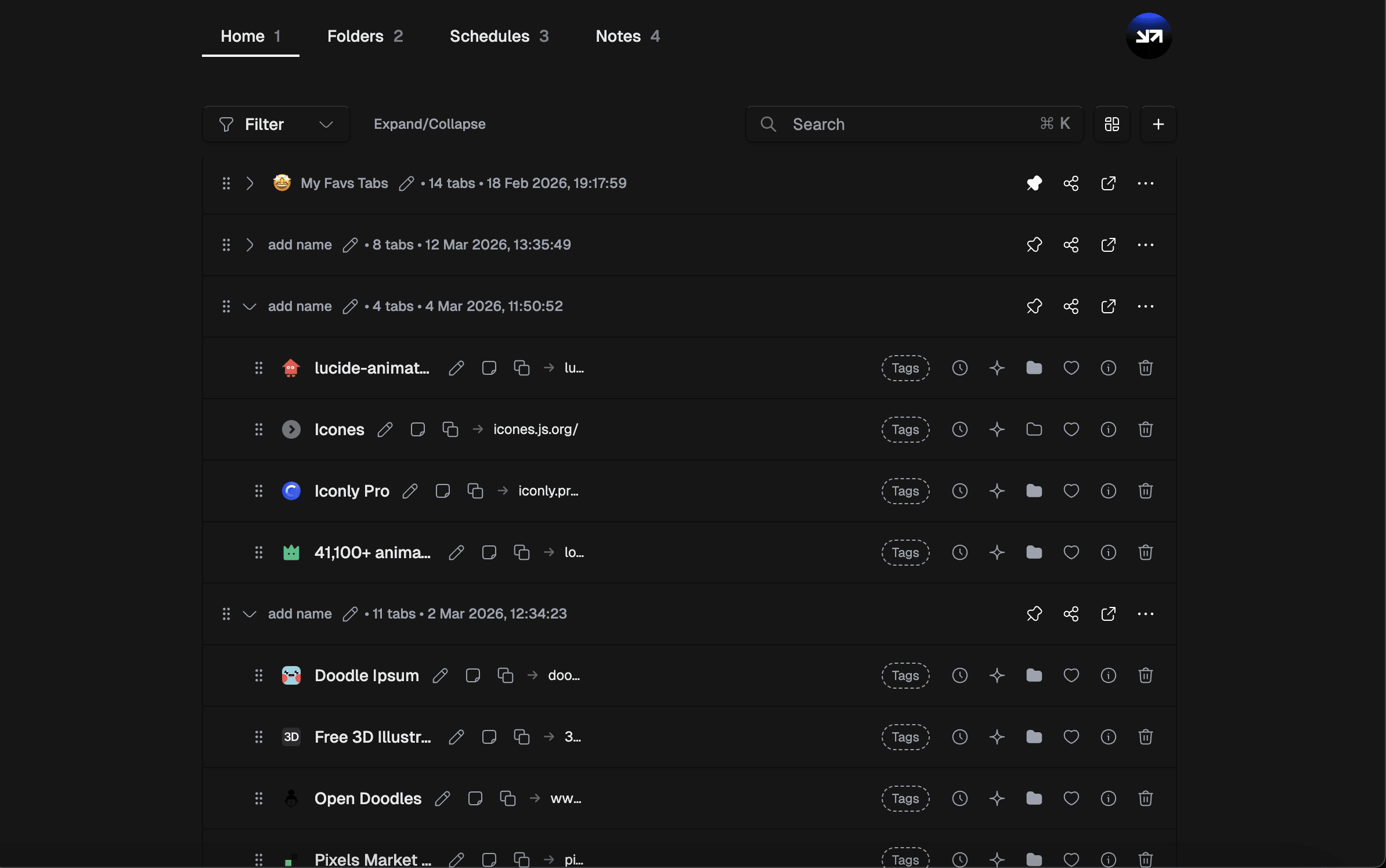
Saving tabs is simple. Open the extension, select the tabs you want, and click save. You can create folders, add tags, group related tabs, and name everything properly. Once saved, you can open all tabs again with one click.
You can also search across active tabs, saved tabs, and even your browsing history using a quick search overlay, so nothing gets lost.
What makes it reliable is how much control you get. You can add notes to tabs, preview what each tab contains, reorder them, and even schedule tabs to open automatically at a specific time.
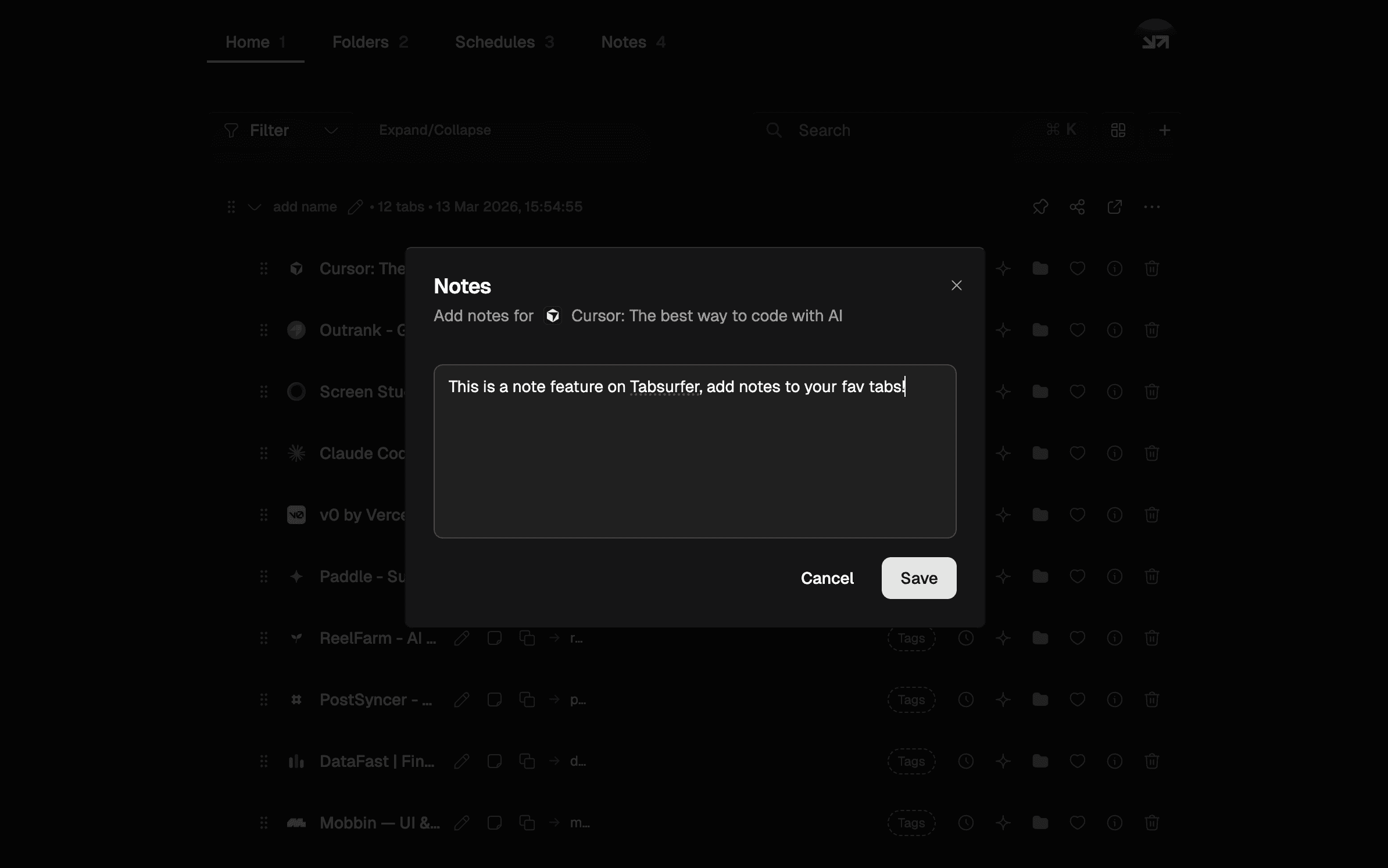
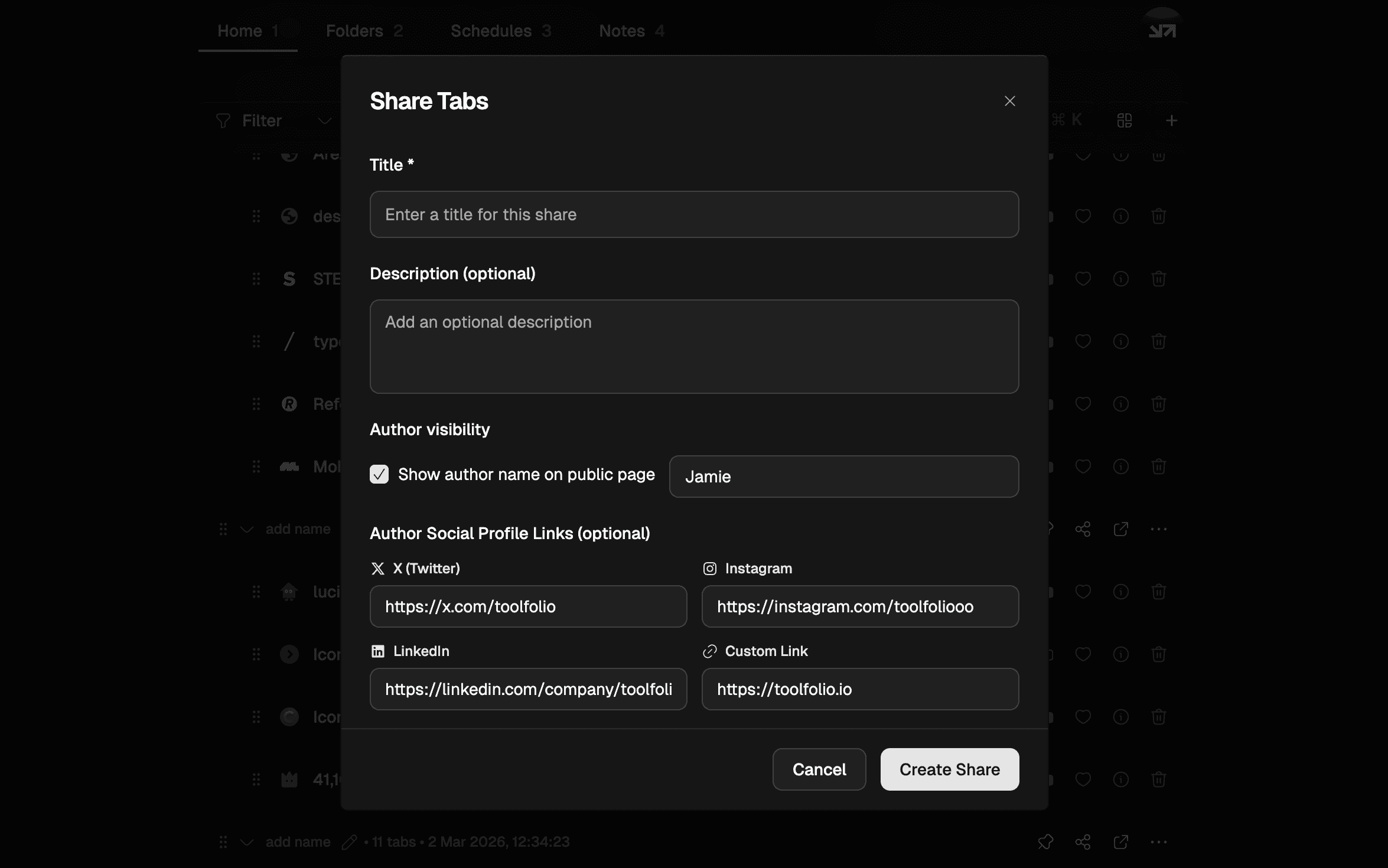
You can also create shareable links for a group of tabs or send a tab to AI to understand its content faster.
Unlike Chrome’s built-in methods, this does not get messy or break over time. Your tabs stay organized in folders, easy to find, and ready to use anytime.
It also helps reduce tab clutter and memory usage by letting you close tabs without losing them.
Wrapping Up
Saving tabs in Chrome is easy, but choosing the right method matters. Built-in options like bookmarking or auto-restore work for quick use, but they fail when you need reliability, organization, or long-term access.
If you deal with many tabs daily, using a dedicated tool like Tabsurfer gives you full control. You can save, organize, search, and restore tabs without clutter or risk of losing them.
The best approach is simple. Use Chrome’s basic features for temporary needs. Use a proper tab manager when your work depends on it.
You May Also Like

















Featured Tools








Newest Additions



















AI Image & Video Generation































Vibe Coding Library

















































Screenshot & Screen Recording Tools