How to Enable Vertical Tabs on Chrome (Complete Guide)
Chrome finally adds vertical tabs. Here’s how to enable them early and what to expect once your tabs move to the side.

Dudu
Jan 17, 2026
Last Updated Jan 17, 2026
Image Credit: Toolfolio
For years, vertical tabs have felt like one of those features you only miss after using them. Once your tabs move to the side, going back to a crowded horizontal bar feels messy and outdated.
Browsers like Microsoft Edge, Firefox, Arc, and Vivaldi figured this out a while ago. But Google Chrome stayed stubbornly traditional.
That finally changed.
Vertical tabs are now available in Chrome. Not in the stable release yet, but they are real, usable, and surprisingly polished for an early rollout.
Why Vertical Tabs Actually Matter
On paper, vertical tabs sound cosmetic. In practice, they change how you browse.
Tabs listed vertically give you more room. Titles are readable. Groups make sense. You stop guessing which tab is which. Your browser feels calmer, especially if you live with 15 to 30 tabs open at all times.
This is why vertical tabs quietly became the default for power users. Chrome adding them is long overdue.
Where Vertical Tabs Are Available Right Now
Vertical tabs are currently hidden behind an experimental flag. To try them, you need:
They are not enabled by default, and Google has not shared when they will land in stable Chrome.
How to Enable Vertical Tabs in Chrome (Step by Step)
Step 1: Install Chrome Beta or Chrome Canary
Vertical tabs are not available in the stable version of Google Chrome yet.
To access them now, you need either Chrome Beta or Chrome Canary.
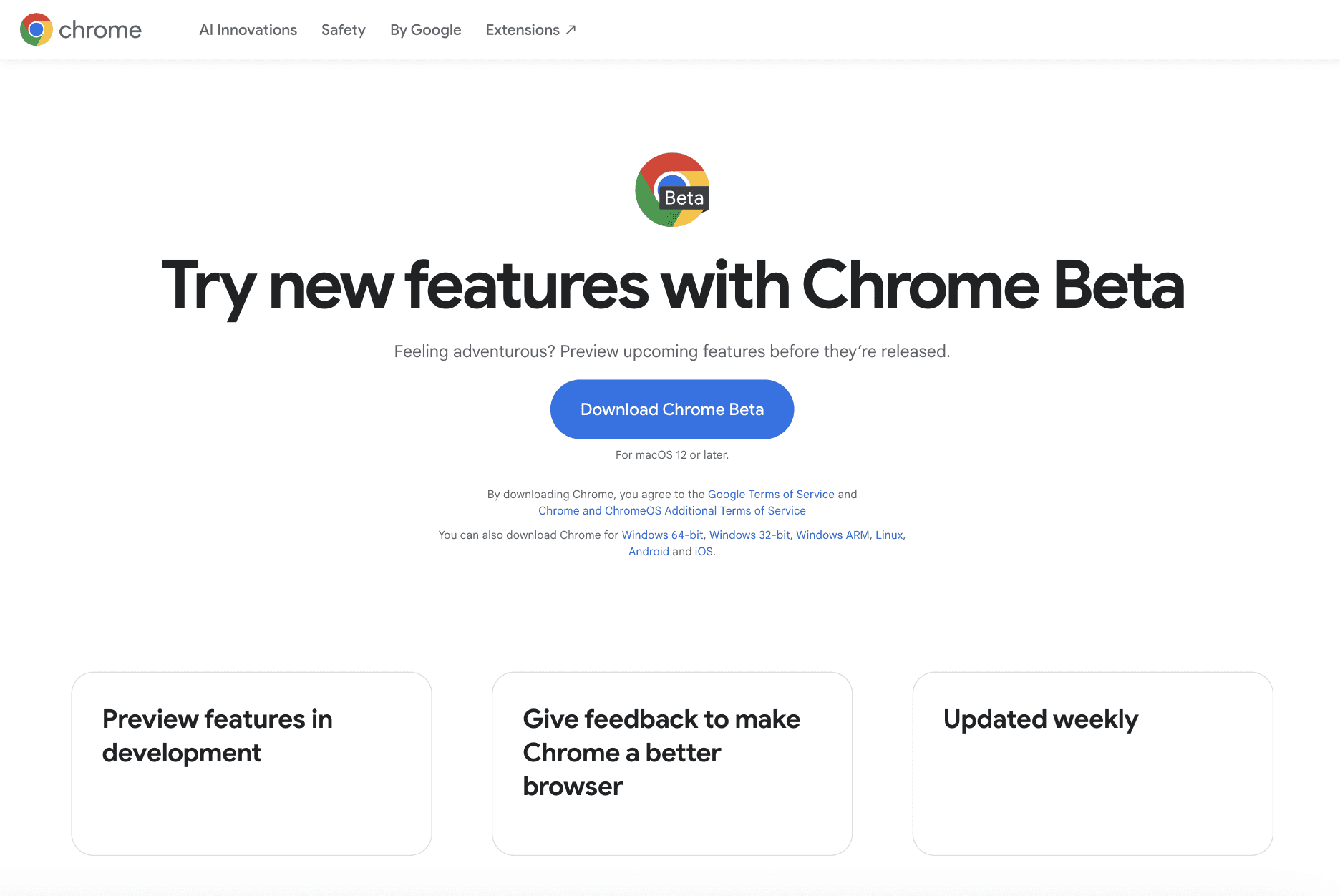
Beta is more stable and closer to public release, while Canary updates daily and can be less predictable. Either works, but Beta is the safer choice if this is your main browser.
Step 2: Open the Chrome Flags Page
Once Chrome Beta or Canary is installed, open the browser and type chrome://flags into the address bar. For this post, am using Chrome Beta.
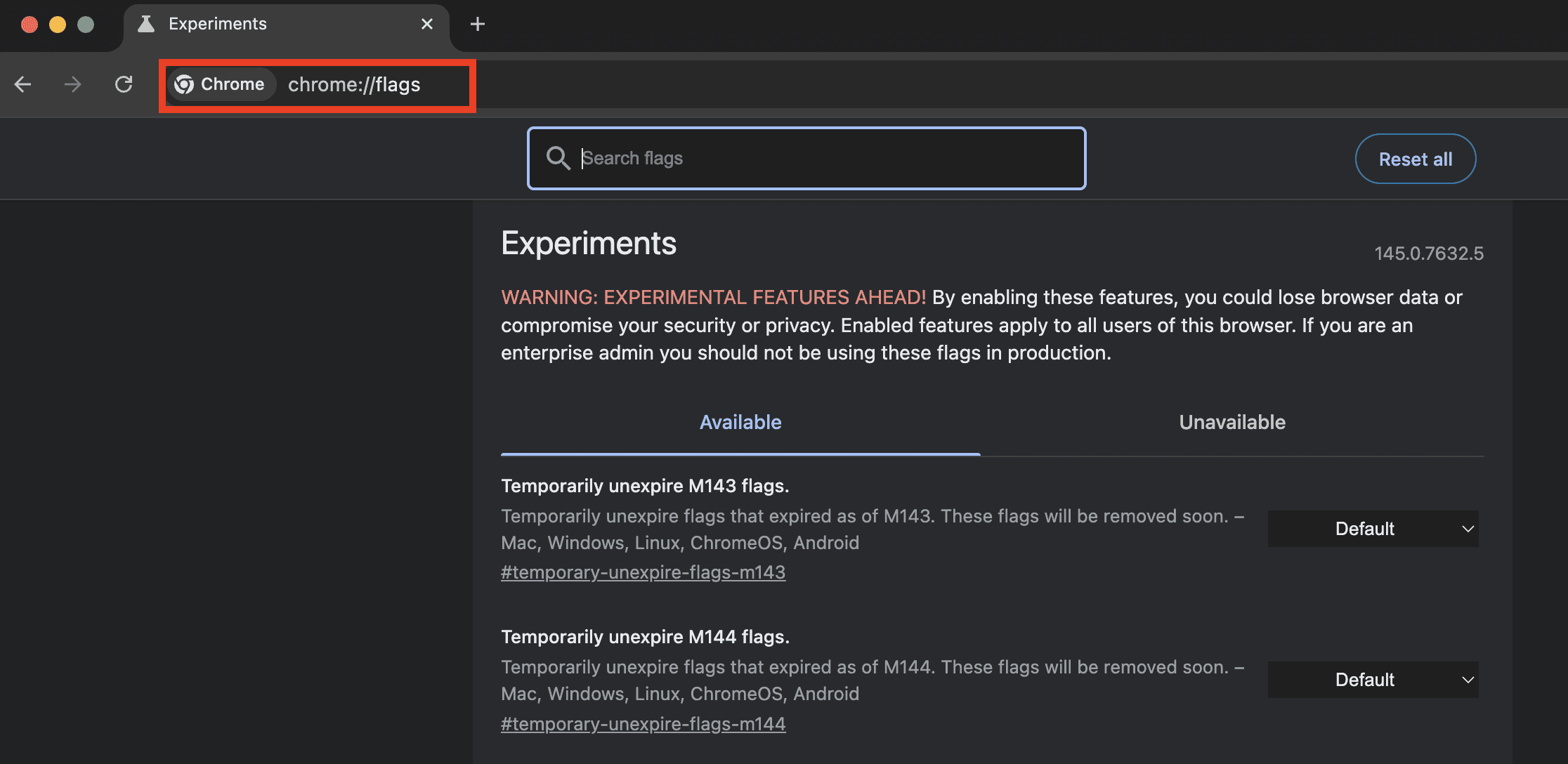
This page contains experimental features that are still under development. Google hides features like vertical tabs here before they are ready for wide release.
Step 3: Search for the Vertical Tabs Flag
At the top of the flags page, use the search bar and type vertical tabs.
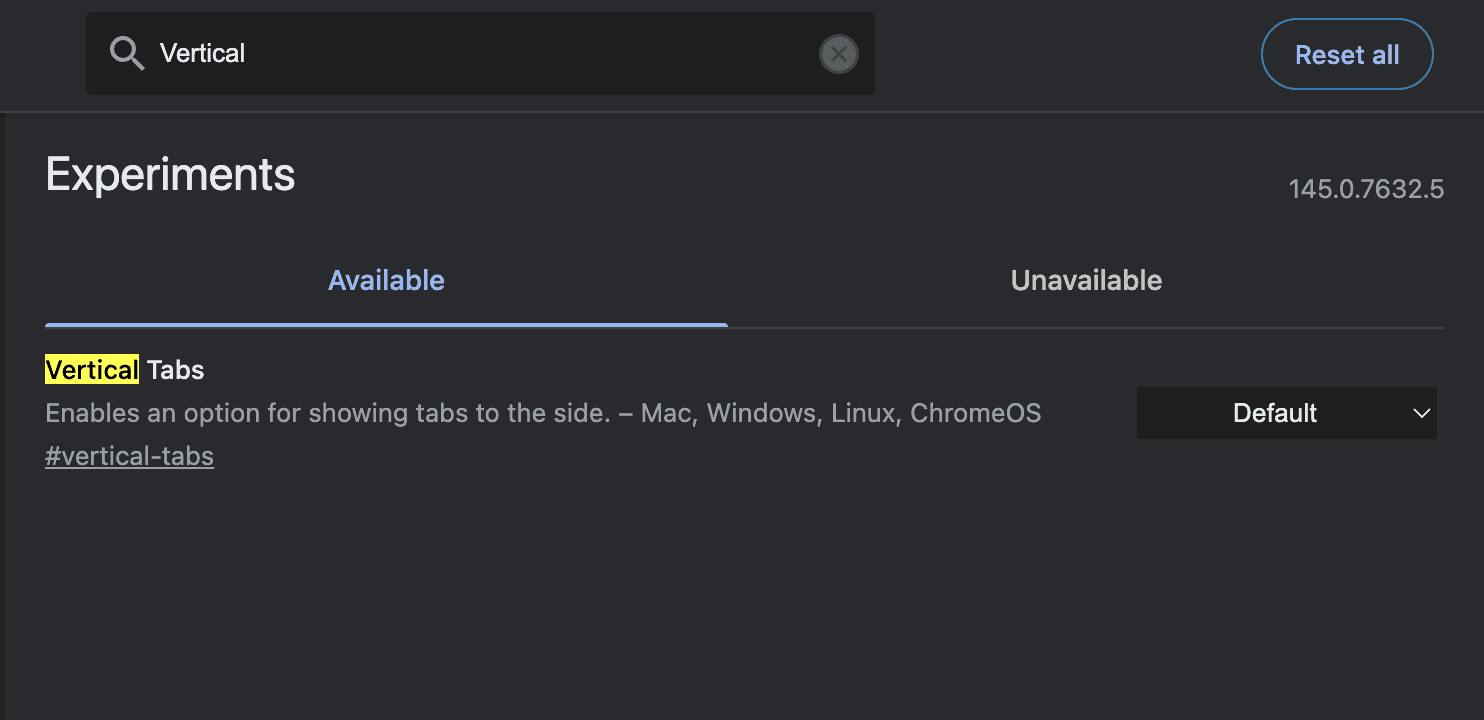
This filters the long list of experimental options and brings the correct flag into view. You do not need to scroll or manually hunt for it.
Next to the Vertical Tabs flag, click the dropdown menu and change it from Default to Enabled.
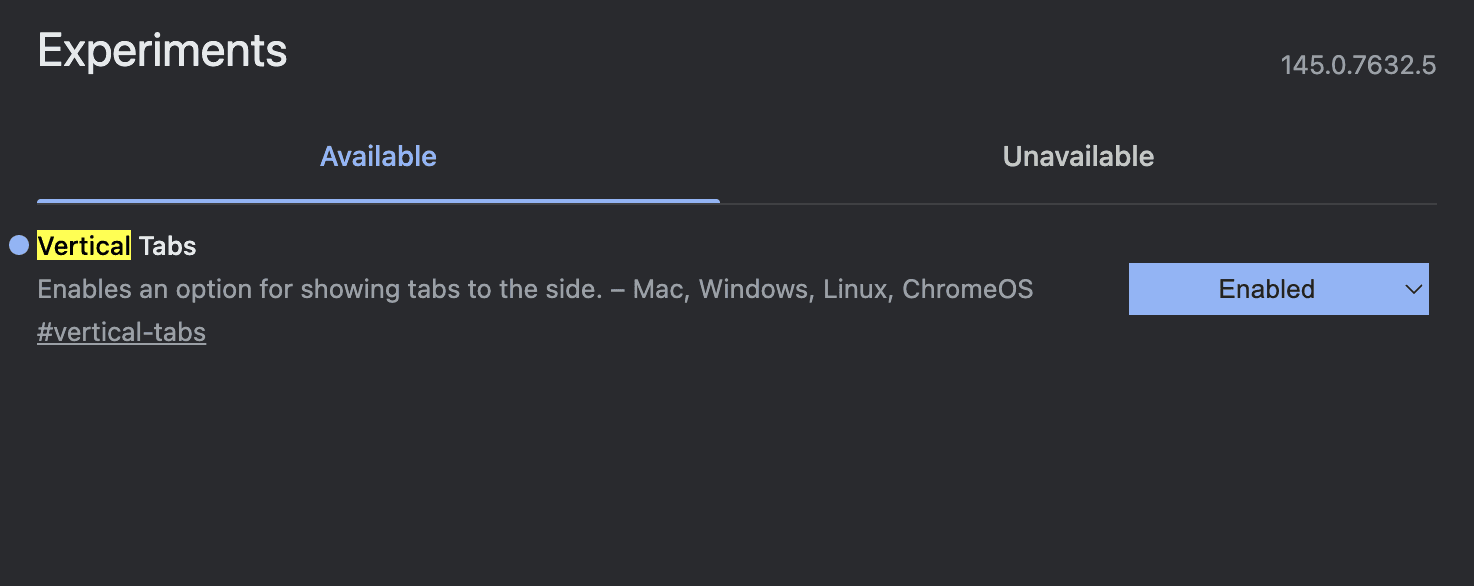
After enabling the flag, Chrome will show a Relaunch button at the bottom of the screen.
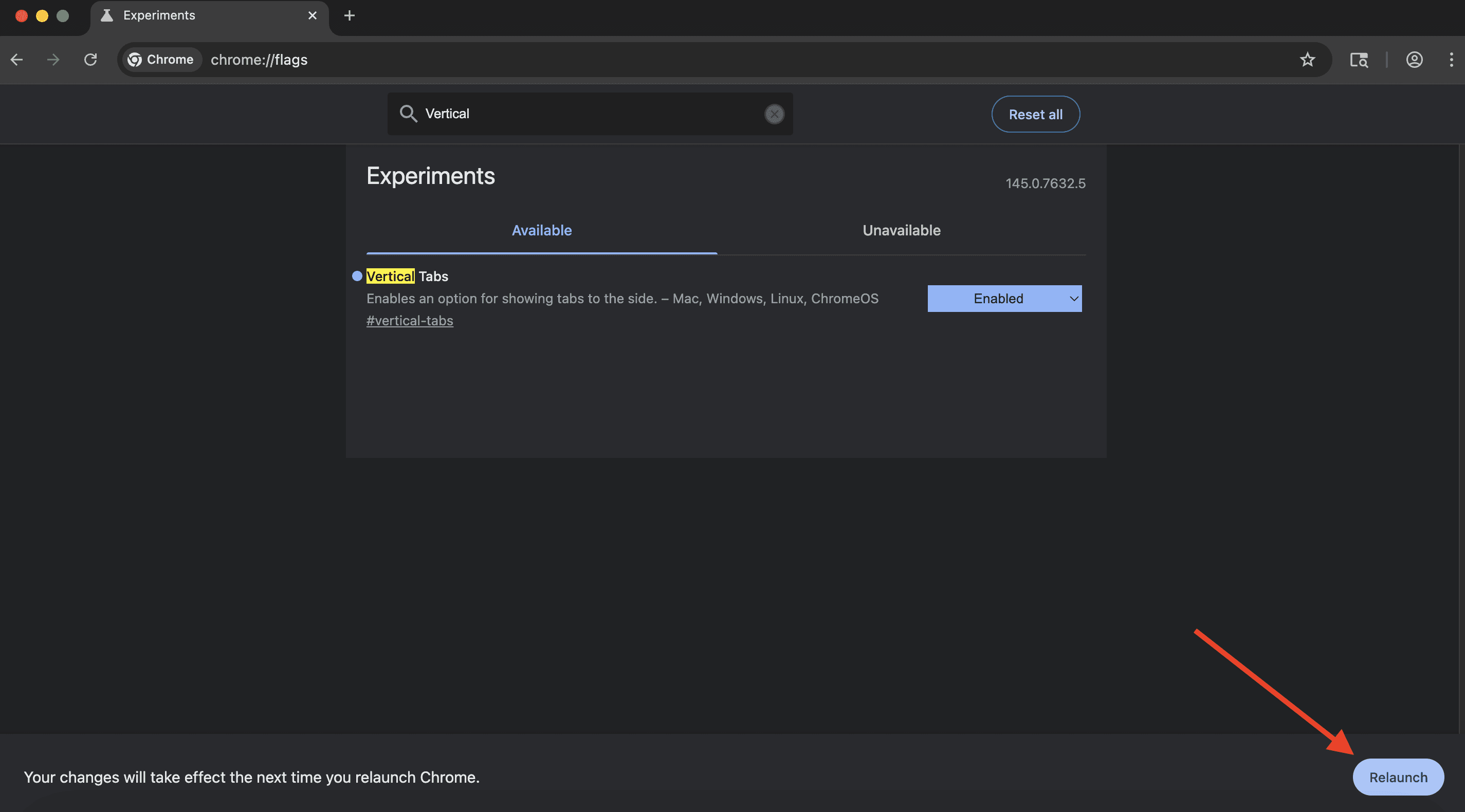
Click it. Chrome will close and reopen automatically, applying the vertical tabs feature in the background.
Step 4: Move Tabs to the Side
After Chrome restarts, right-click the area above the address bar.
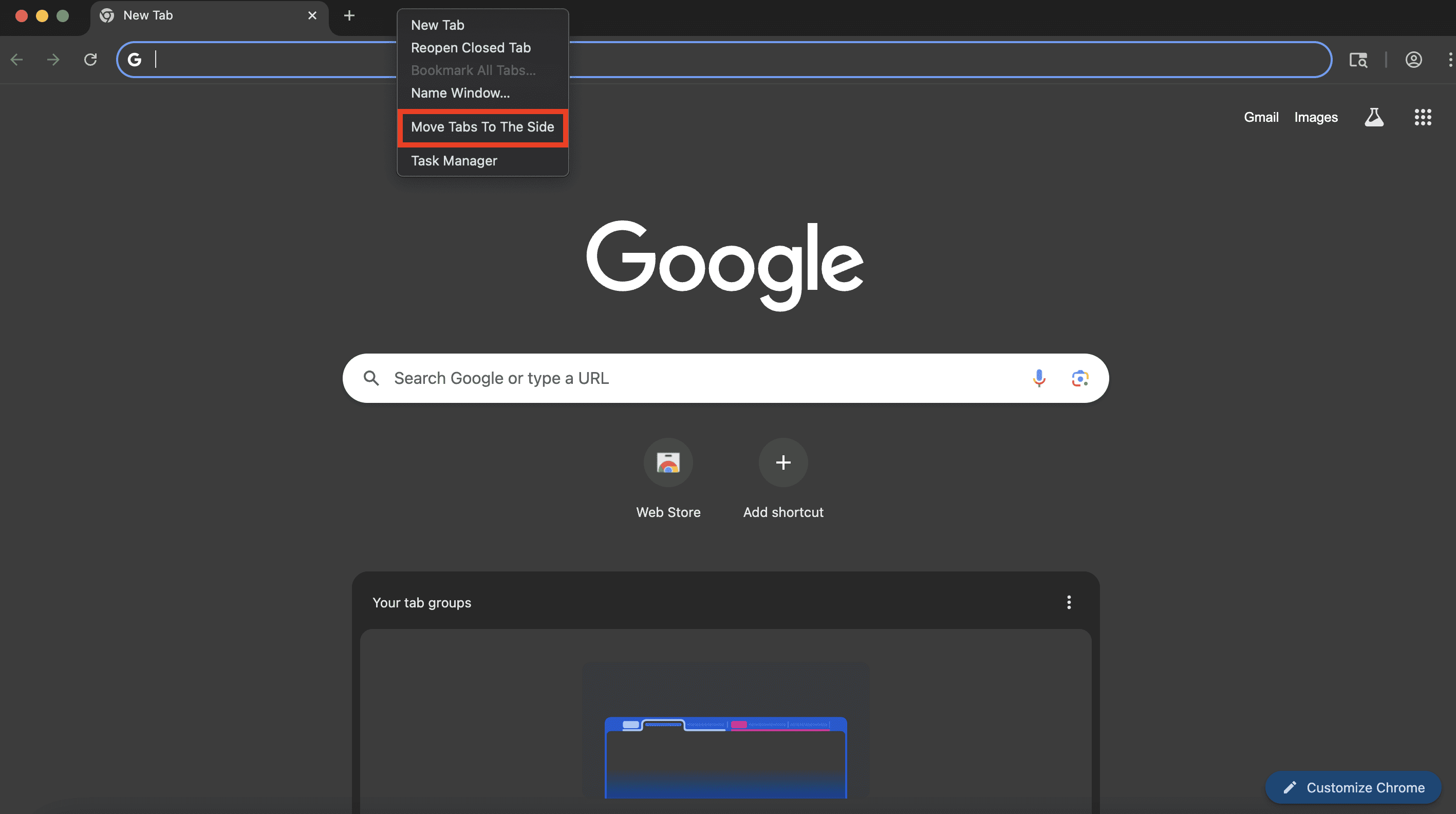
In the menu that appears, select Move tabs to the side.
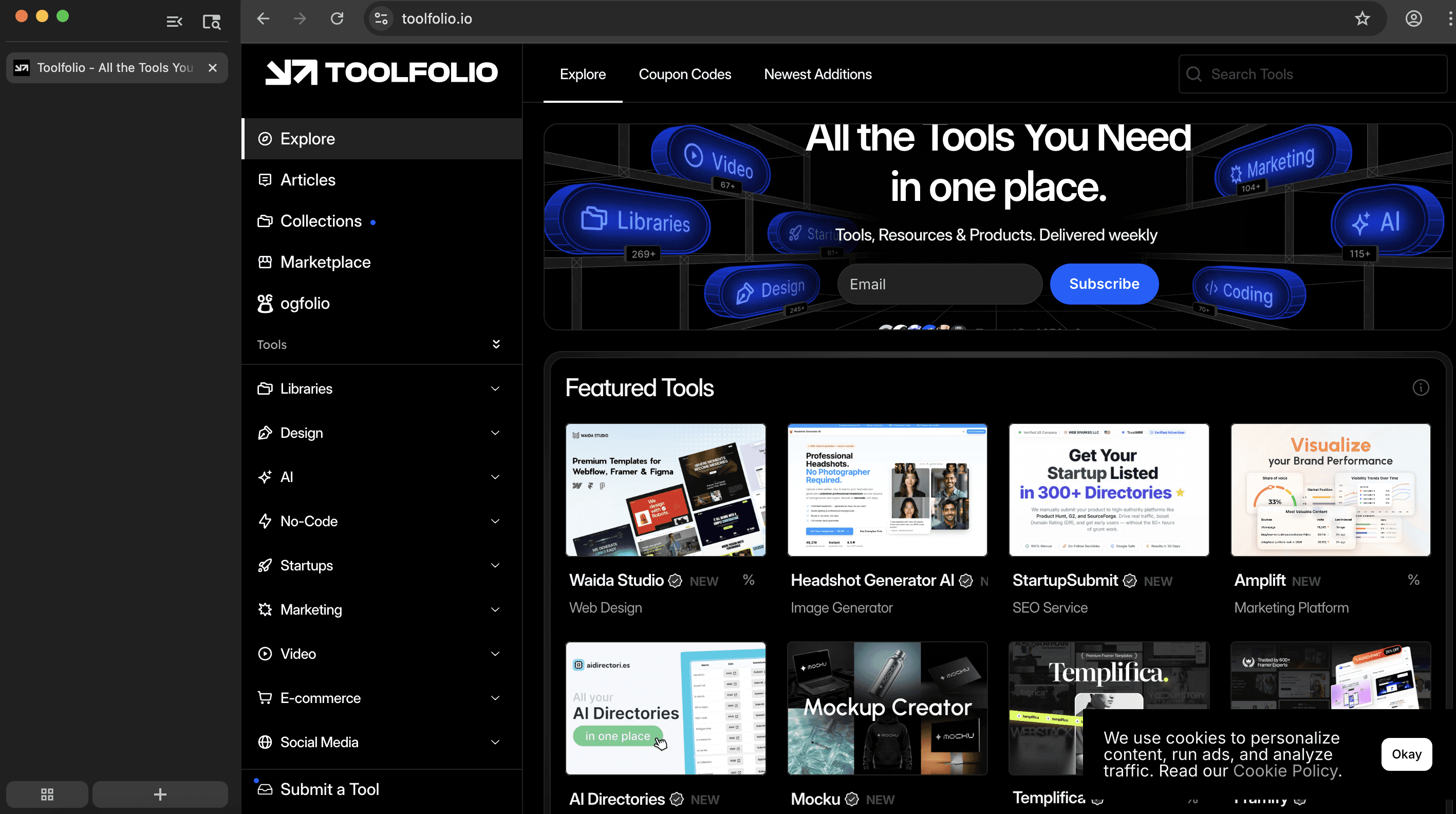
Your tabs will immediately shift from the top of the browser to a vertical sidebar on the left.
Step 5: Restart Chrome If the Old Tab Bar Still Appears
If you still see the traditional horizontal tab bar after switching, fully close Chrome and reopen it once more. In some cases, Chrome needs a second restart to fully apply the layout change.
After that, only the vertical tabs should remain.
How to Switch Back to Horizontal Tabs
If vertical tabs are not for you, switching back is easy.
Right-click above the vertical tab list. Click Move tabs to the top.
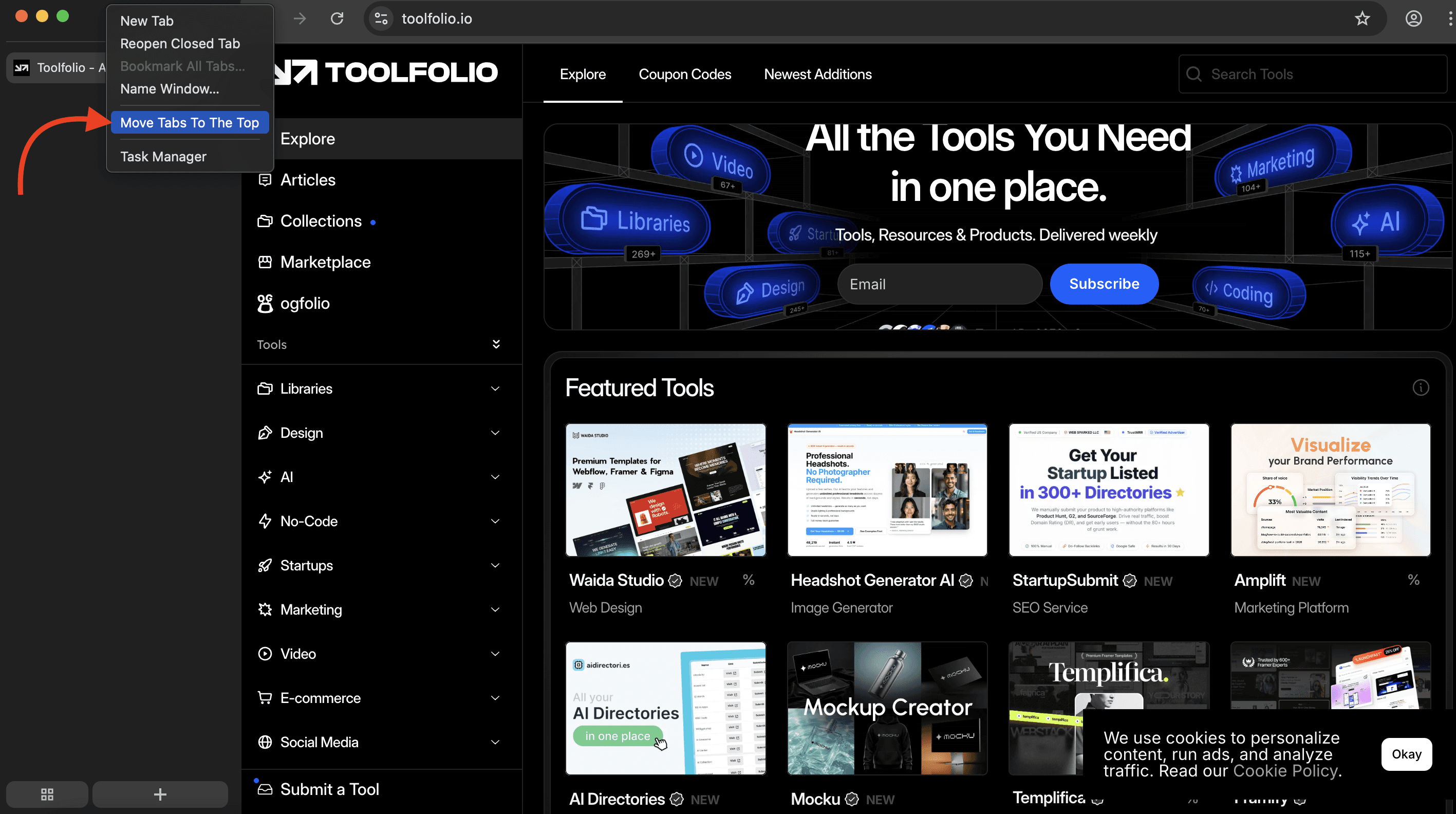
Your browser instantly returns to the classic horizontal layout.
One small quirk: on macOS, this option may not appear in full-screen mode. Exit full screen, try again, and it should work.
What Chrome Gets Right And What Still Needs Work
Chrome’s first pass does a few things well.
Tab groups work naturally in the vertical view, having new tab and group controls inside the same sidebar feels logical and the ability to collapse the sidebar while keeping tab icons visible is useful.
For an early implementation, it already feels usable rather than experimental.
What Still Needs Work
There are rough edges.
In the collapsed sidebar view, clicking a tab closes it instead of switching to it. There is no setting to change this behavior, which makes the minimized mode frustrating.
The address bar also stays at the top of the window, separate from the tab list. Browsers like Arc move everything into a single vertical column, which feels more cohesive. Chrome’s layout still feels split between old and new ideas.
The good news is that this is clearly an early test. Google has time to refine interactions before rolling this out broadly.
Should You Use Vertical Tabs in Chrome?
If you like working with many tabs, vertical tabs are worth trying. Even if you end up switching back, the experience makes it clear why so many browsers moved in this direction.
Chrome adopting vertical tabs is not just a visual tweak. It is Google slowly accepting that the way people browse has changed.
And once this hits stable Chrome, it will be hard to ignore.
You May Also Like













Featured Tools







Newest Additions




















AI Image & Video Generation































Vibe Coding Library




















































Screenshot & Screen Recording Tools