
How to Connect Claude to Canva (Step-by-Step Guide)
Learn how to connect Claude to Canva, enable the Canva connector, and create designs directly from Claude in a few simple steps.

Dudu
Mar 13, 2026
Last Updated Mar 13, 2026
Image Credit: Toolfolio
AI assistants are getting better at creating content. But creating the design still takes time.
You write ideas in Claude. Then you open Canva, find a template, edit text, export the file, and repeat the same steps again.
Connecting Claude to Canva removes that extra work.
Once connected, Claude can search your Canva designs, create new ones, autofill templates, and export finished files like images or PDFs. You can go from idea to design without leaving the chat.
The setup only takes a few minutes.
In this guide, you will learn how to connect Claude to Canva step by step, enable the Canva connector, and start creating designs directly from Claude.
Steps to Connect Claude to Canva
Step 1: Open Claude and go to Settings
Open Claude and log in to your account. Look for the Settings option in the interface. Inside Settings, find the Connectors section.
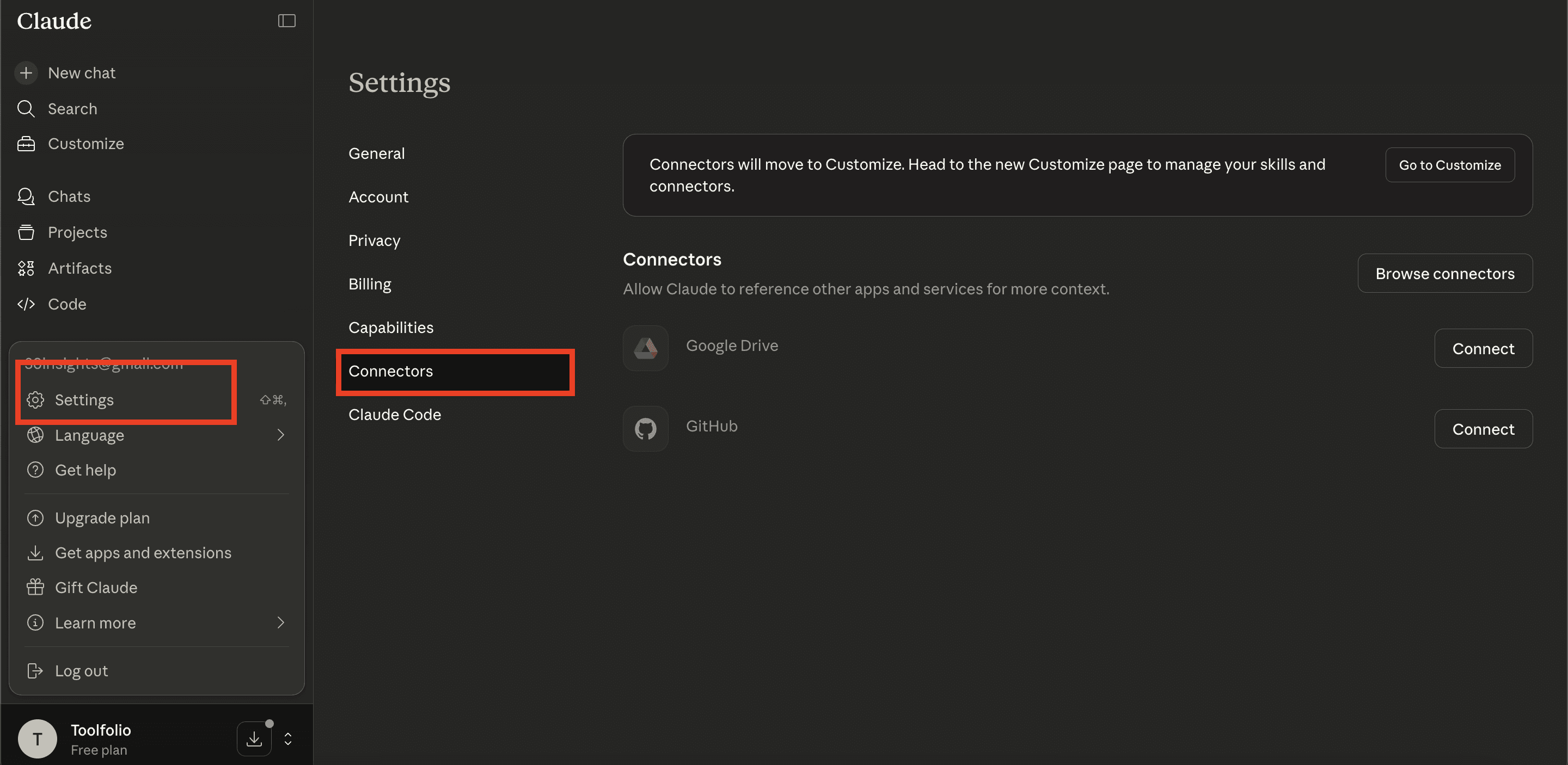
This is where Claude lets you connect external tools and services like Canva.
Step 2: Find Canva in the Connectors list
Inside the Connectors section, scroll through the available integrations and look for Canva.
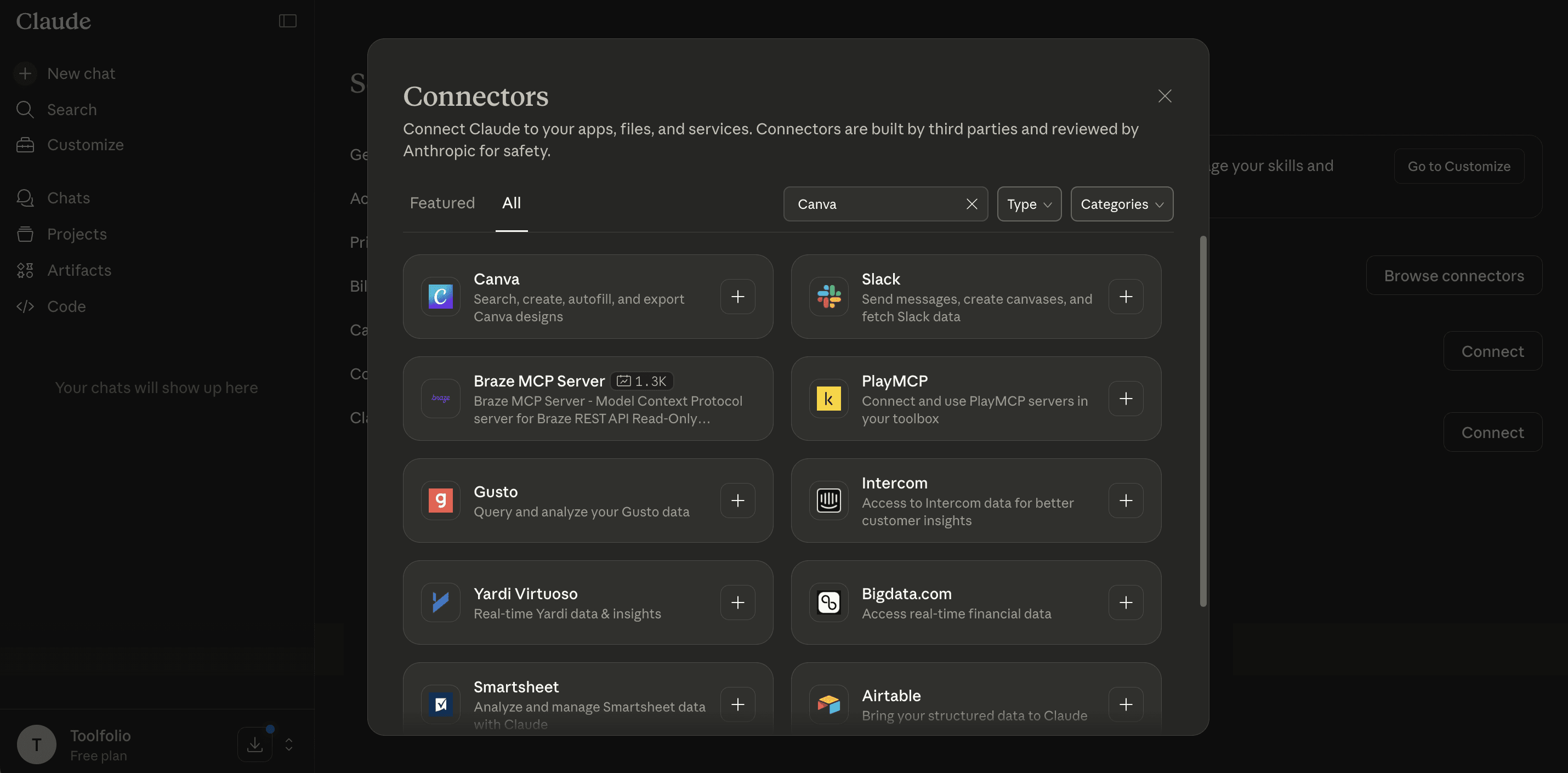
Once you find it, select Canva to start the connection process. Claude will guide you through the setup.
Step 3: Connect your Canva account
After selecting Canva, Claude will ask you to sign in to your Canva account.

Enter your Canva login details and approve the connection request. This allows Claude to access your Canva workspace so it can create and manage designs.
Step 4: Enable Canva in a new Claude chat
Once the connection is complete, start a new chat in Claude. Click the settings icon inside the chat window. In the Connectors section, turn the Canva toggle on.
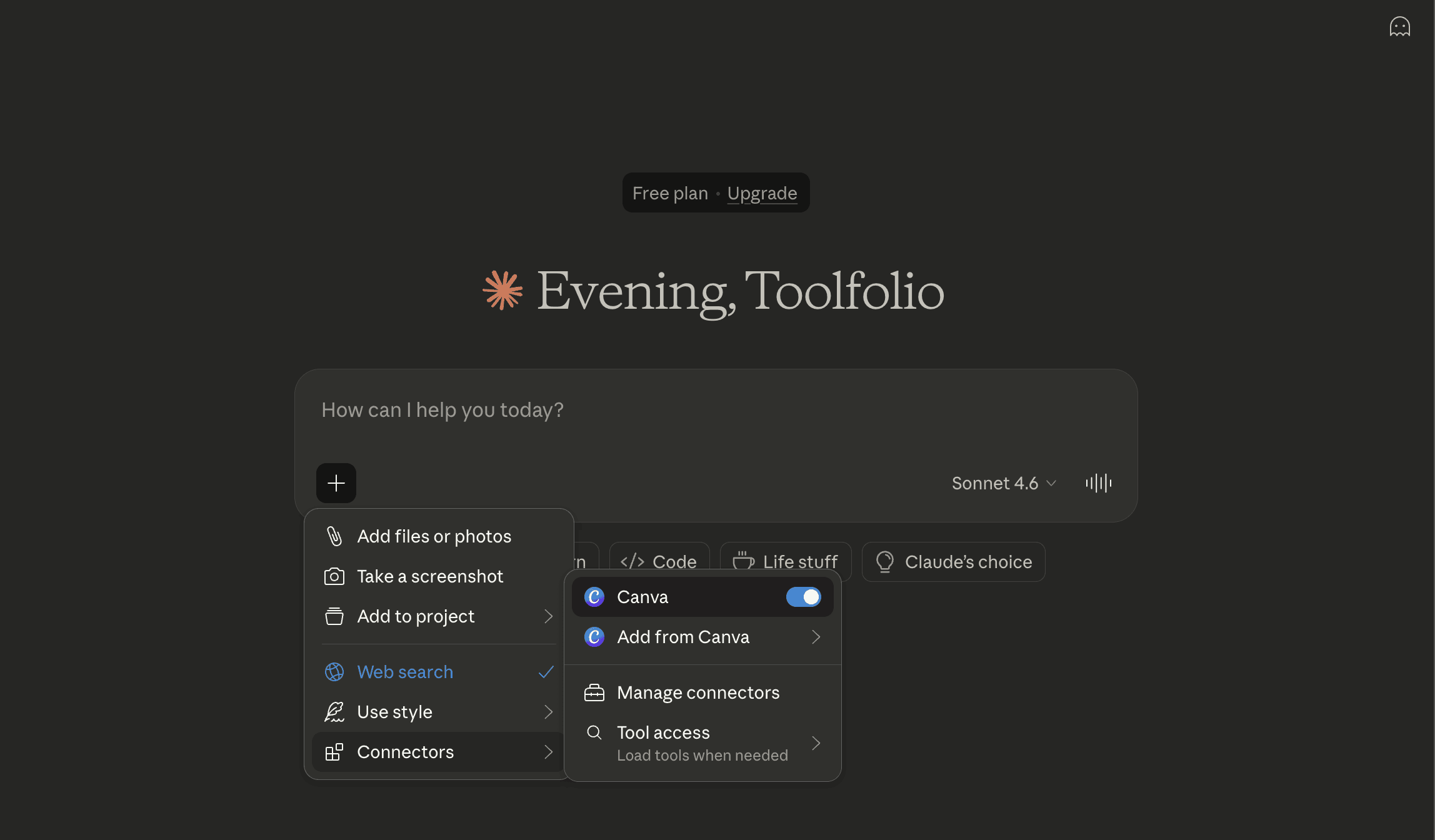
This activates the Canva connector for that conversation.
Step 5: Start creating Canva designs with Claude
After enabling the connector, you can begin using Canva directly from Claude. Ask Claude to create designs, find existing files, autofill templates, or export finished designs as images or PDFs.
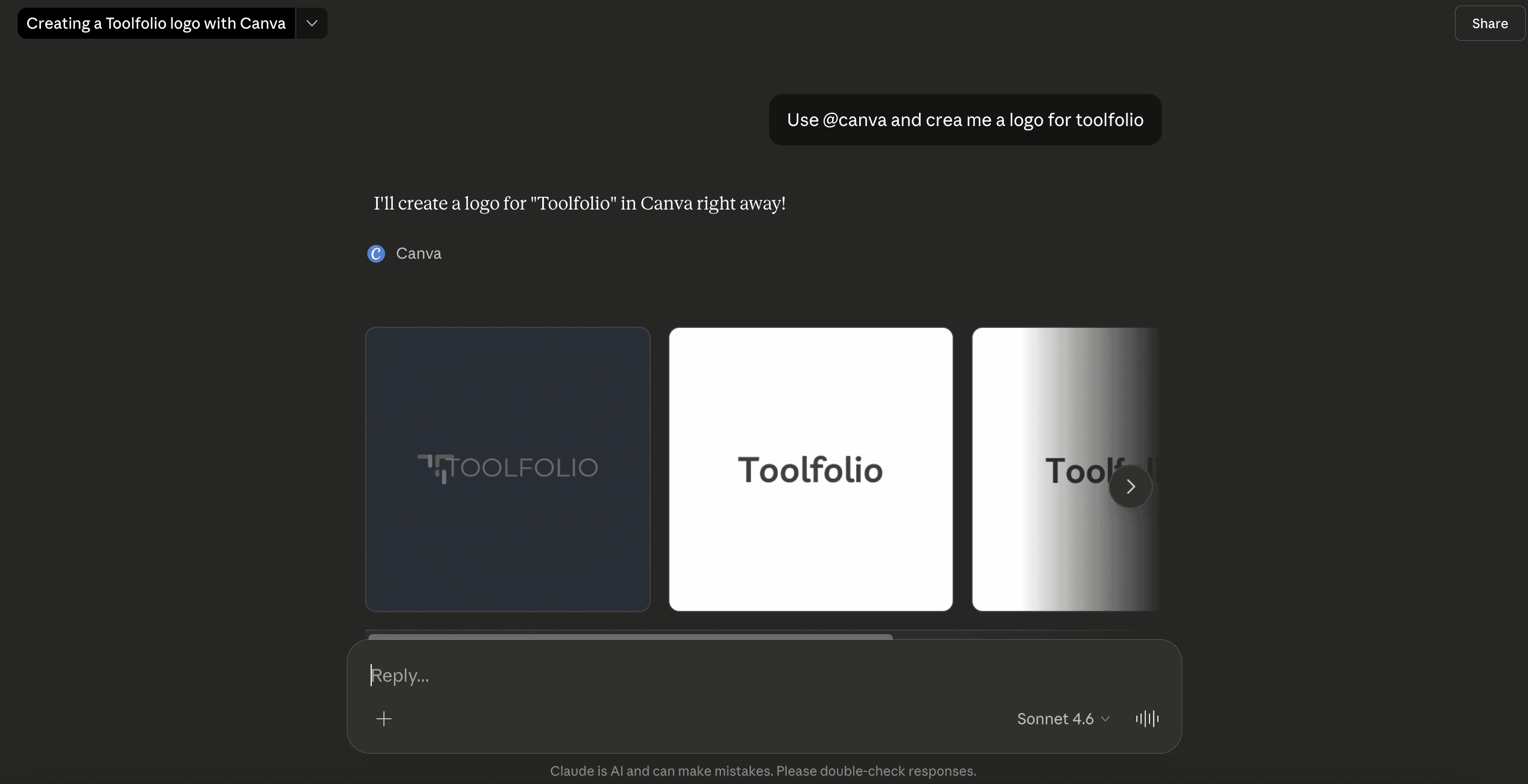
Claude will use Canva’s API to perform these actions inside your Canva account.
Wrap Up
Connecting Claude to Canva helps you move faster from idea to design. Instead of switching between tools, you can create, edit, and export designs directly from Claude.
Once the Canva connector is enabled, Claude can search your designs, autofill templates, generate new graphics, and export finished files as images or PDFs. This makes it easier to turn simple prompts into ready-to-use visuals.
The setup only takes a few minutes. After that, you can manage many of your Canva design tasks directly inside Claude.
You May Also Like











Featured Tools




Newest Additions
















AI Image & Video Generation

























Vibe Coding Library





































Screenshot & Screen Recording Tools