
How to Connect ChatGPT to Canva (Step-by-Step Guide)
Learn how to connect ChatGPT to Canva, enable the Canva integration, and create designs directly from ChatGPT in a few simple steps.

Dudu
Mar 17, 2026
Last Updated Mar 17, 2026
Image Credit: Toolfolio
You write ideas in ChatGPT. But turning them into designs still takes work.
You copy the text, open Canva, pick a template, edit everything, and export the file. Then you repeat the same steps again for every post, banner, or document.
That gap slows everything down.
Connecting ChatGPT to Canva fixes this.
Once connected, ChatGPT can create designs, fill templates, find your existing files, and export them as images or PDFs. You go from idea to finished design without switching tools.
The setup is simple and takes a few minutes.
In this guide, you will learn how to connect ChatGPT to Canva step by step and start creating designs directly from ChatGPT.
Connecting ChatGPT to Canva (Step-by-Step Guide)
Step 1: Open ChatGPT and go to Settings
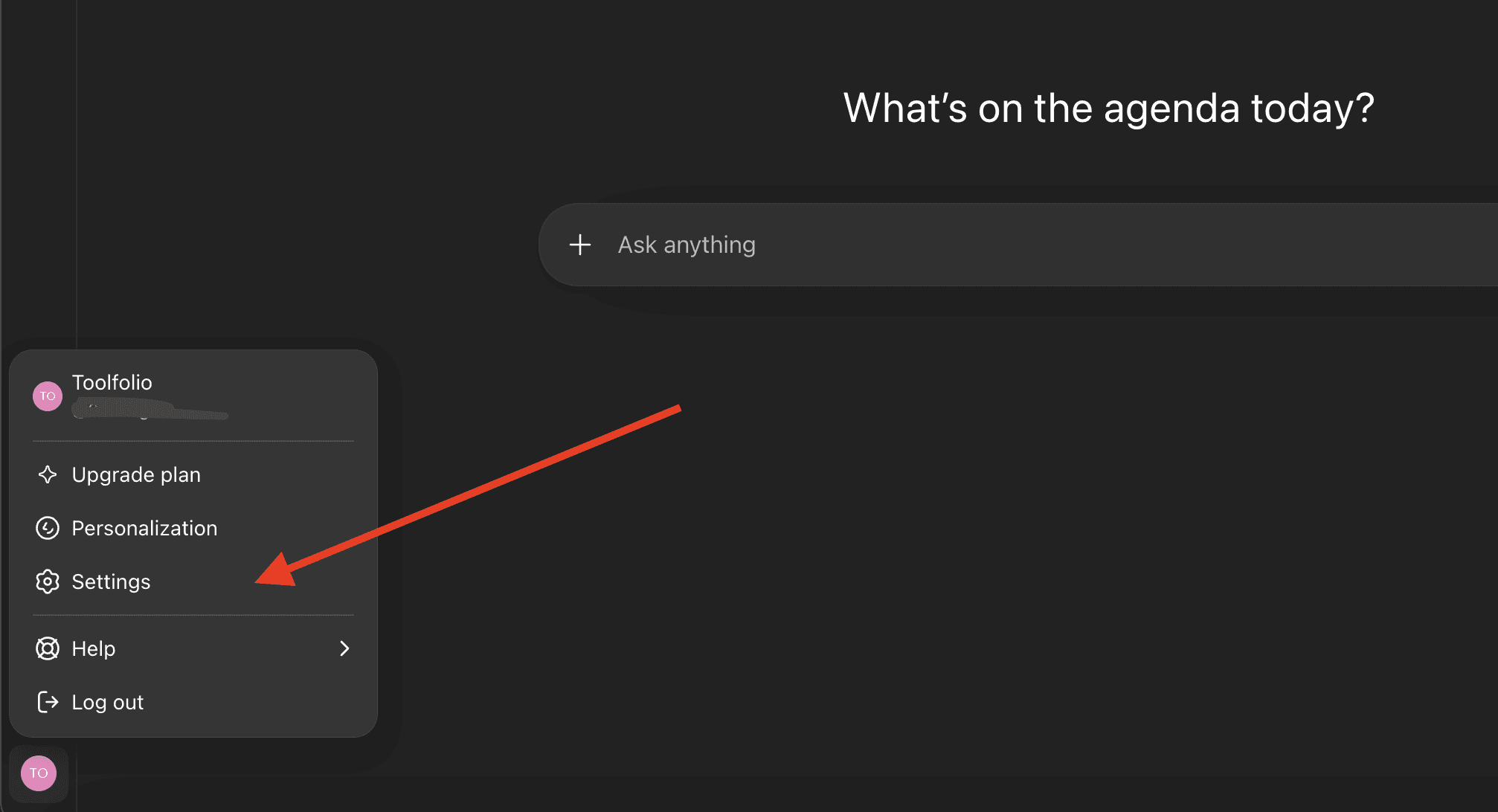
Open ChatGPT and log in to your account. Click on your profile or menu and go to Settings.
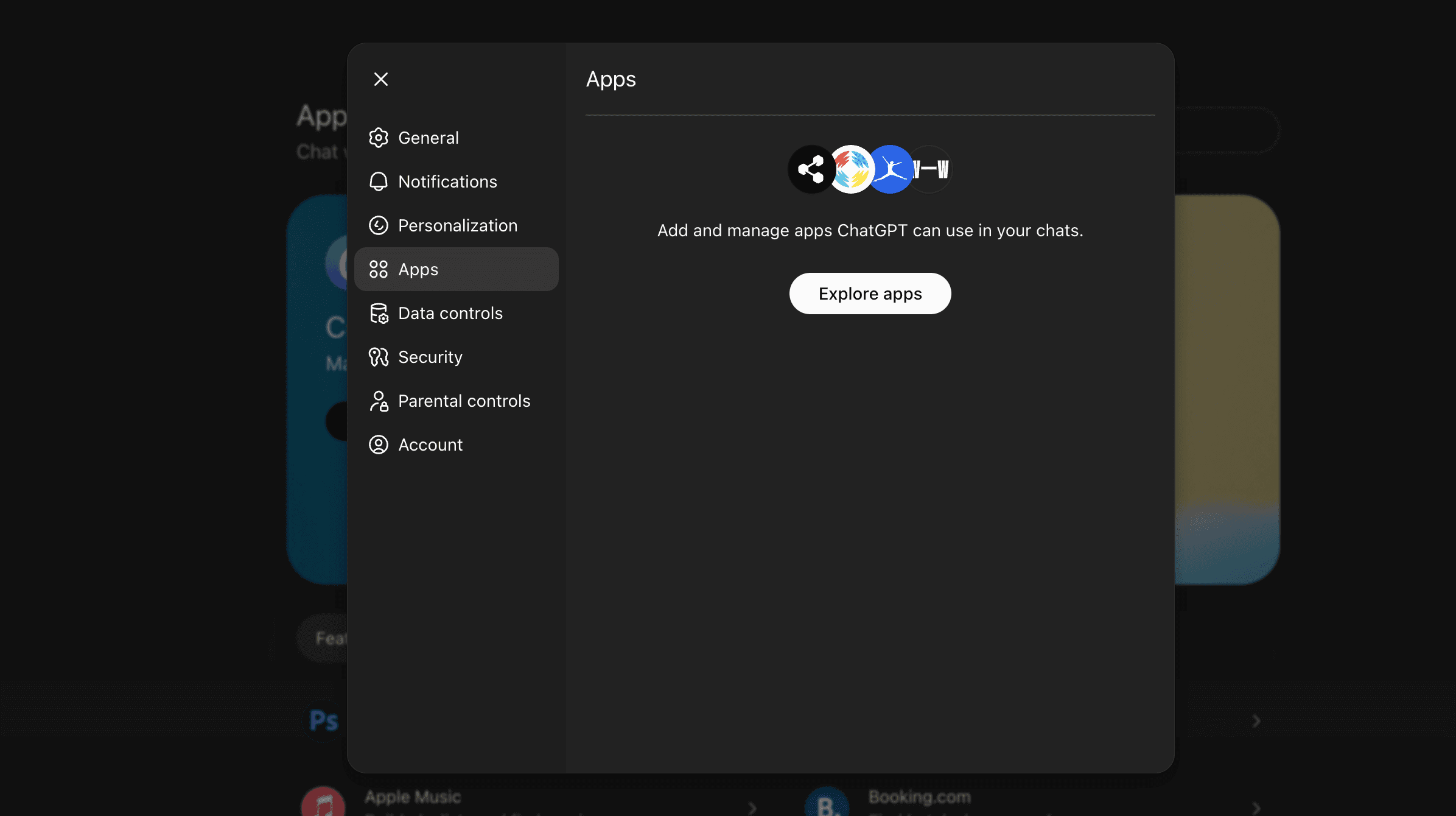
Inside Settings, find the Apps section. This is where you can connect external tools like Canva.
Step 2: Find Canva in Apps & Connectors
In the Apps section, look for Canva in the list of available integrations.
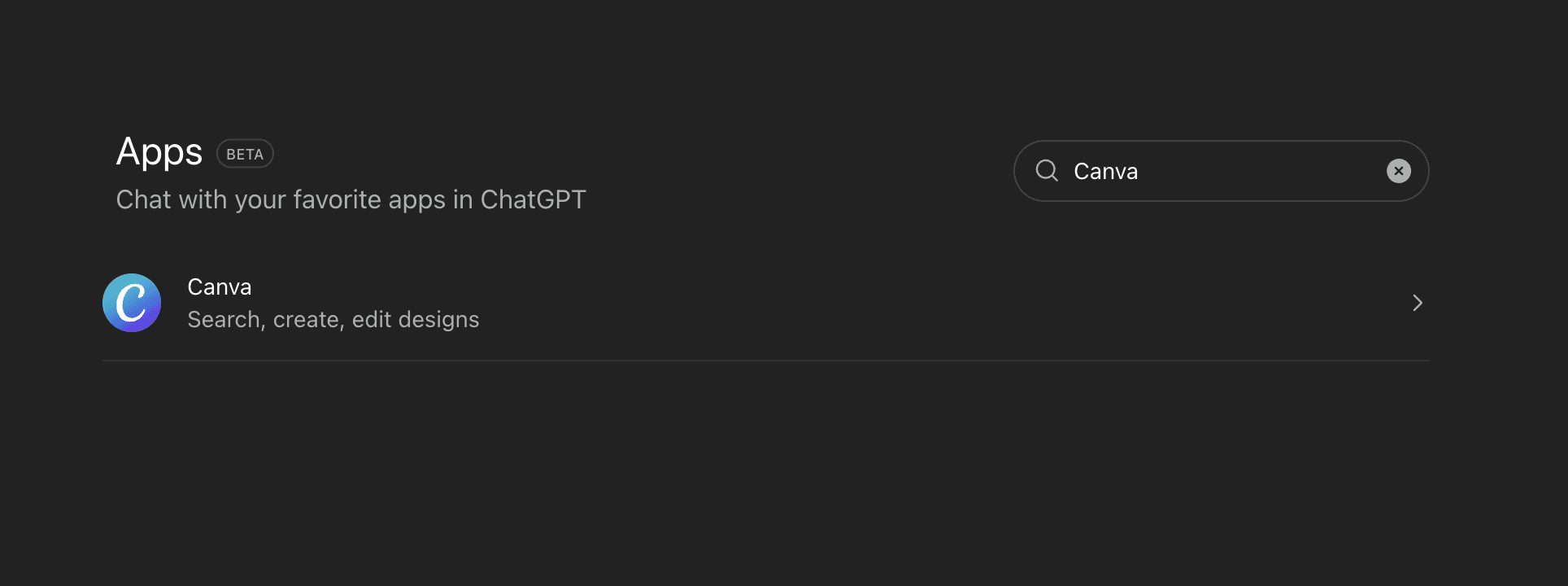
Once you find it, click on Canva to start the connection process.
Step 3: Connect your Canva account
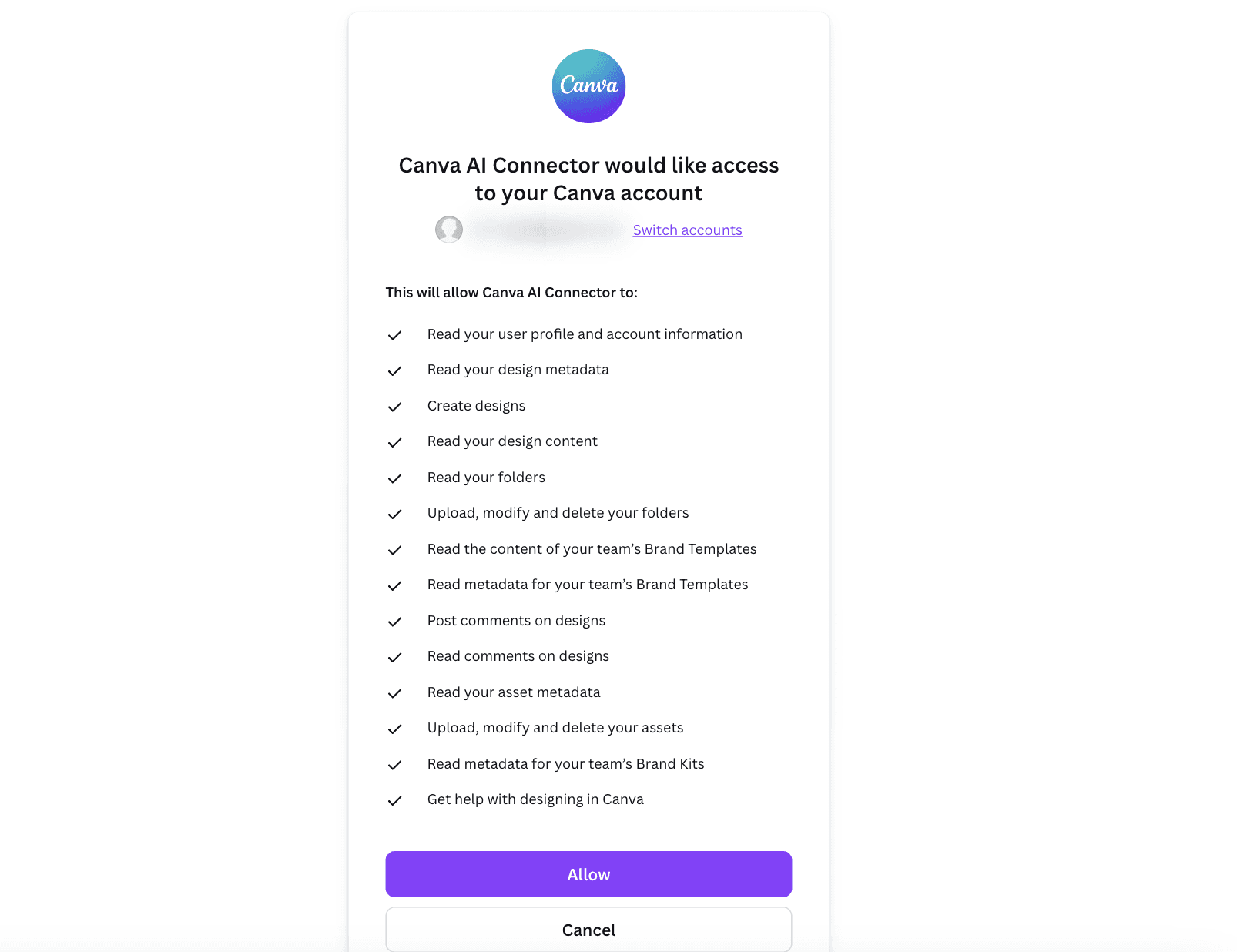
After selecting Canva, you will be asked to sign in to your Canva account.
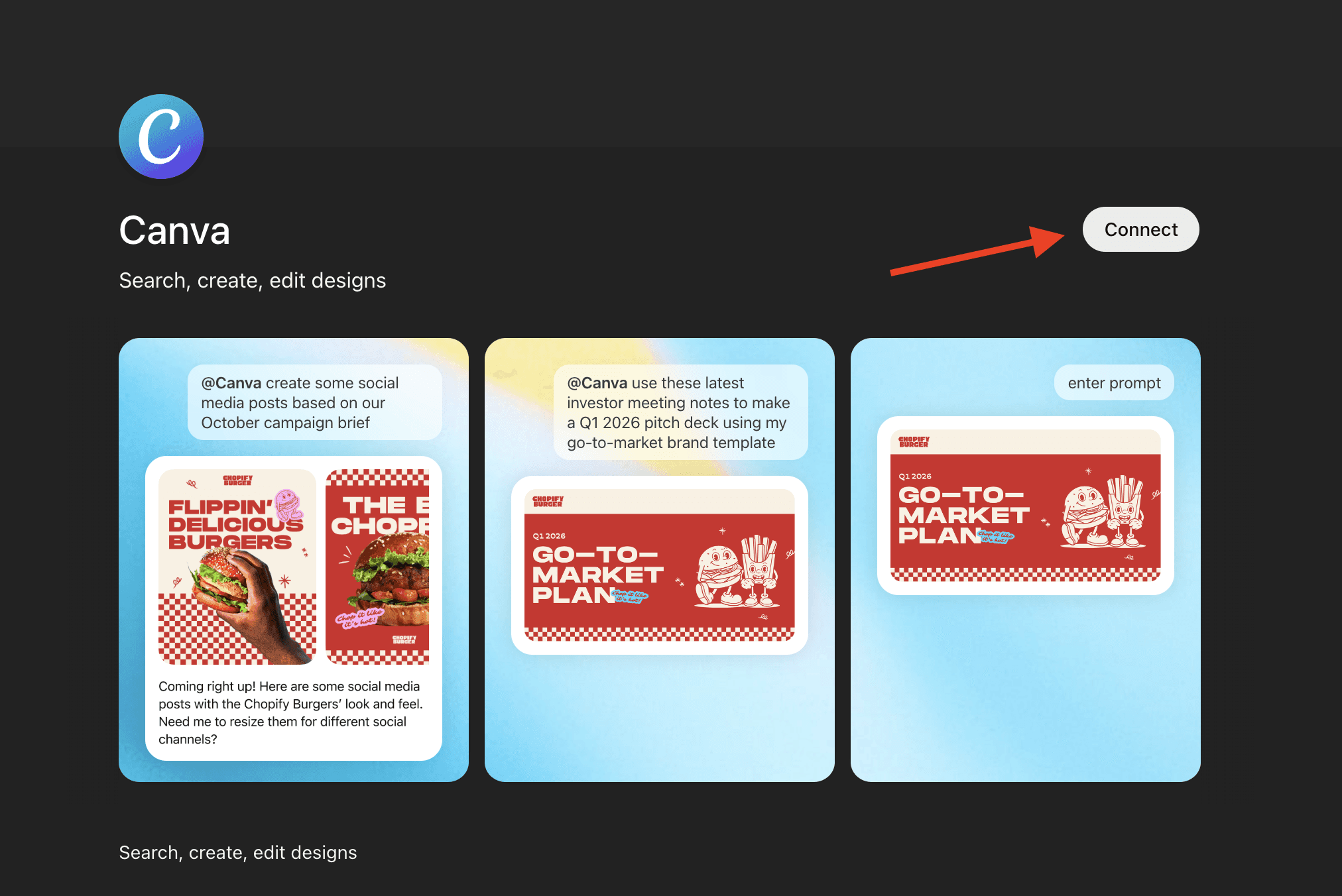
Enter your login details and approve the connection.
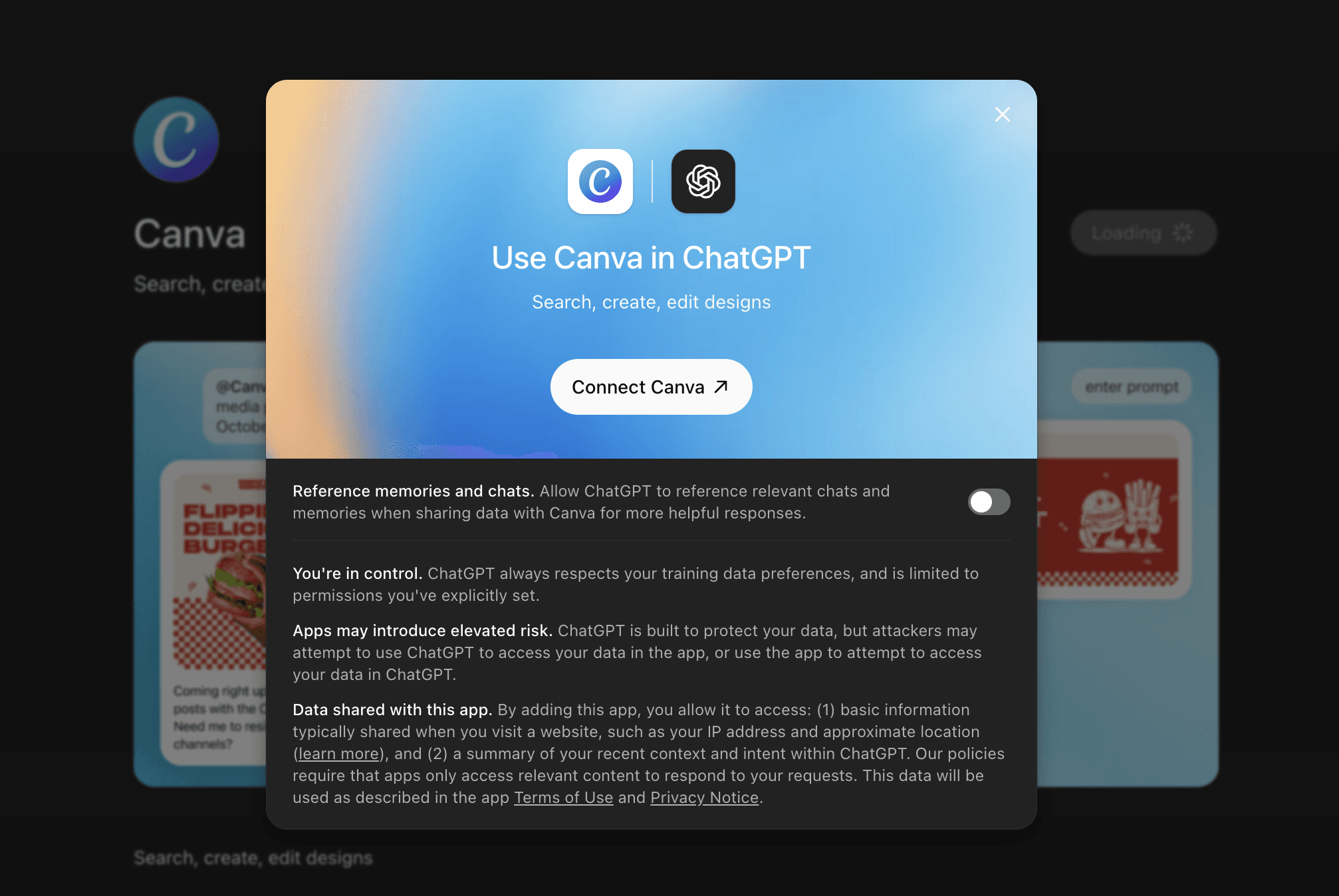
This gives ChatGPT permission to access your Canva workspace.
Step 4: Start using Canva with ChatGPT
Now you can start creating designs directly from ChatGPT.
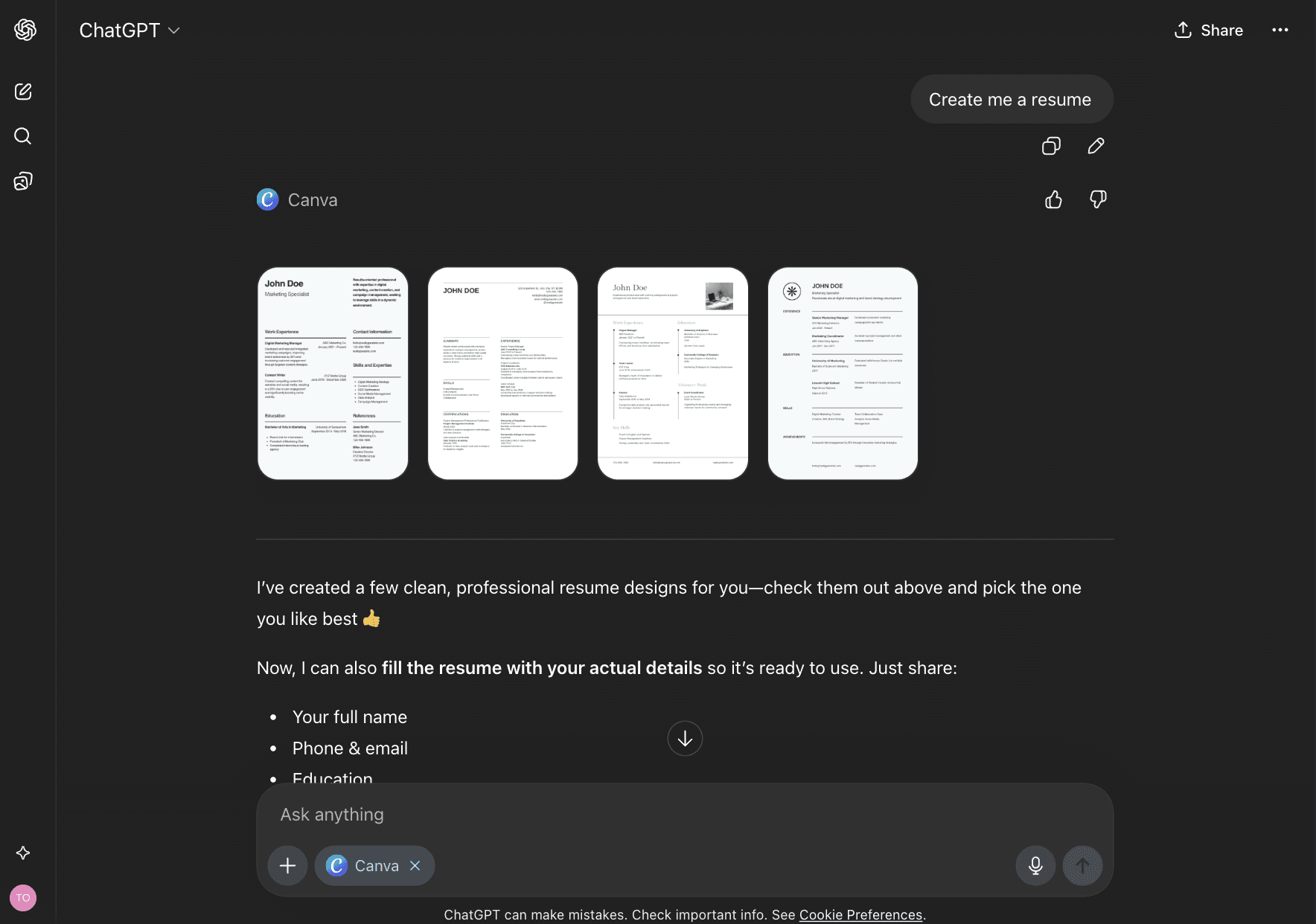
Ask it to create a design, fill a template, search your Canva files, or export designs as images or PDFs.
ChatGPT will handle these actions using your connected Canva account.
Wrap Up
Connecting ChatGPT to Canva helps you turn ideas into designs faster. You do not need to switch between tools or repeat the same steps again and again.
Once the integration is enabled, ChatGPT can create designs, autofill templates, find your files, and export them in a few seconds. This makes your workflow simpler and more efficient.
The setup takes only a few minutes. After that, you can handle most of your Canva design work directly inside ChatGPT.
Do not forget to check out this article if you want to connect Canva to Claude.
You May Also Like






Featured Tools


Newest Additions







AI Image & Video Generation








Vibe Coding Library















Screenshot & Screen Recording Tools