



7 Best UX/UI Design Tools in 2026
Best UX/UI design tools help you create clear, user-friendly interfaces that improve usability and simplify your design workflow.

Dudu
Dec 6, 2025
Last Updated Dec 6, 2025
Image Credit: Toolfolio
If you’re stepping into UX design in 2026, you’re likely wondering which tools will give you the strongest start. The market is crowded, and each tool claims to be the best, but the real question is which one helps you design faster, think clearer, and build products users understand.
The landscape has shifted fast. Figma still leads the conversation, yet new contenders and returning favorites push hard with fresh features and different approaches to collaboration and prototyping. Tools that once felt essential now feel dated, and others have grown into serious options for everyday work.
So today we will look at the best UX design tools available, what they do well, where they fall short, and how they fit into real workflows.
1. Figma: Collaborative UX Design Platform
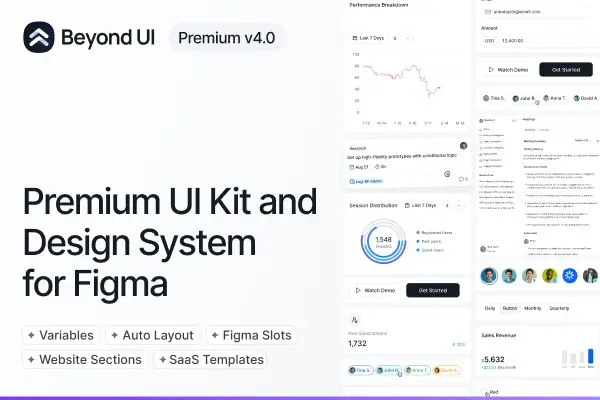
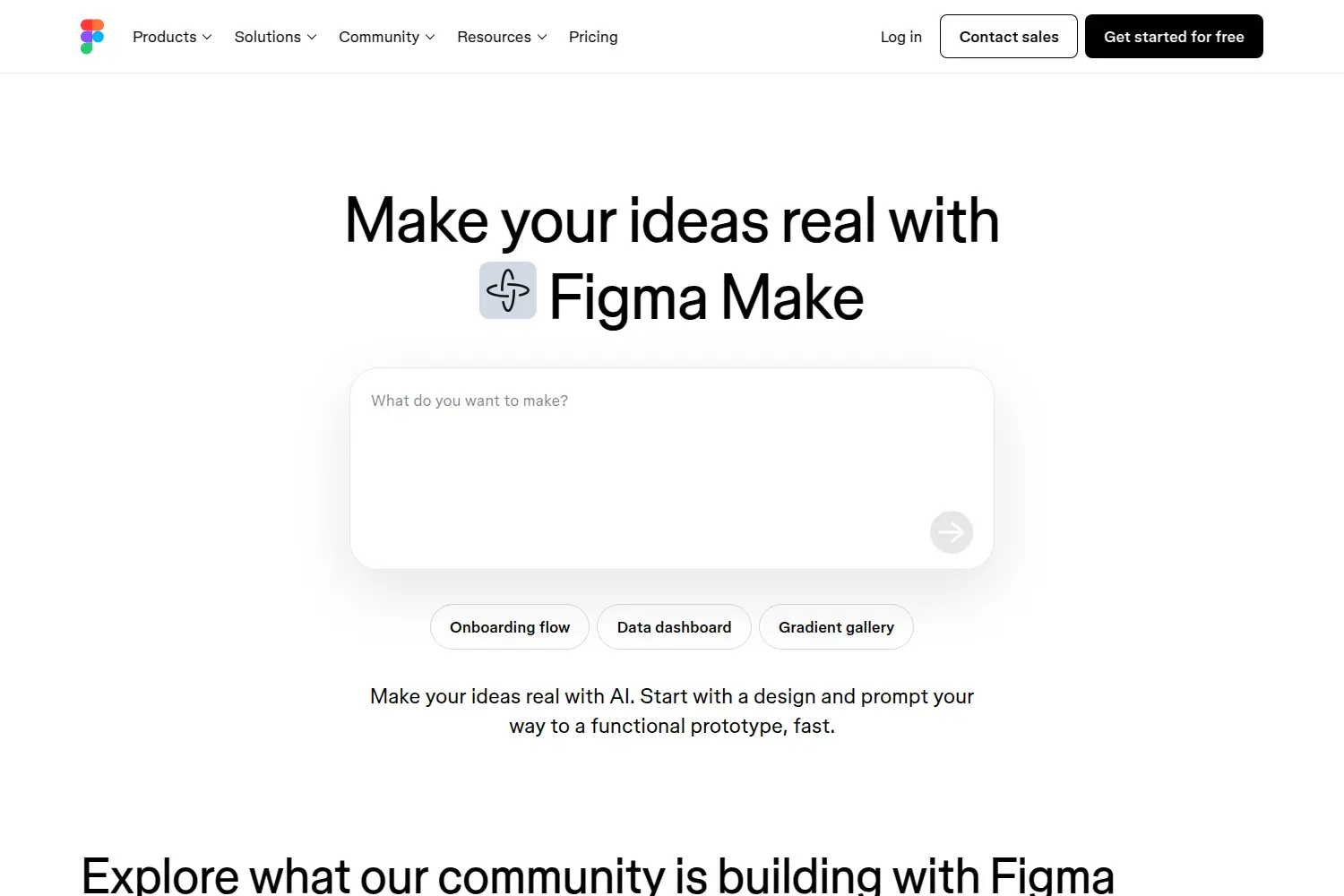
Figma is built to help teams move from idea to product with fast collaboration and clear structure. It focuses on real-time teamwork, easy sharing, and a smooth workflow from wireframes to final prototypes.
Its real-time collaboration keeps your work aligned across feedback rounds, which helps you refine your case studies with clarity and speed.
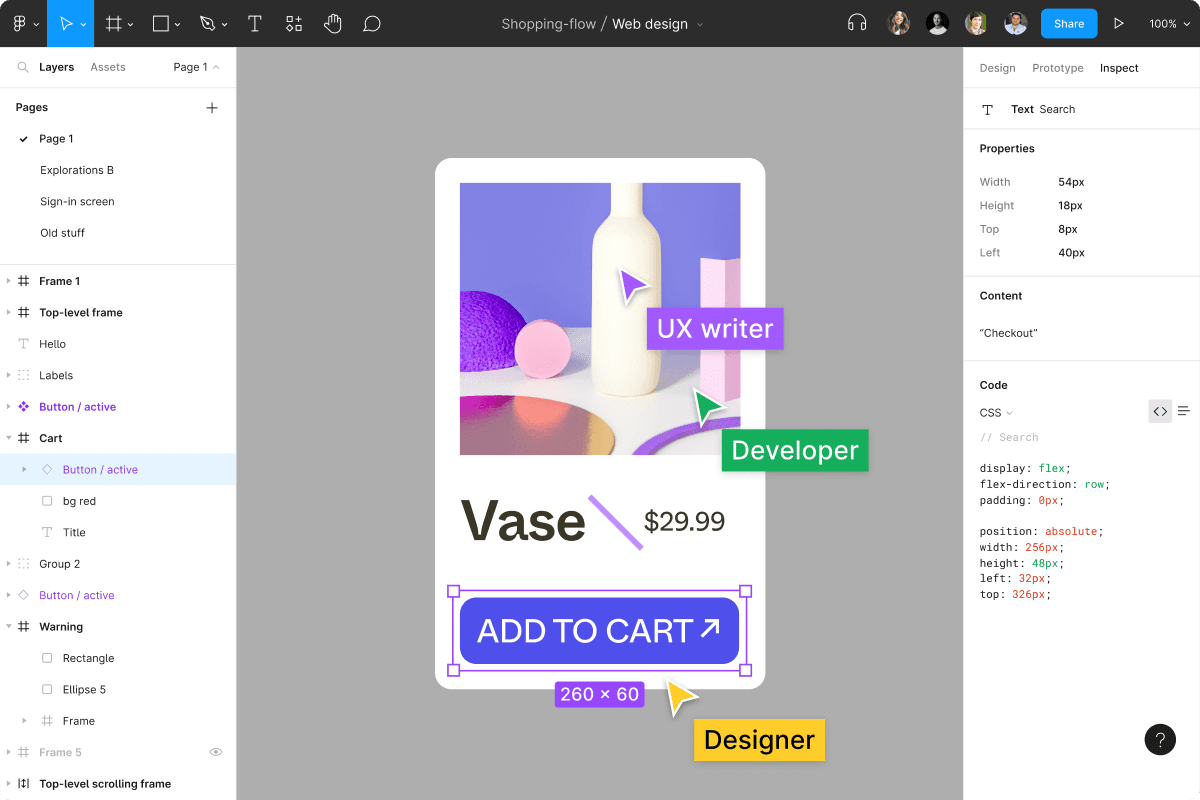
Shared libraries and reusable components make it easy to keep your portfolio styles uniform across all pages. This helps you build a strong personal identity through consistent colors, grids, and typography.
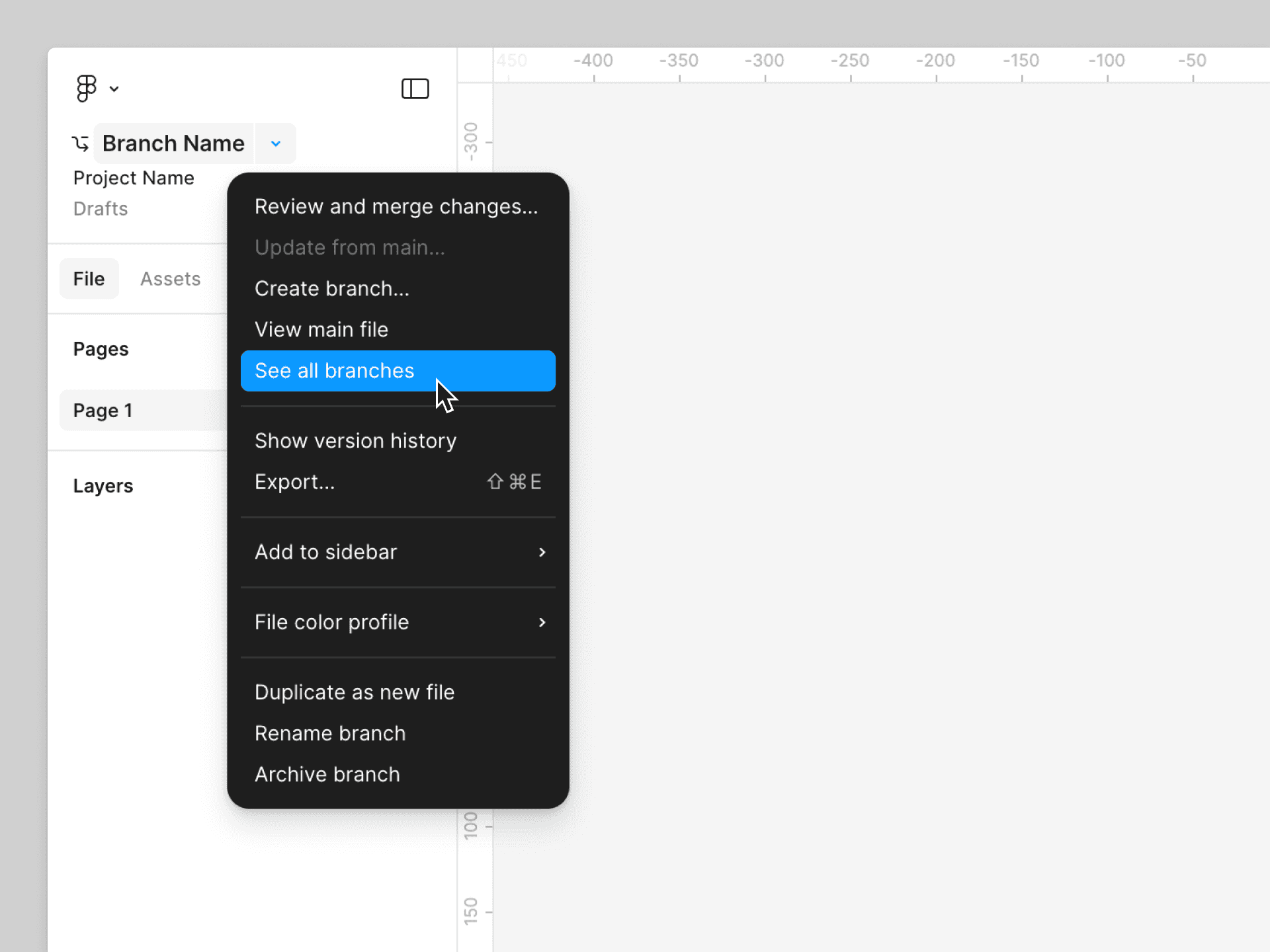
Prototyping in Figma removes guesswork when shaping interactions. You can build smooth previews of your homepage, project pages, and navigation without code. This helps you test how your portfolio feels before publishing. Branching lets you explore layout changes without breaking the main file, making it simple to compare options and pick the strongest direction.
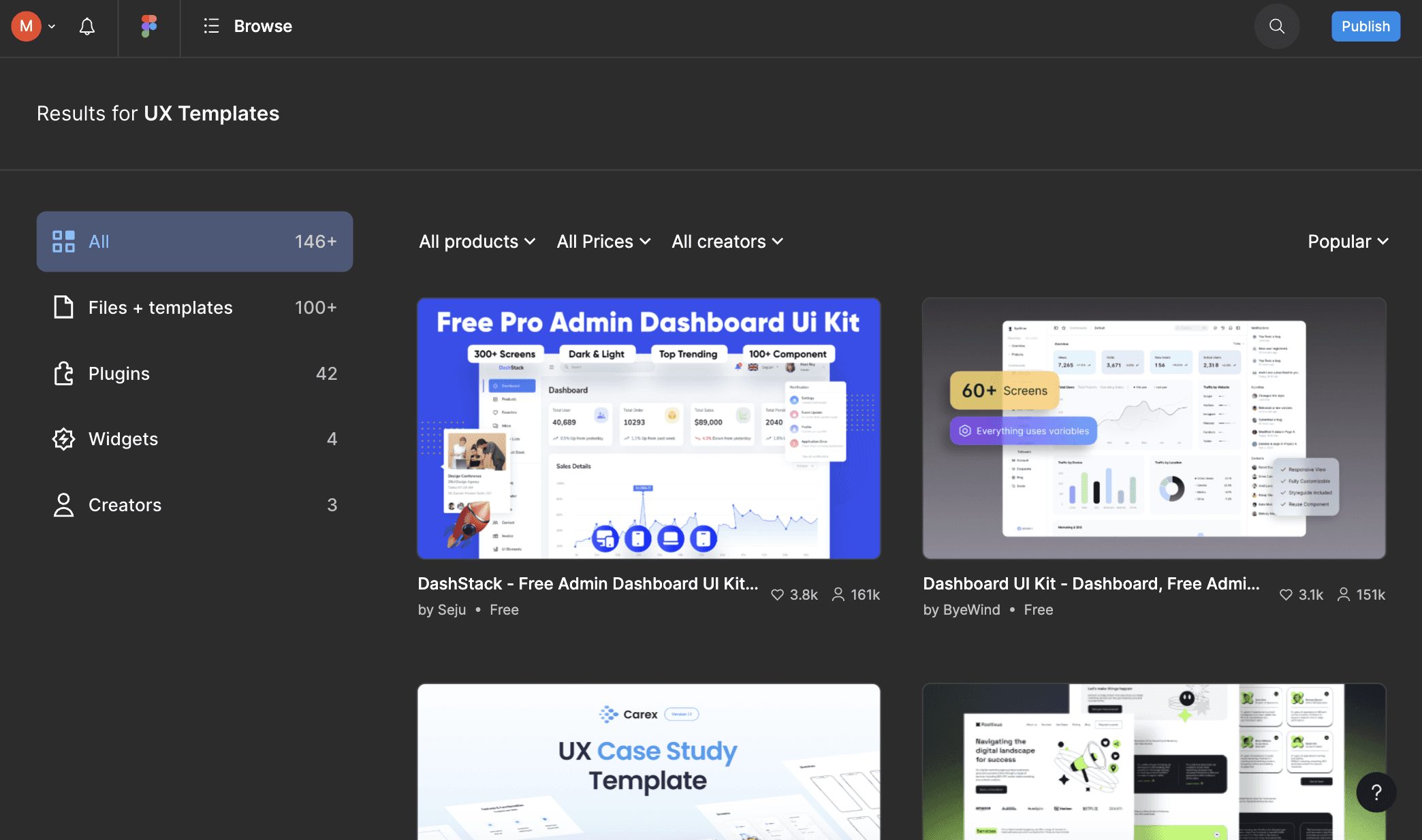
Its large community offers templates, UI kits, and plugins that help you design faster. While some advanced features suit complex design systems more than portfolio work, the core toolset is simple, fast, and easy for beginners and experienced designers alike.
Figma lets your team:
Work together in real time across design and feedback.
Keep layouts consistent through shared components.
Test interactions with built-in prototyping.
Extend workflows through a large plugin ecosystem.
2. Sketch: For Native macOS UX Design
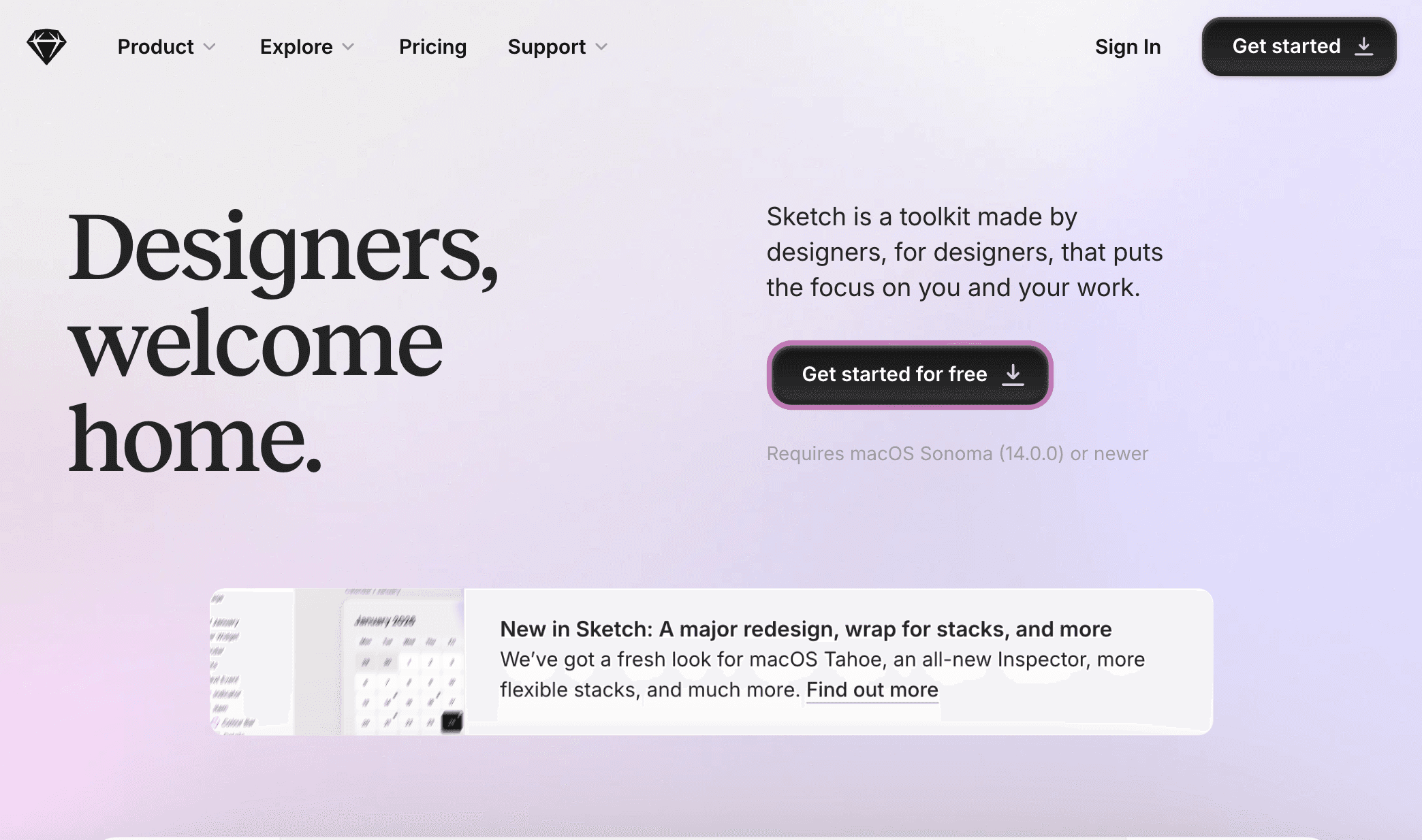
Sketch is built as a focused macOS design app that gives you a clean space to think, draw, and structure interfaces without distractions. Its strength comes from being truly native, which makes everyday tasks like color picking, exporting, and navigating large files feel fast and efficient.
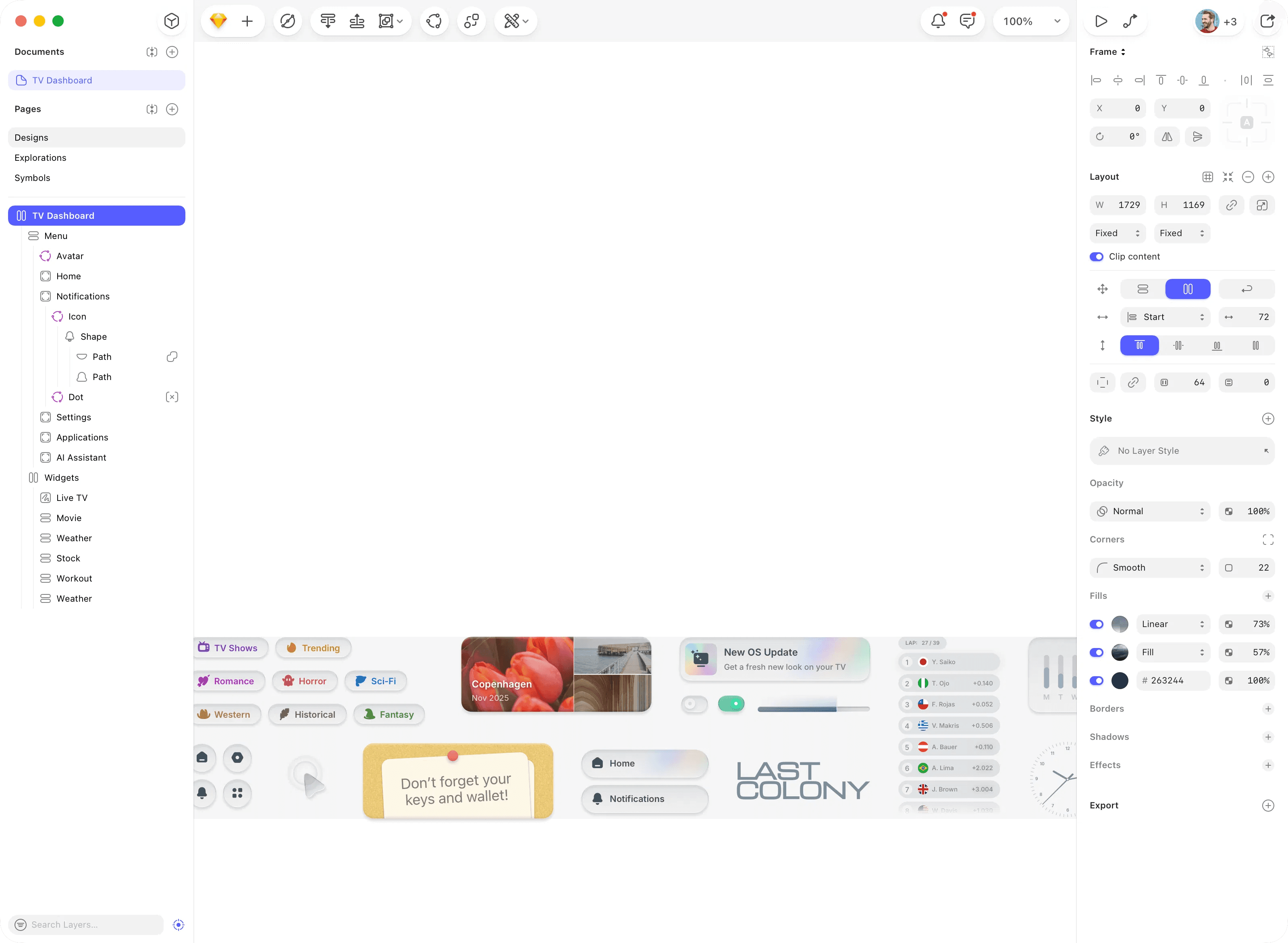
Many designers choose Sketch because it offers a familiar Mac-like workflow, strong vector tools, and the freedom to work offline without depending on a browser or constant syncing.
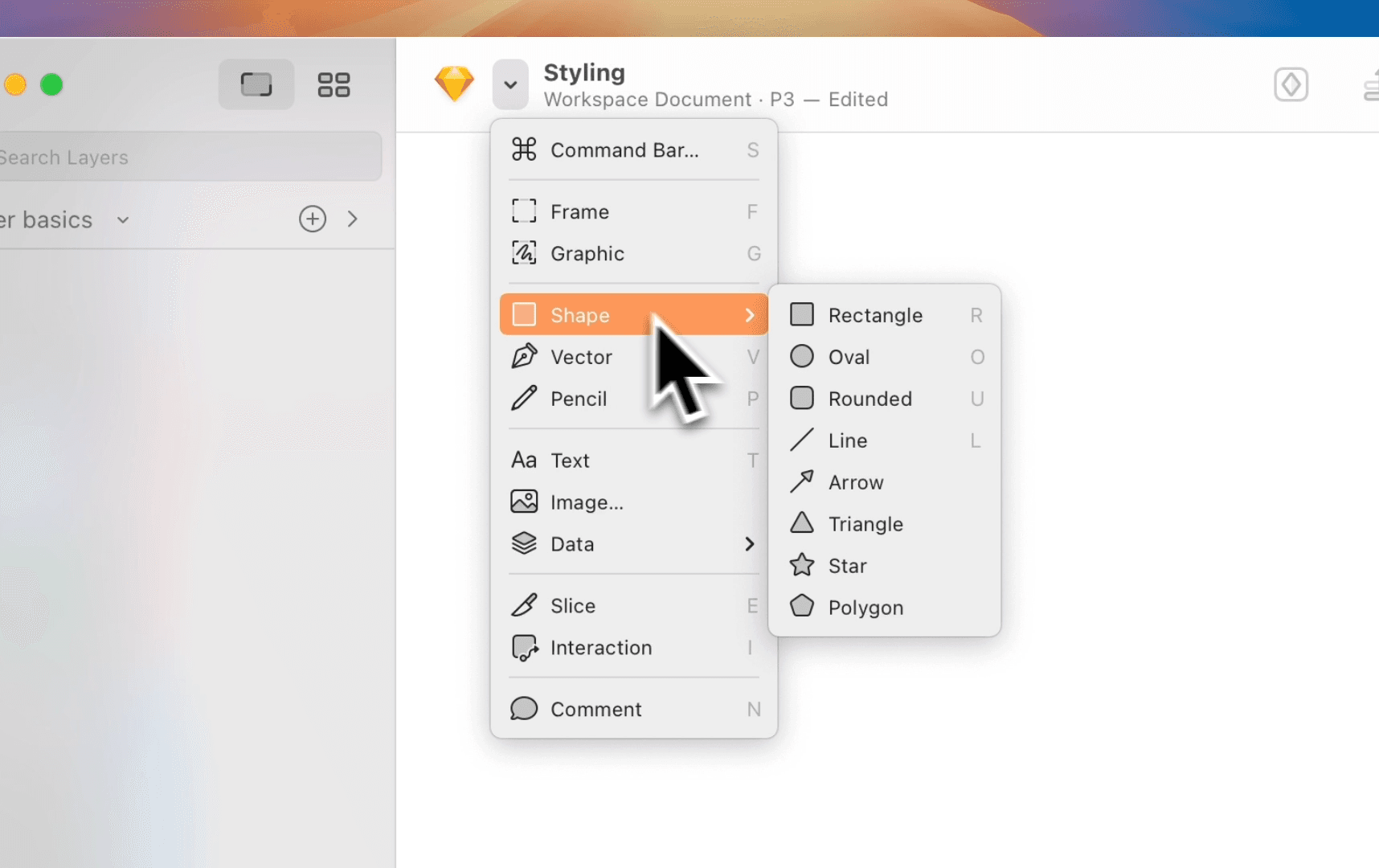
Sketch’s editor keeps the interface simple while still offering deep control through frames, stacks, symbols, and robust vector editing.
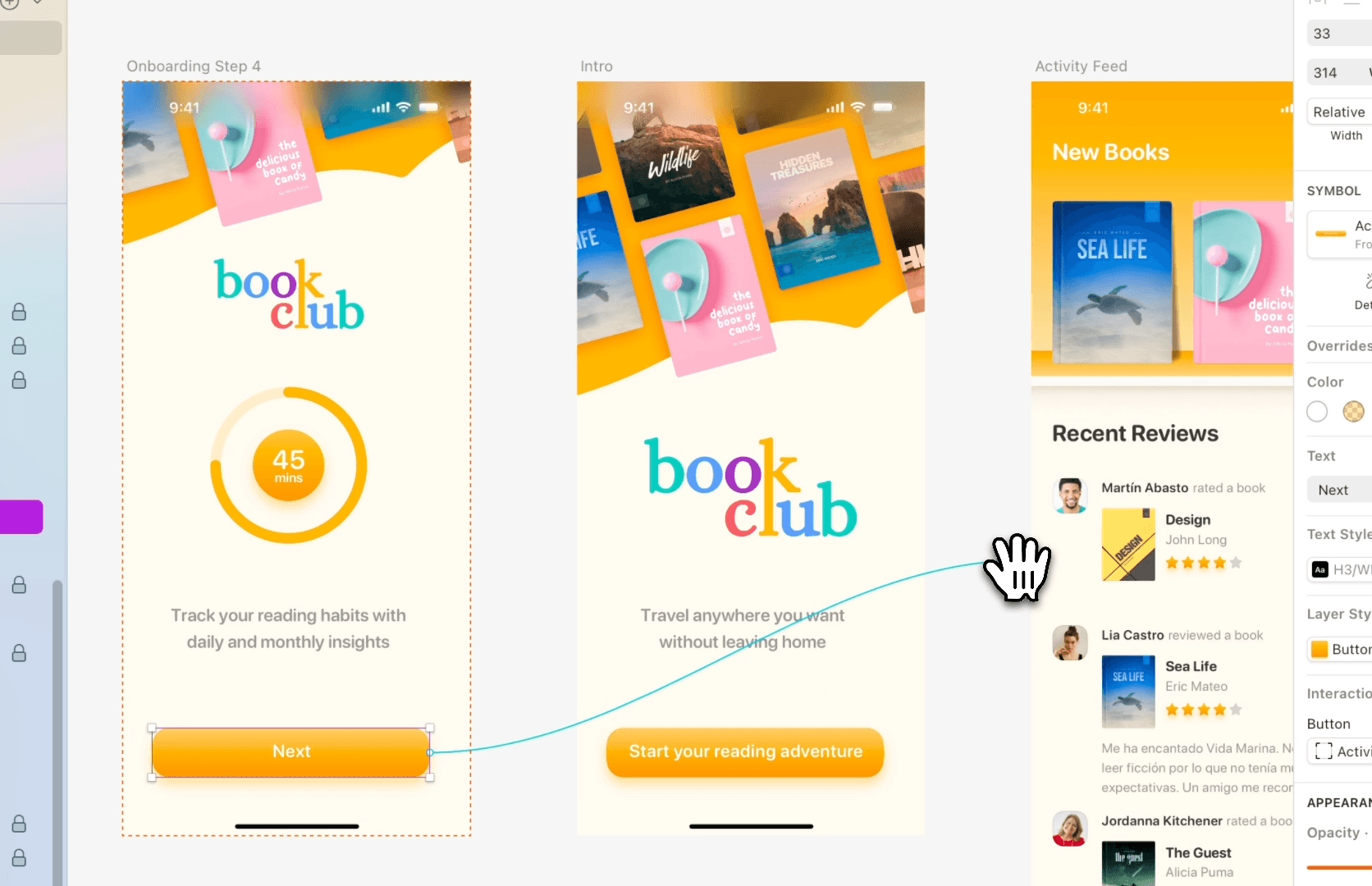
Prototyping is built directly into the same environment, letting you test ideas quickly with animations, overlays, and scroll areas. The native app also unlocks smooth drag-to-export actions, precise pixel snapping, and reliable performance, which help reduce friction when moving from early concepts to refined screens.
Even though some areas like auto layout and libraries are still improving, the tool remains stable, predictable, and pleasant to use.
When it comes to collaboration, Sketch pairs its Mac app with a browser-based workspace for sharing, feedback, and developer handoff.
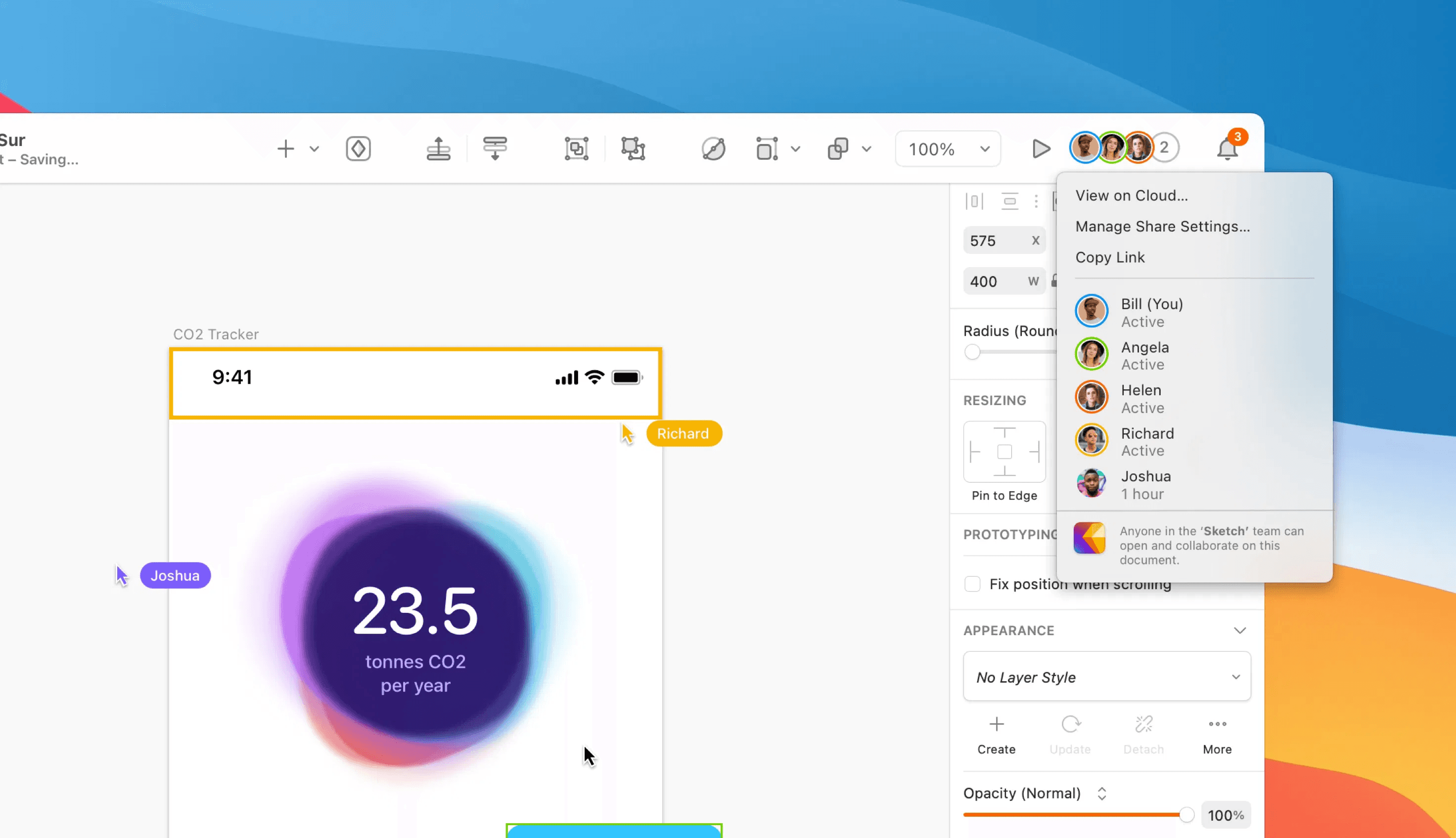
Sketch also appeals to privacy-minded teams because it does not train AI models on user files and avoids unexpected billing tied to collaborators.
Sketch lets your team:
Work natively on macOS with fast tools and offline access
Prototype with animations, overlays, and real device previews
Share files in the browser with commenting and free developer handoff
Keep full control of privacy without AI training on design files
Export assets quickly using drag-to-export and flexible formats
3. UIzard: AI-Powered UX Design Generator
Uizard focuses on speed, helping you turn ideas into working screens in minutes using AI.
Its workflow centers on generating editable layouts from text prompts, images, or hand-drawn wireframes, which makes it useful for early-stage UX exploration.
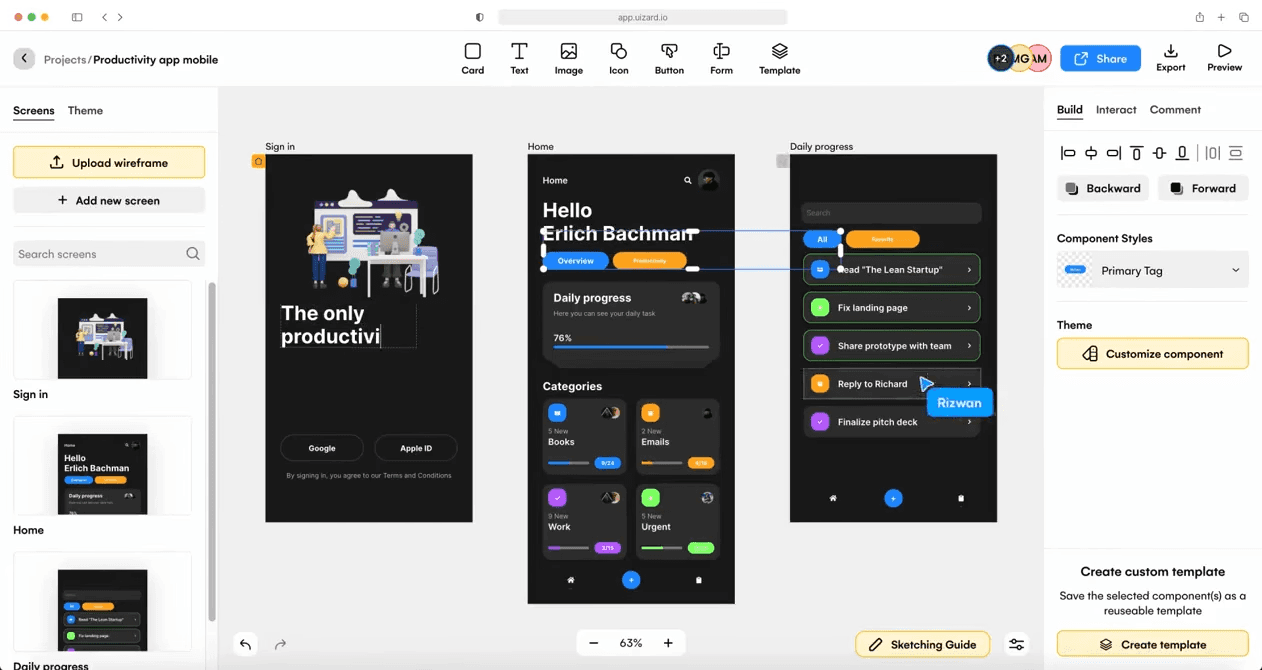
The interface feels familiar for teams used to Miro, so collaboration, comments, and real-time updates come naturally. Uizard’s strength is how quickly it assembles full user flows, giving you multiple connected screens rather than single isolated layouts.
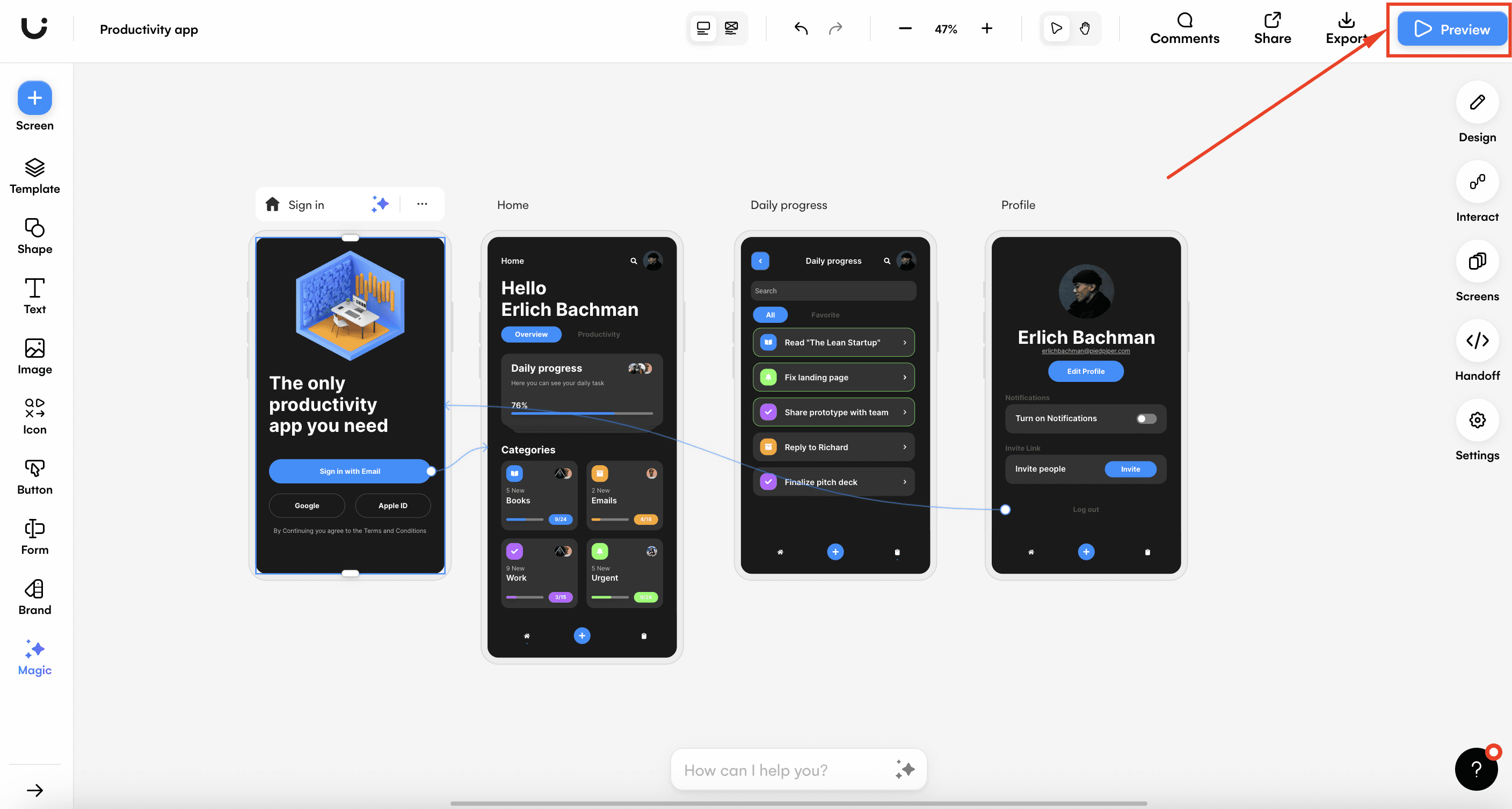
The platform lets you refine the AI-generated designs by editing components, adjusting layouts, or customizing visual styles. You can add interactions between screens using simple drag-and-drop tools, making it easy to test user journeys without setting up complex prototypes.
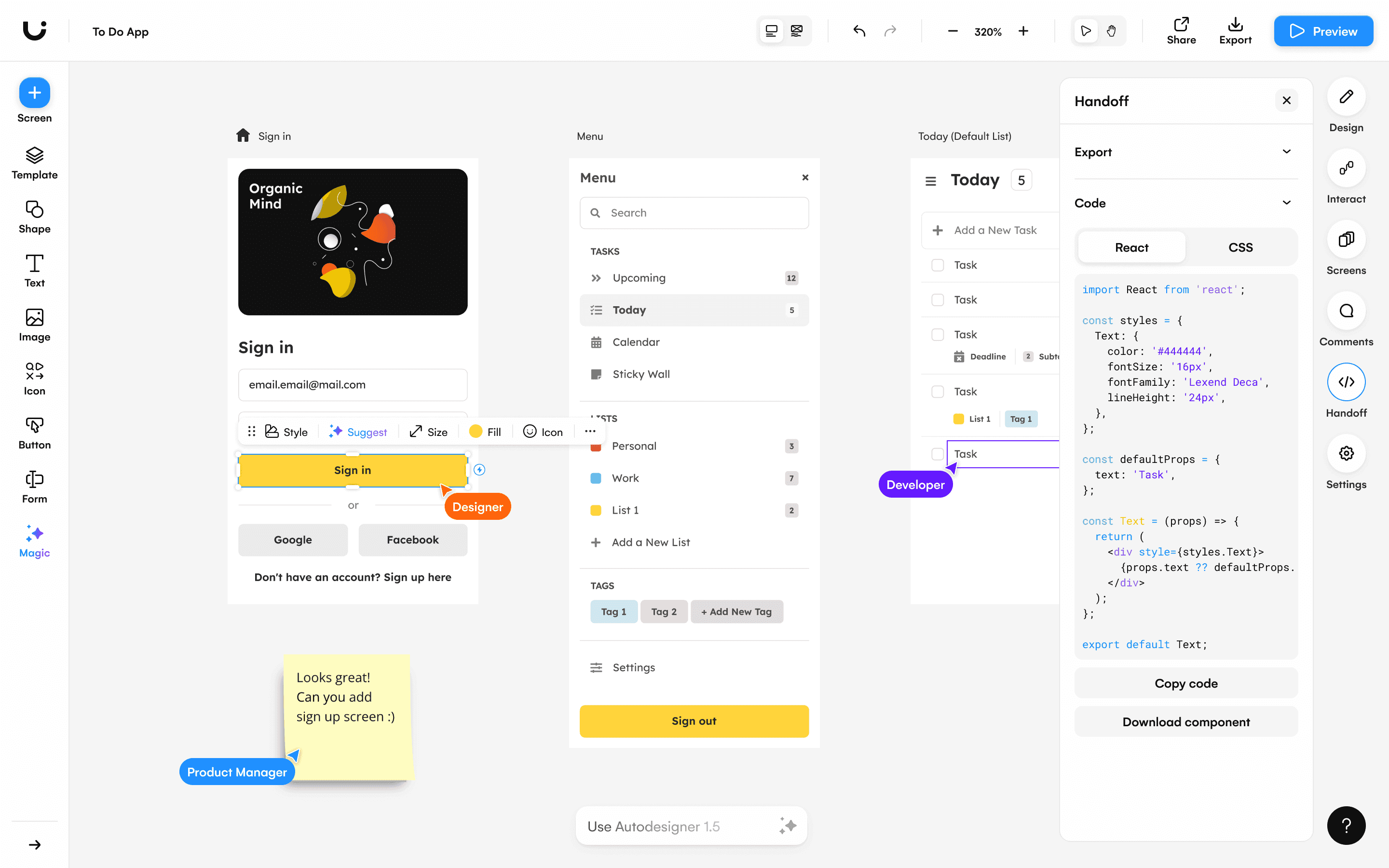
Attention Heatmaps offer quick insight into visual focus areas, which helps validate hierarchy and layout decisions early.
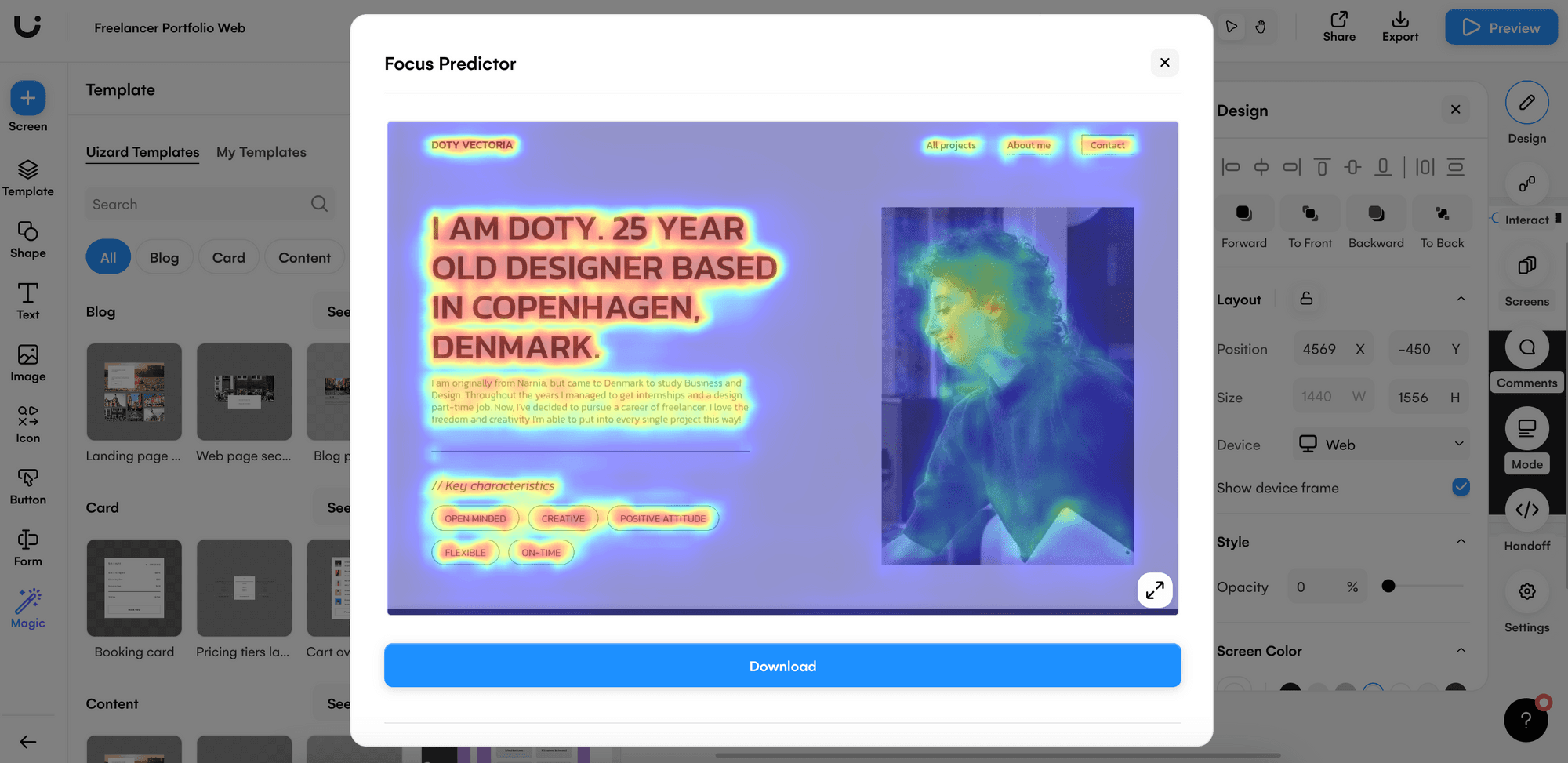
Uizard is flexible but comes with limits that matter for longer projects. The free plan restricts the number of projects and editable components, which can slow down larger design files.
Some AI outputs require manual cleanup, especially when it comes to spacing, hierarchy, and contrast.
Uizard lets your team:
Generate multi-screen UX flows from text, images, or sketches
Edit layouts, components, and visual styles with integrated AI tools
Add interactions and user journeys with simple drag-and-drop actions
Analyze designs using automatic attention heatmaps
Collaborate in real time and share files with stakeholders easily
4. Penpot: Open-Source Design and UX Tool

Penpot is a web-based, open-source design tool built to bring designers and developers into the same workflow.
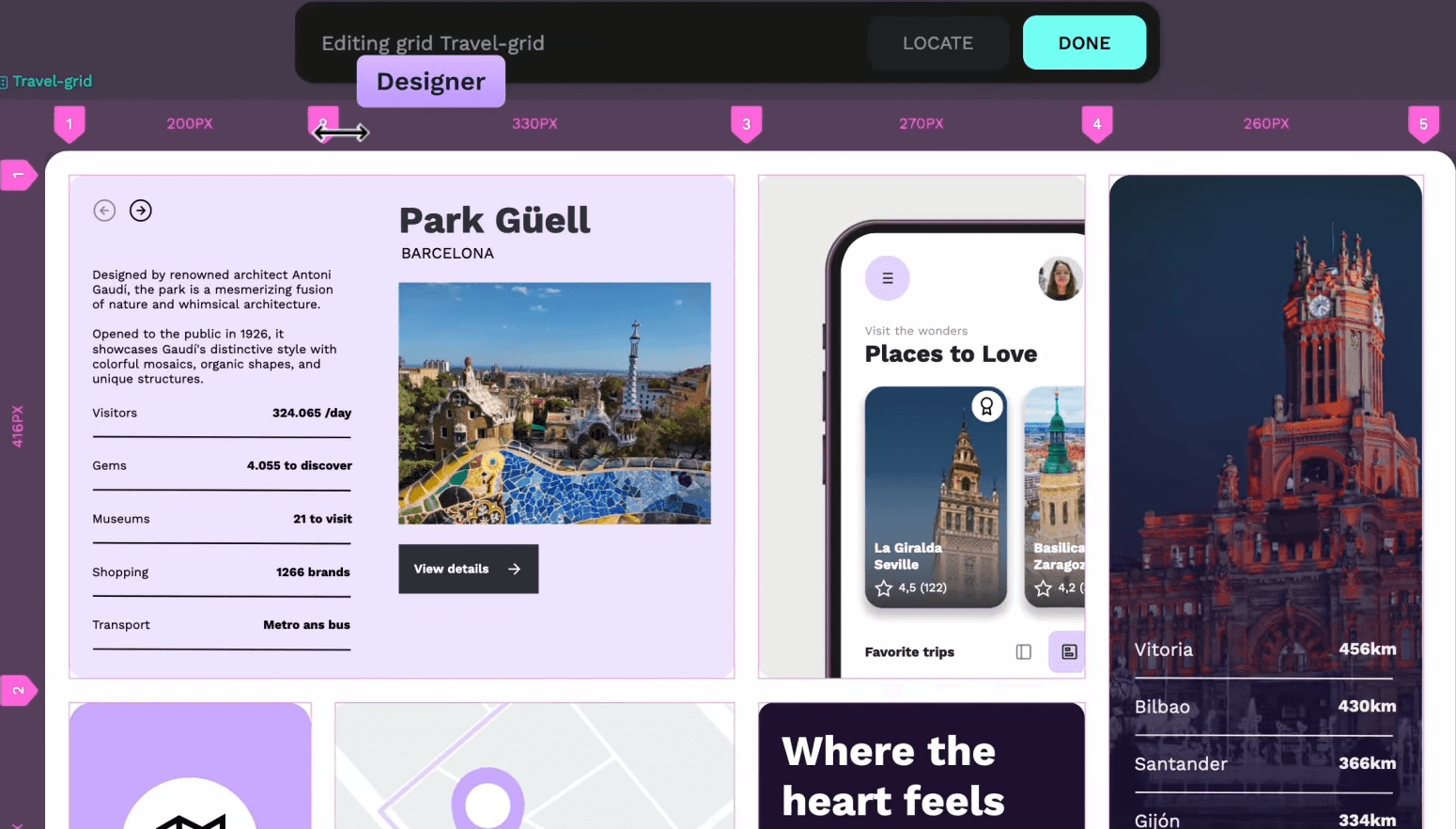
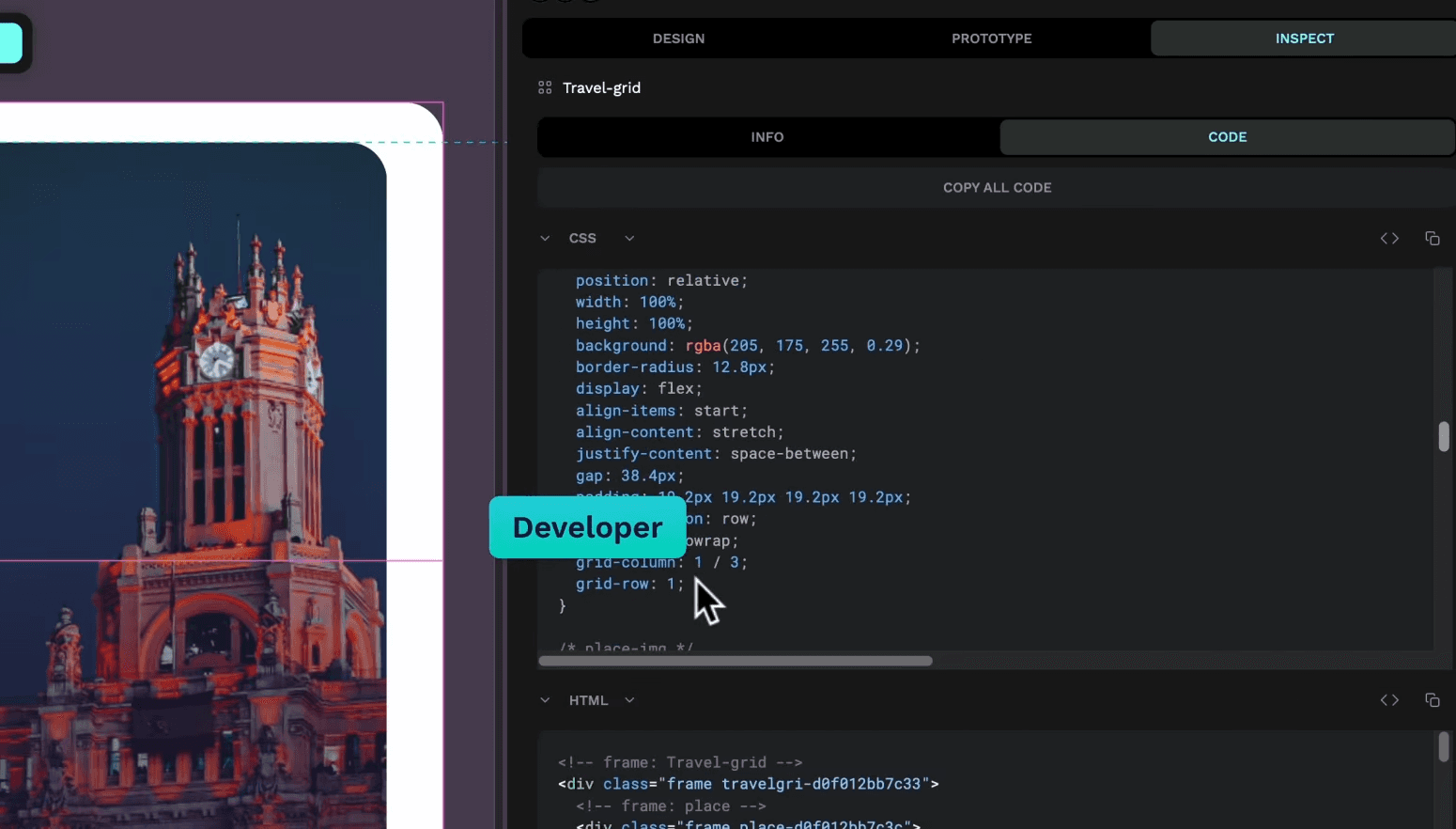
Because Penpot expresses layouts using HTML, CSS, and SVG standards, developers can inspect designs in familiar formats, and designers can work knowing their structure mirrors production reality.
The platform supports responsive layouts through Flex and Grid features that follow real CSS behavior. This makes spacing, resizing, and structure more predictable and prepares designers for how components will behave in the final build.
Prototyping, interactive flows, and design systems are built into the same environment, allowing teams to scale reusable components and tokens without extra plugins.
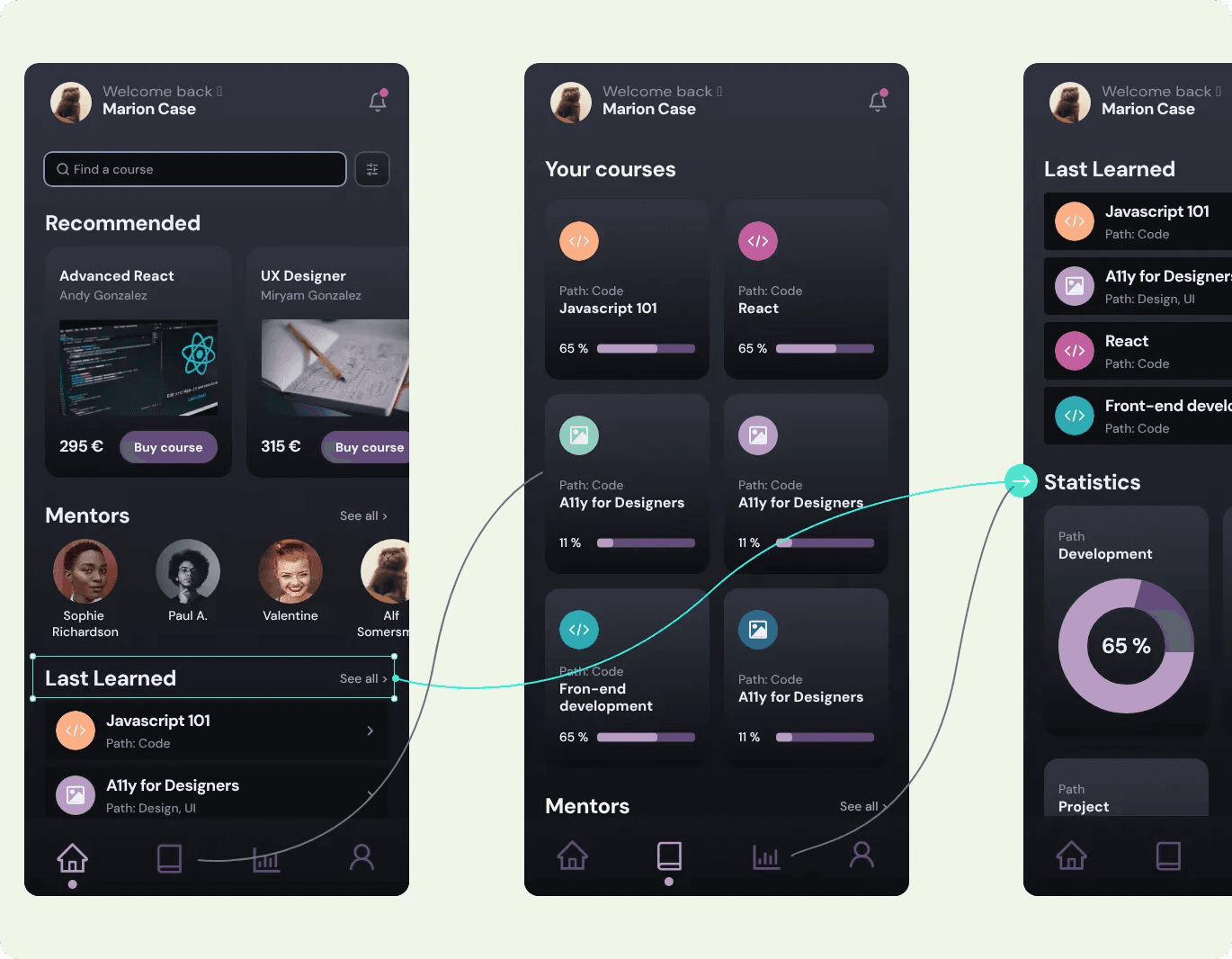
Collaboration is smooth, with multiplayer editing, comments, and whiteboarding available directly in the browser or in a self-hosted setup for teams that prioritize privacy and control.
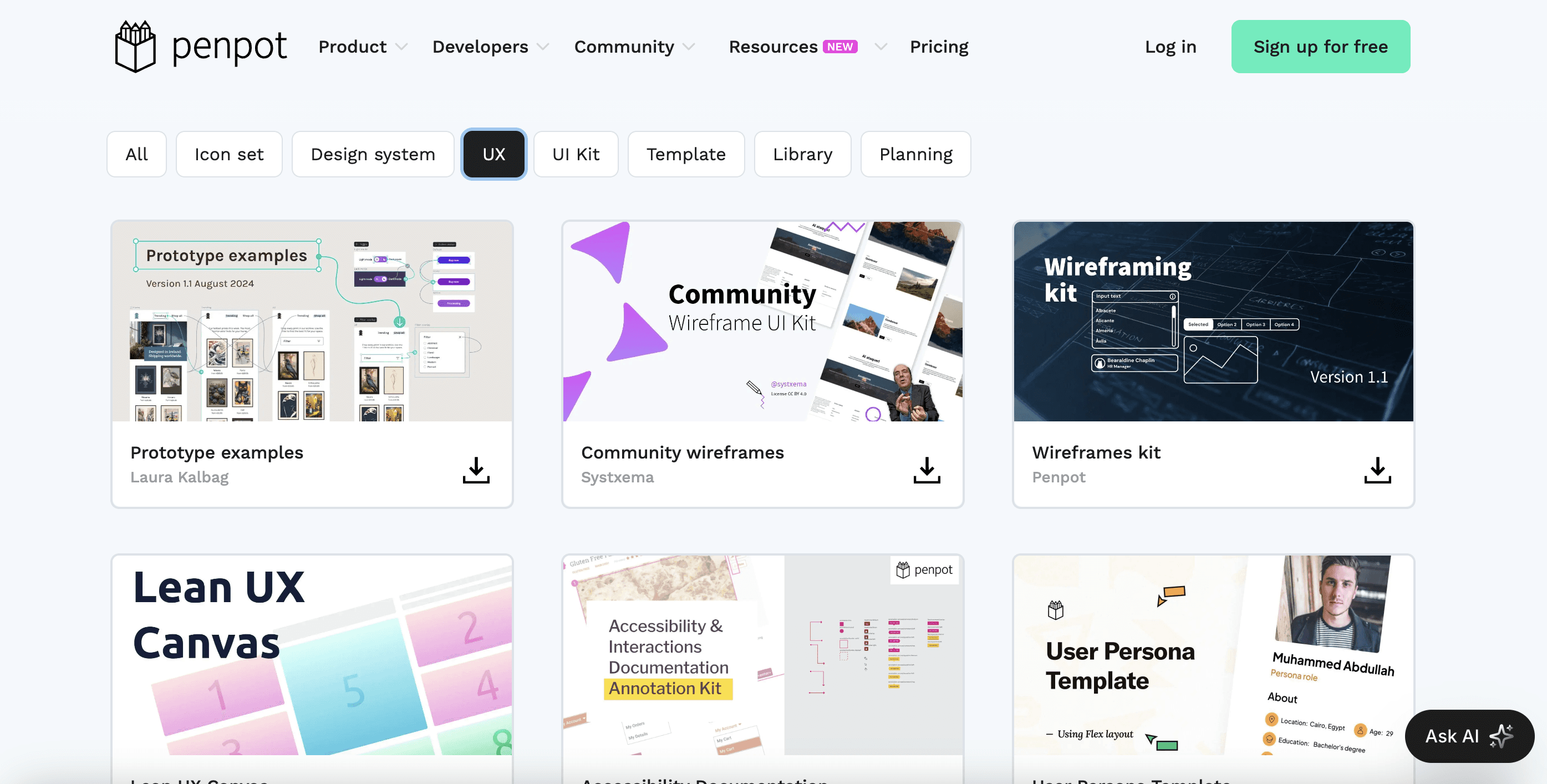
Its community is growing, and the tool continues to gain traction as an alternative to Figma, especially for organizations that want transparency, ownership, and open standards.
Penpot lets your team:
Design using native HTML, CSS, and SVG standards for accurate developer alignment
Build responsive layouts with Flex and Grid that mirror real production behavior
Collaborate in real time with shared whiteboards, comments, and multiplayer editing
Create prototypes, design systems, and tokens in one environment
Self-host the platform or integrate it with a custom workflow using APIs and webhooks
5. Framer: Interactive UX Design and No-Code Prototyping Platform
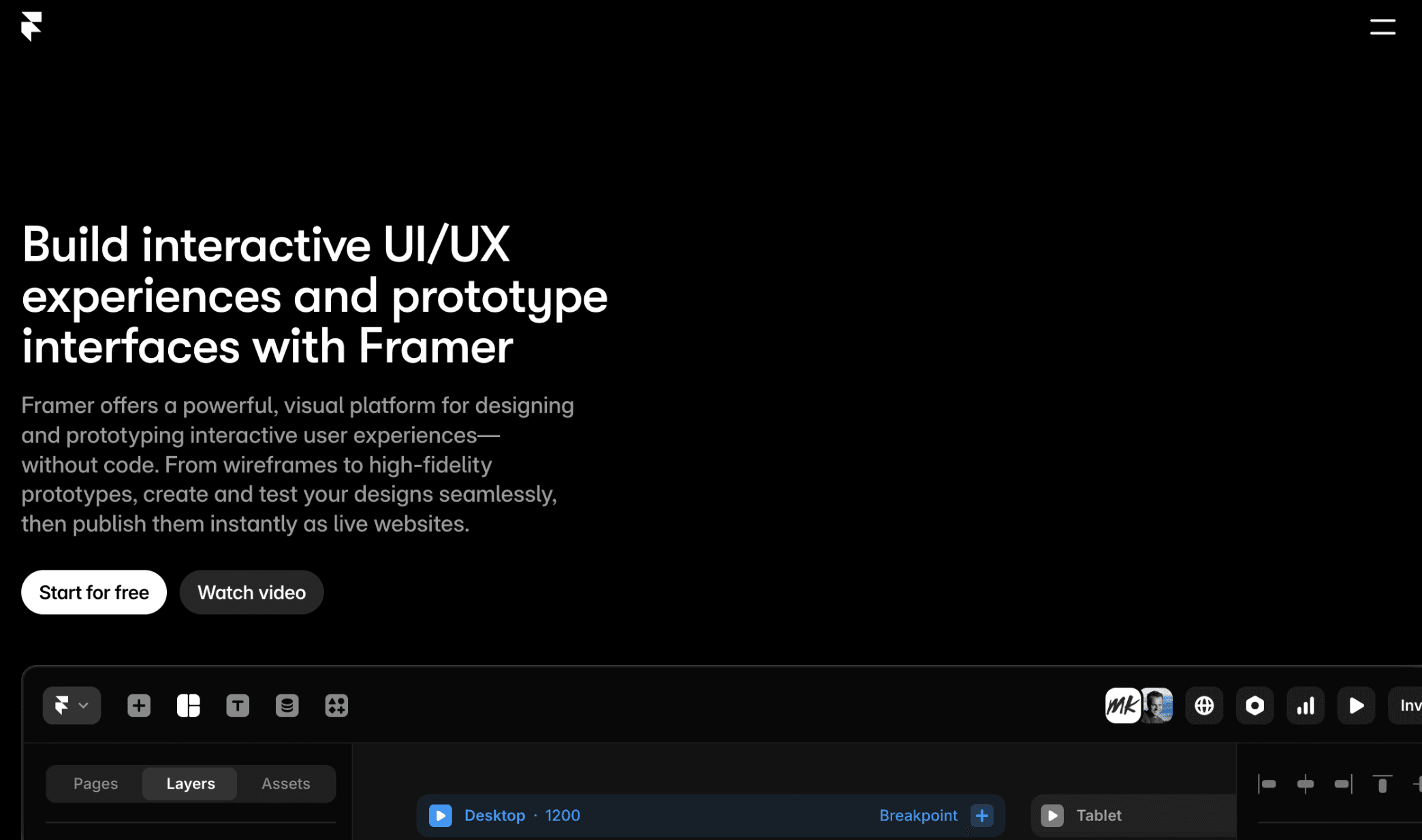
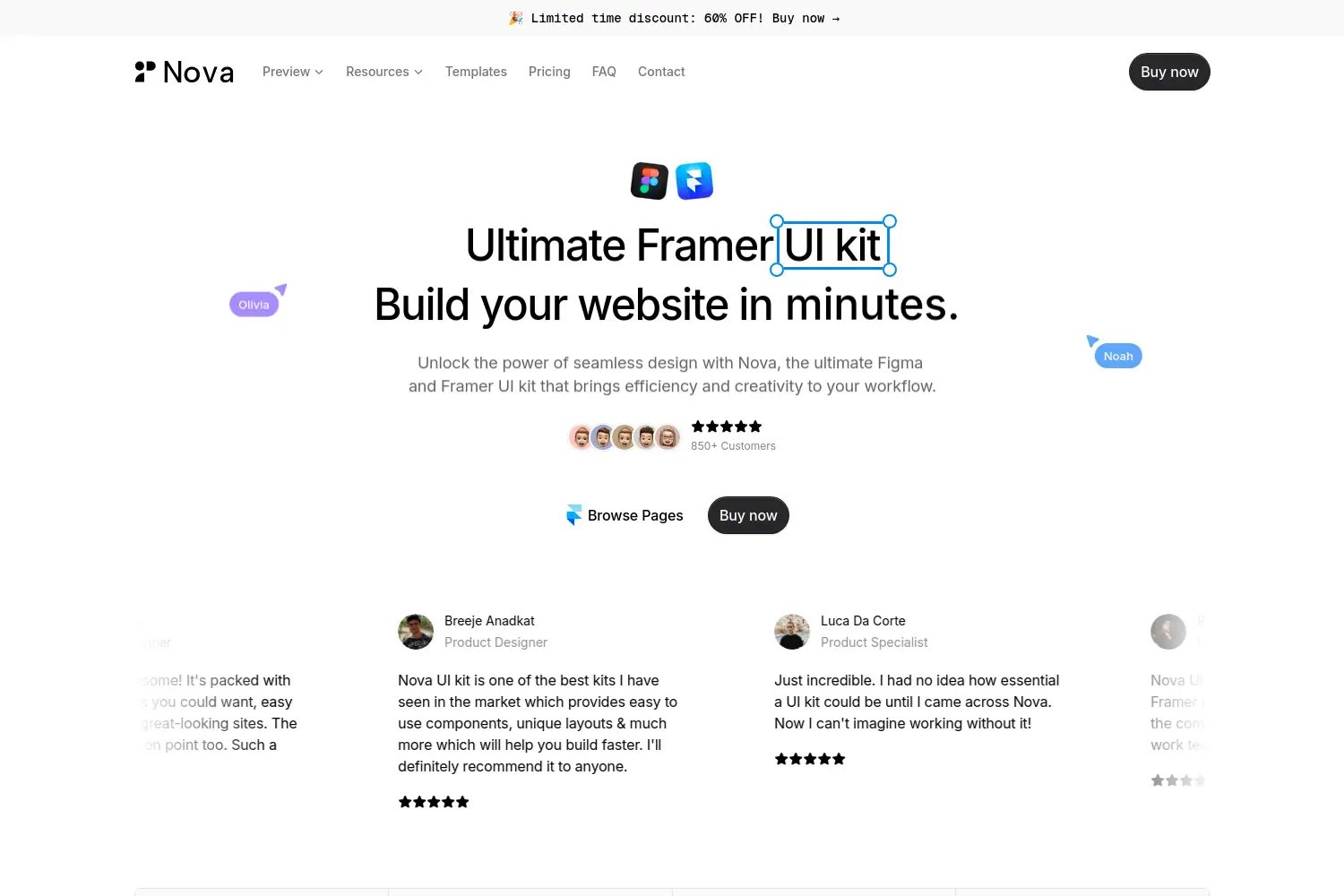
Framer focuses on building interactive user experiences with a visual workflow that moves from wireframes to polished prototypes in a single space.
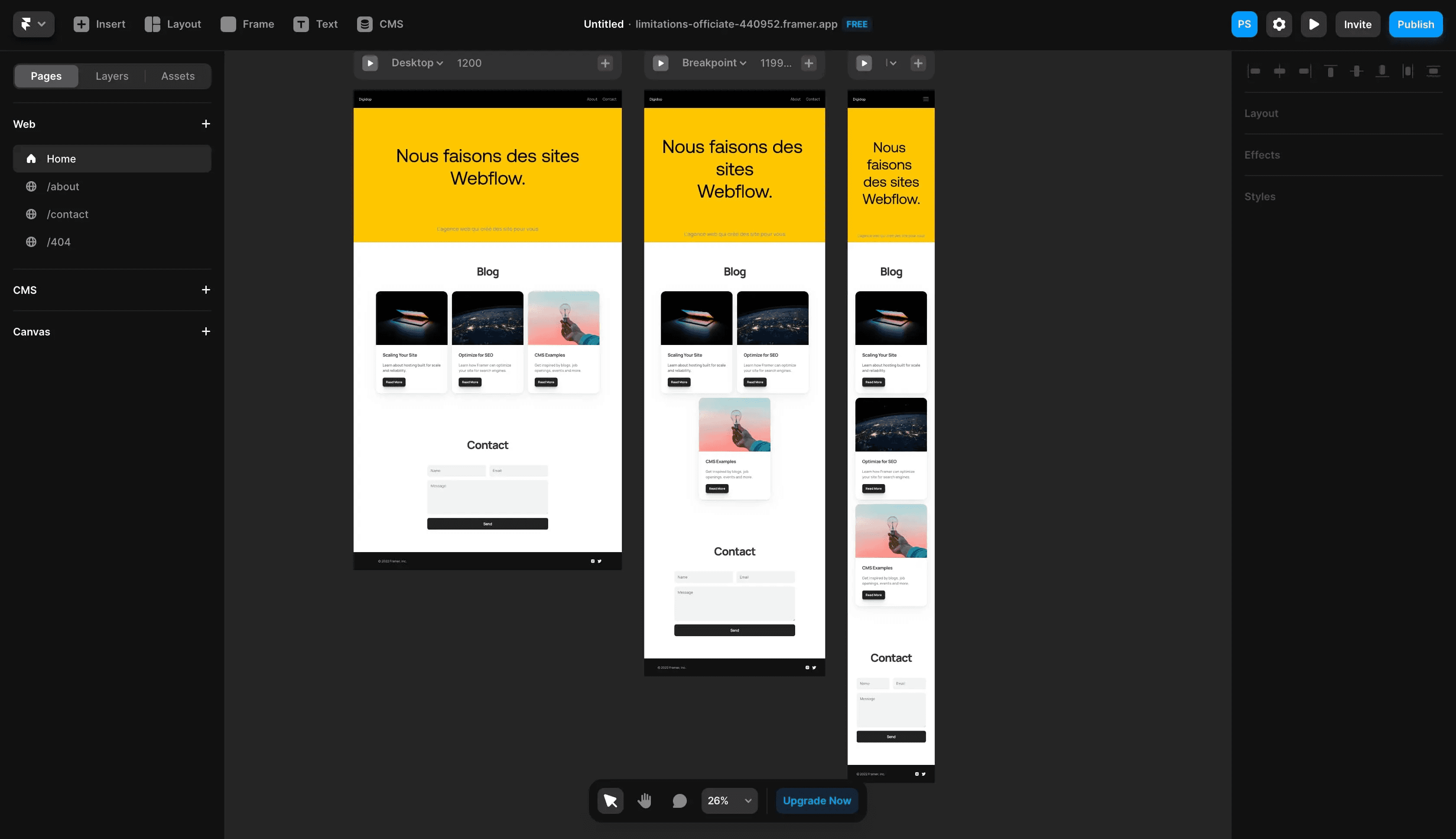
Its design canvas feels familiar to Figma users, but it adds deeper control over animations, behaviors, and realistic interactions. Framer’s main advantage is that prototypes behave like real products, allowing teams to test flows, transitions, and complex states without writing code.
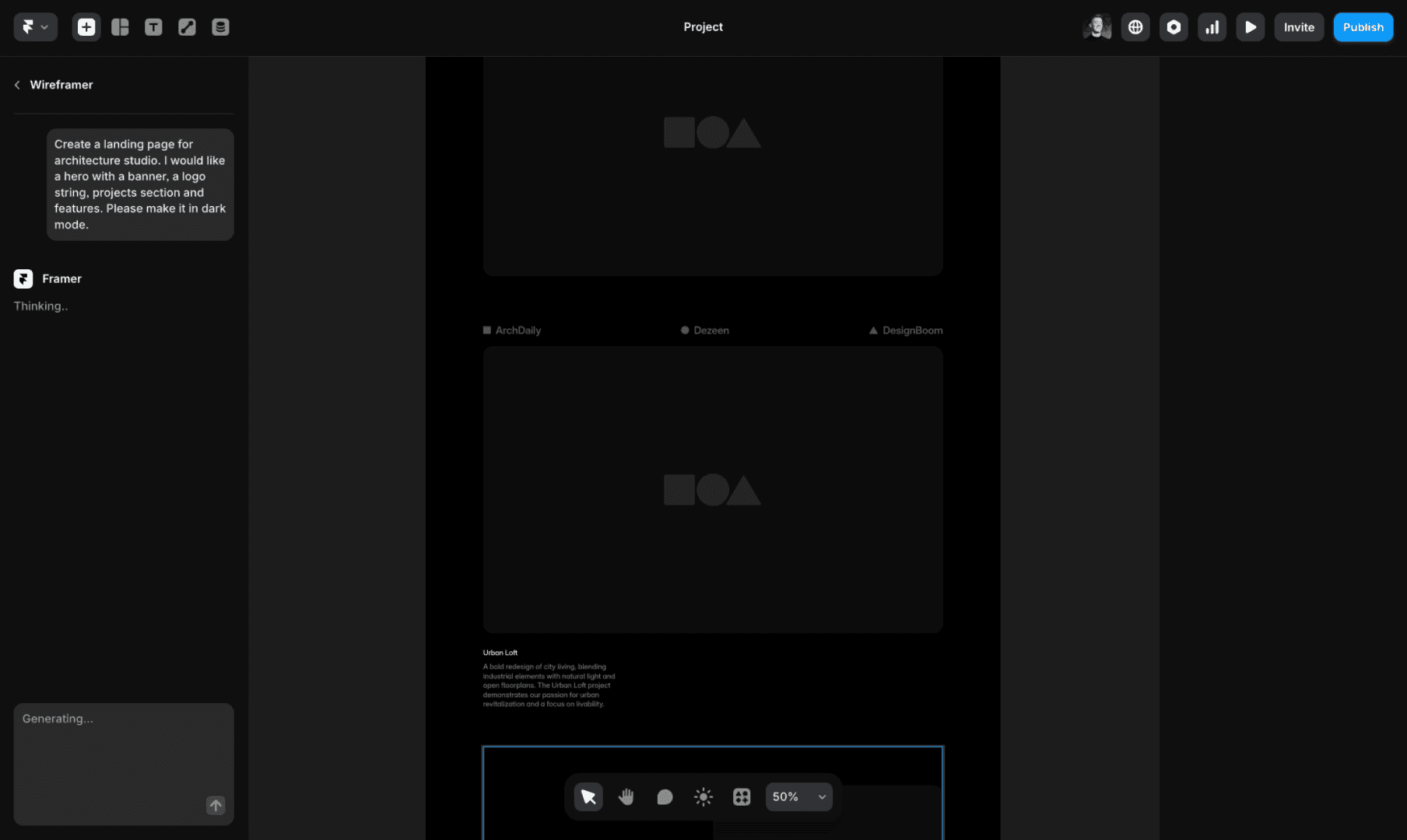
This helps designers validate ideas early and present concepts in a way that mirrors final user behavior.
Framer also bridges the gap between UX design and production by letting teams publish live, responsive websites directly from the tool. The platform offers breakpoints, layout controls, and responsive components that adapt cleanly to different screen sizes.
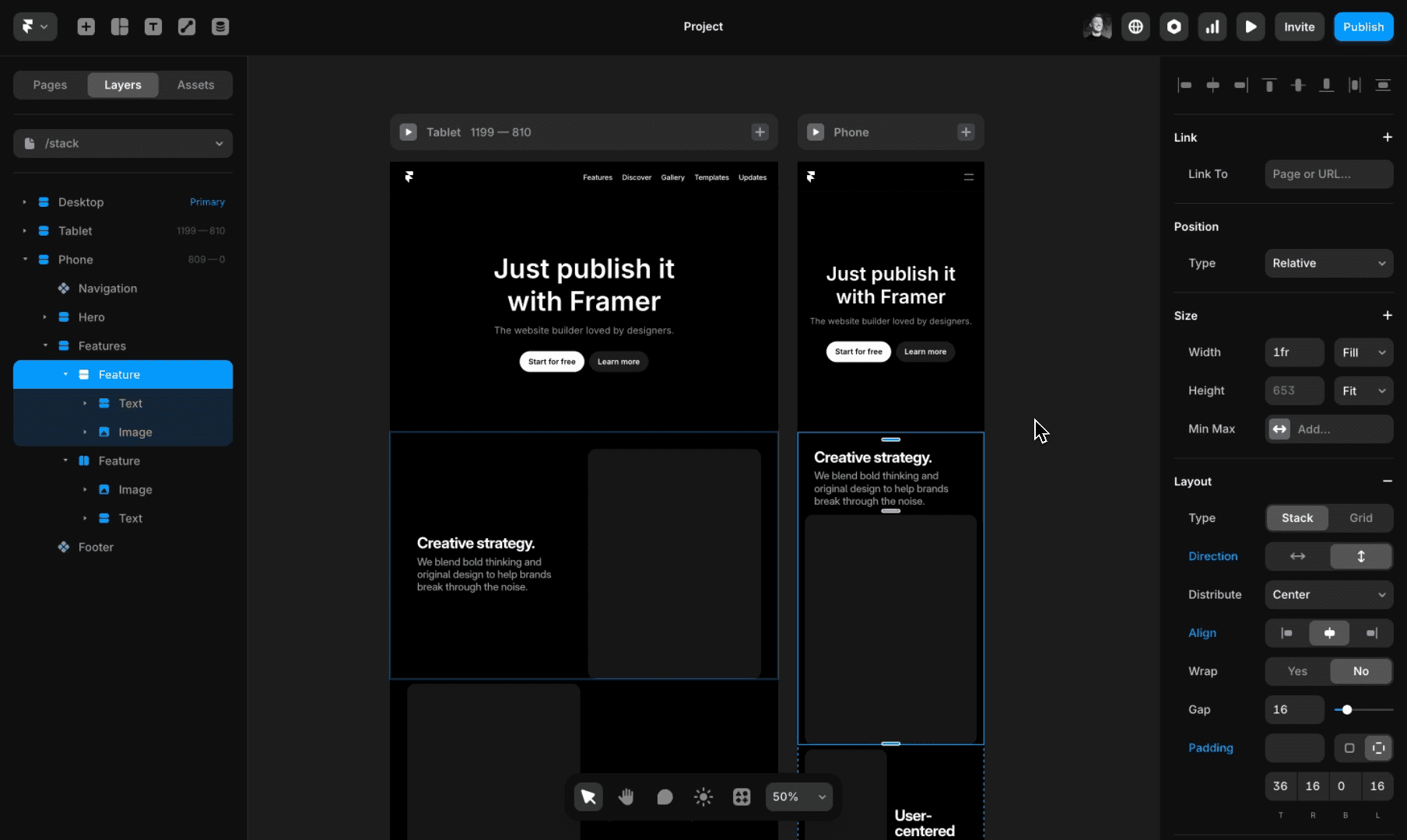
Designers can craft high-fidelity interfaces and then turn them into functioning sites with built-in SEO, performance optimization, and CMS support.
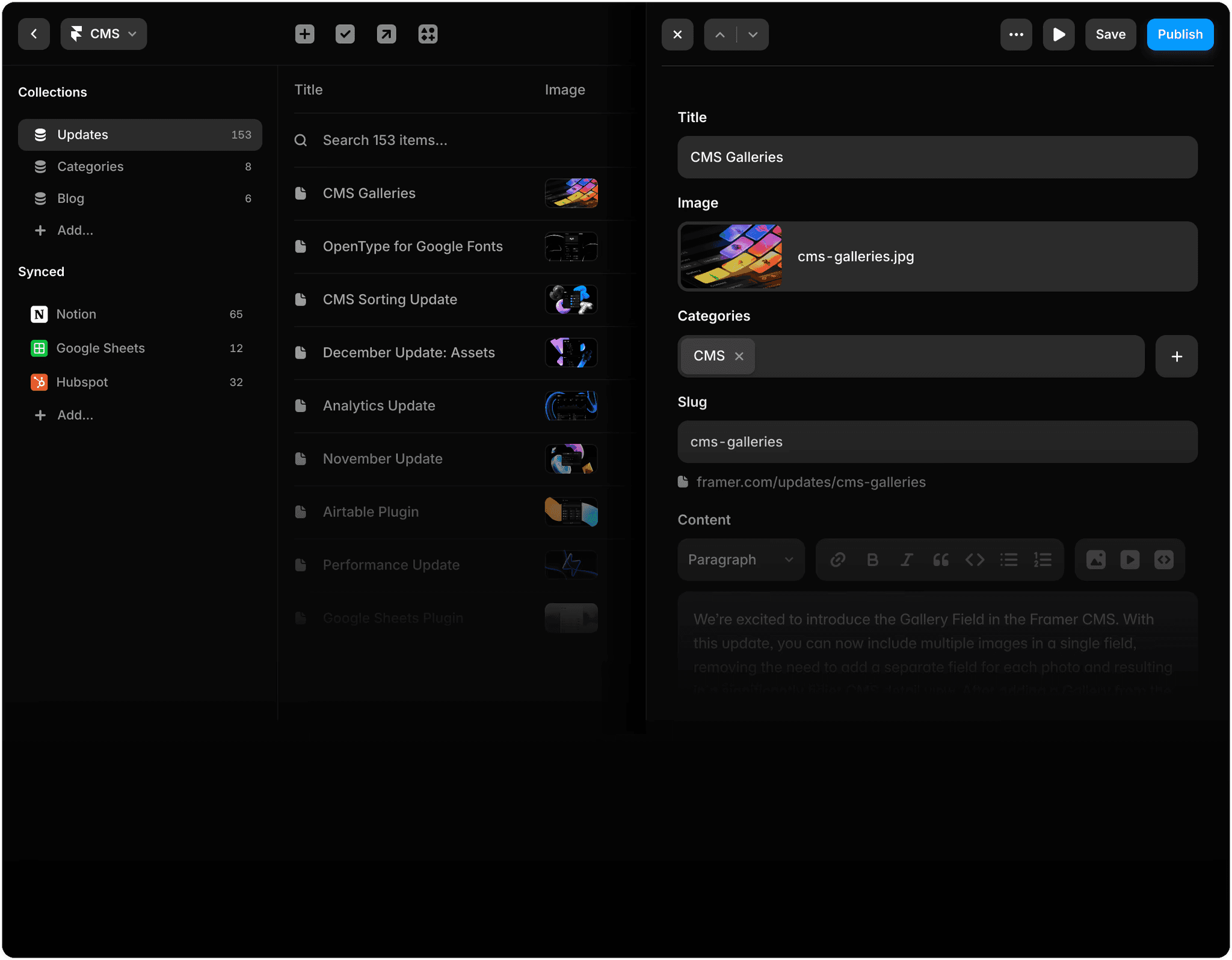
Real-time collaboration makes it easy to share prototypes, gather feedback, and refine designs together. Framer’s AI tools generate layout options and components, helping teams skip blank-page moments and explore multiple directions quickly.
Designers use Framer not only for UX work but also for landing pages, portfolios, and full product sites, all created and shipped from the same environment.
Framer lets your team:
Design interactive prototypes with advanced animations and realistic behaviors
Build responsive layouts that can go live as full websites
Publish designs instantly with built-in SEO, CMS, and performance tools
Collaborate in real time with shared previews and version updates
Generate layouts and components with AI to speed up early design exploration
6. Visily: AI-First Wireframing and UX Concept Tool

Visily is designed for teams who need to turn rough ideas into clear product visuals without a steep learning curve. It focuses on simplicity and speed, giving non-designers and early-stage teams a way to express product concepts with accuracy.
You can start from almost anything: a screenshot, a text prompt, a hand-drawn sketch, or one of their many templates.
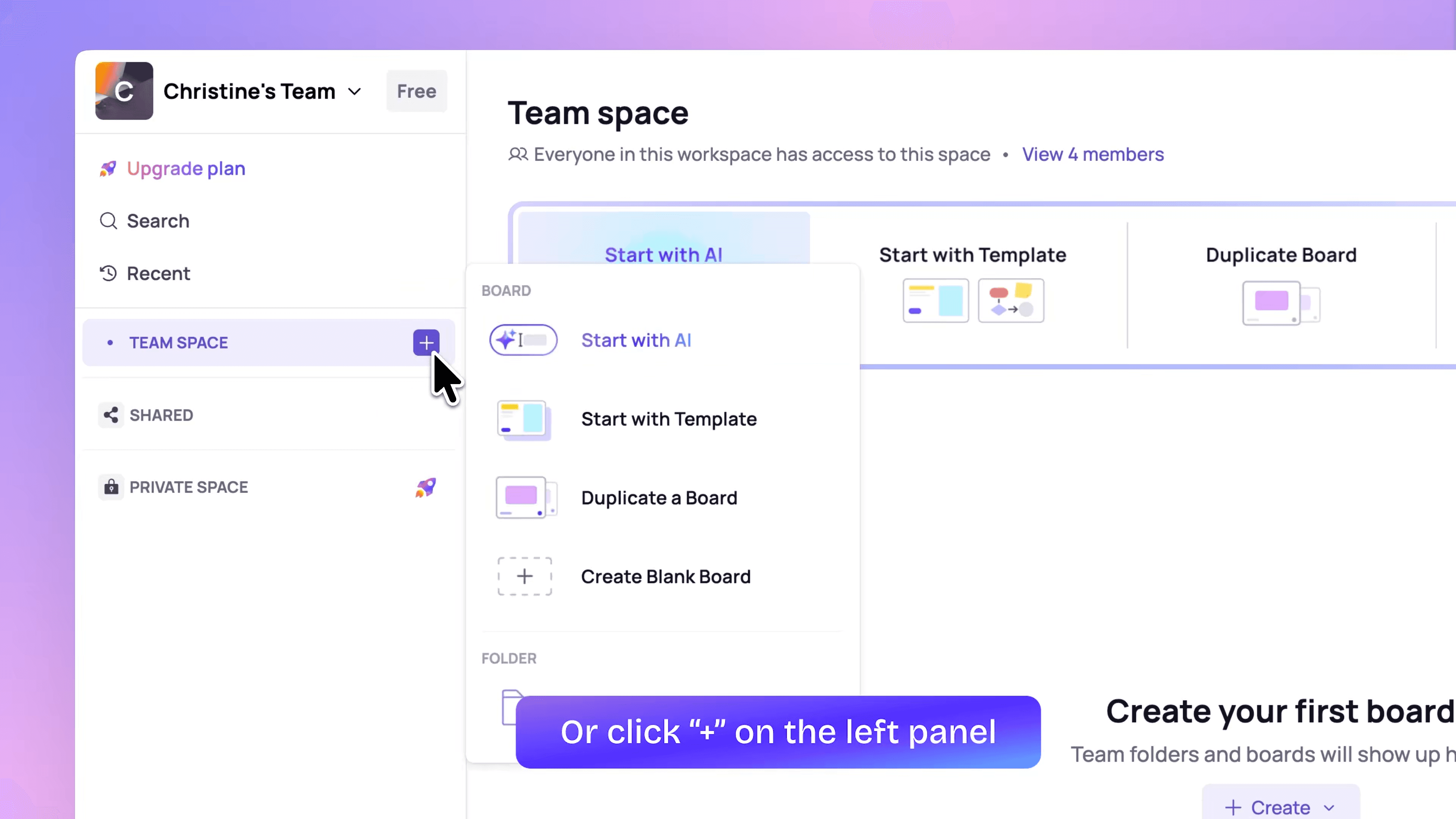
Visily then converts it into an editable layout that you can refine on the canvas. This helps teams align quickly, especially when early buy-in from clients or executives is critical.
The platform pairs AI generation with flexible editing tools so you can adjust components, restructure screens, and polish flows without feeling restricted.
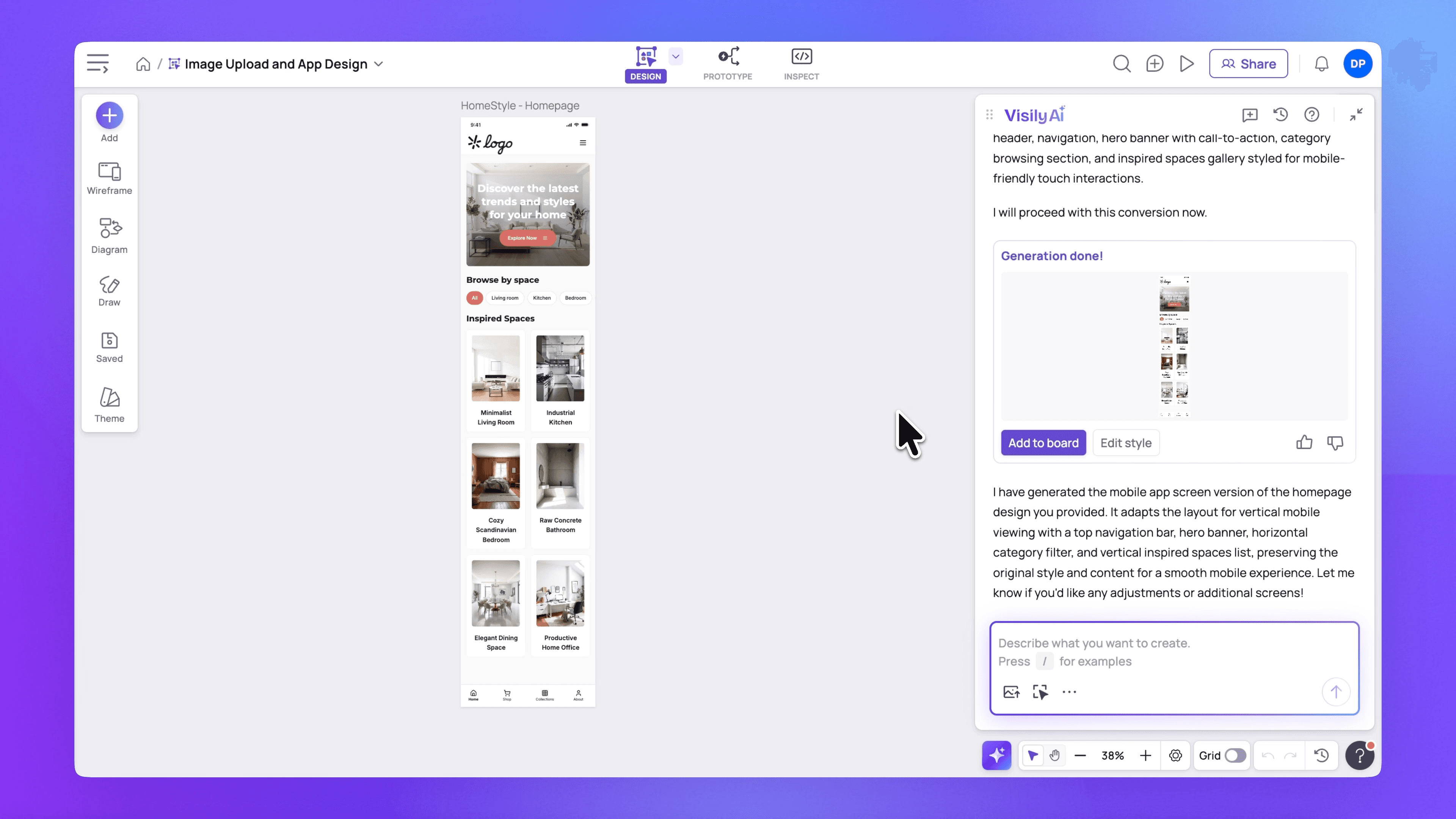
Smart Components and Auto-Prototyping automate many steps that usually slow down UX work, turning static screens into interactive previews in minutes. Visily positions itself as a complete workflow tool for brainstorming, wireframing, prototyping, and presenting.
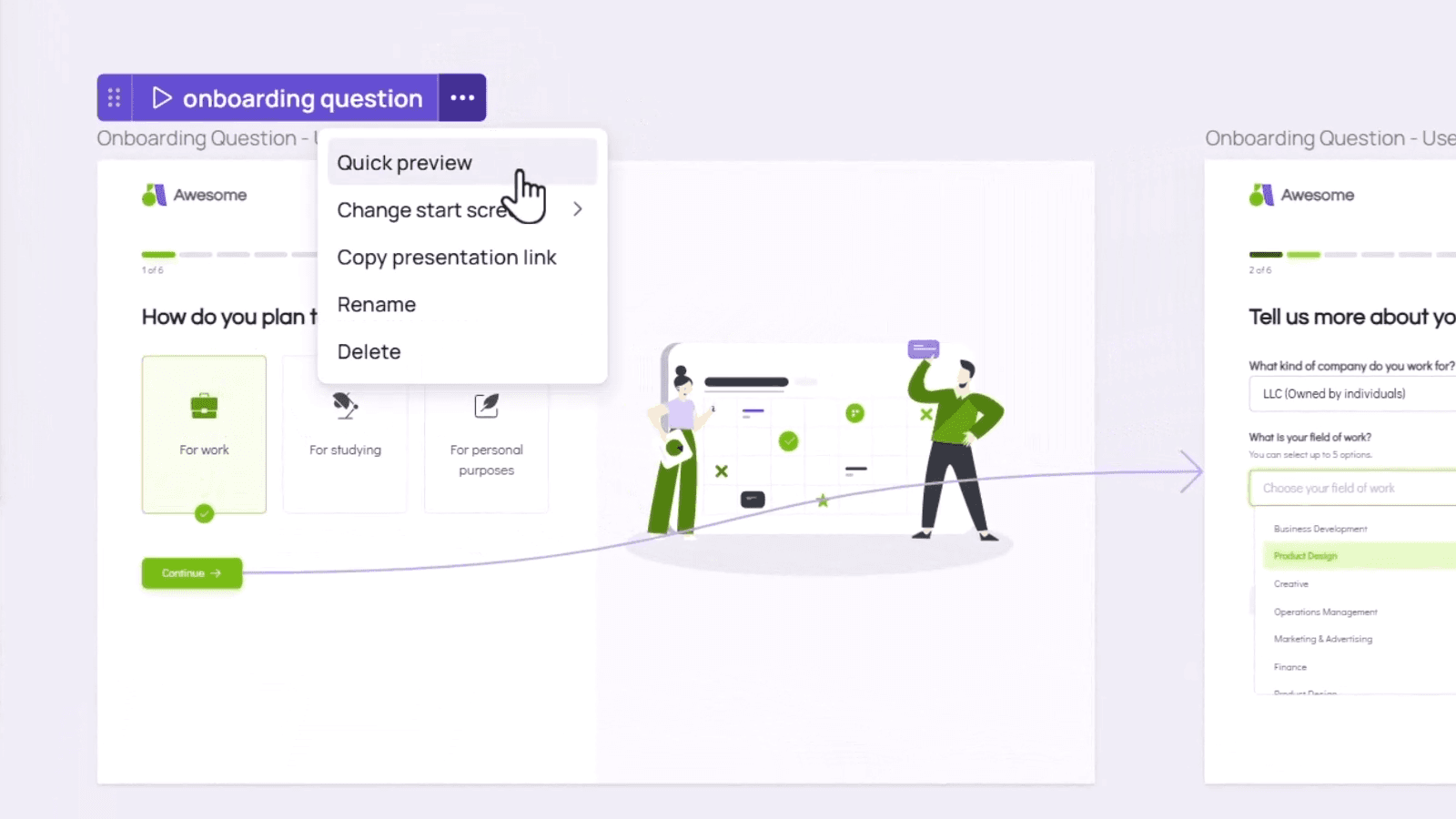
The free plan includes templates, themes, components, and AI tools, making it easy for small teams or startup founders to adopt.
While it is not built for complex systems at the scale of Figma or Sketch, Visily is strong when speed, clarity, and ease of use matter most.
Visily lets your team:
Generate editable wireframes from screenshots, text prompts, or sketches
Refine layouts with drag-and-drop components, templates, and Smart Components
Create interactive prototypes automatically with AI-driven flows
Collaborate through comments, cursor chat, and shared libraries
Share or export designs to Figma, PDF, PNG, or JPG for handoff or presentations
7. Lunacy: Cross-Platform Design App with Built-In AI Tools

Lunacy is a desktop design tool built by Icons8, offering a fast and lightweight workflow across Windows, macOS, and Linux.
Its biggest strength is full cross-platform support, giving teams a native design environment no matter what operating system they use. Lunacy mirrors familiar UI/UX design features, components, auto layout, prototyping, variables, but keeps everything local and responsive.
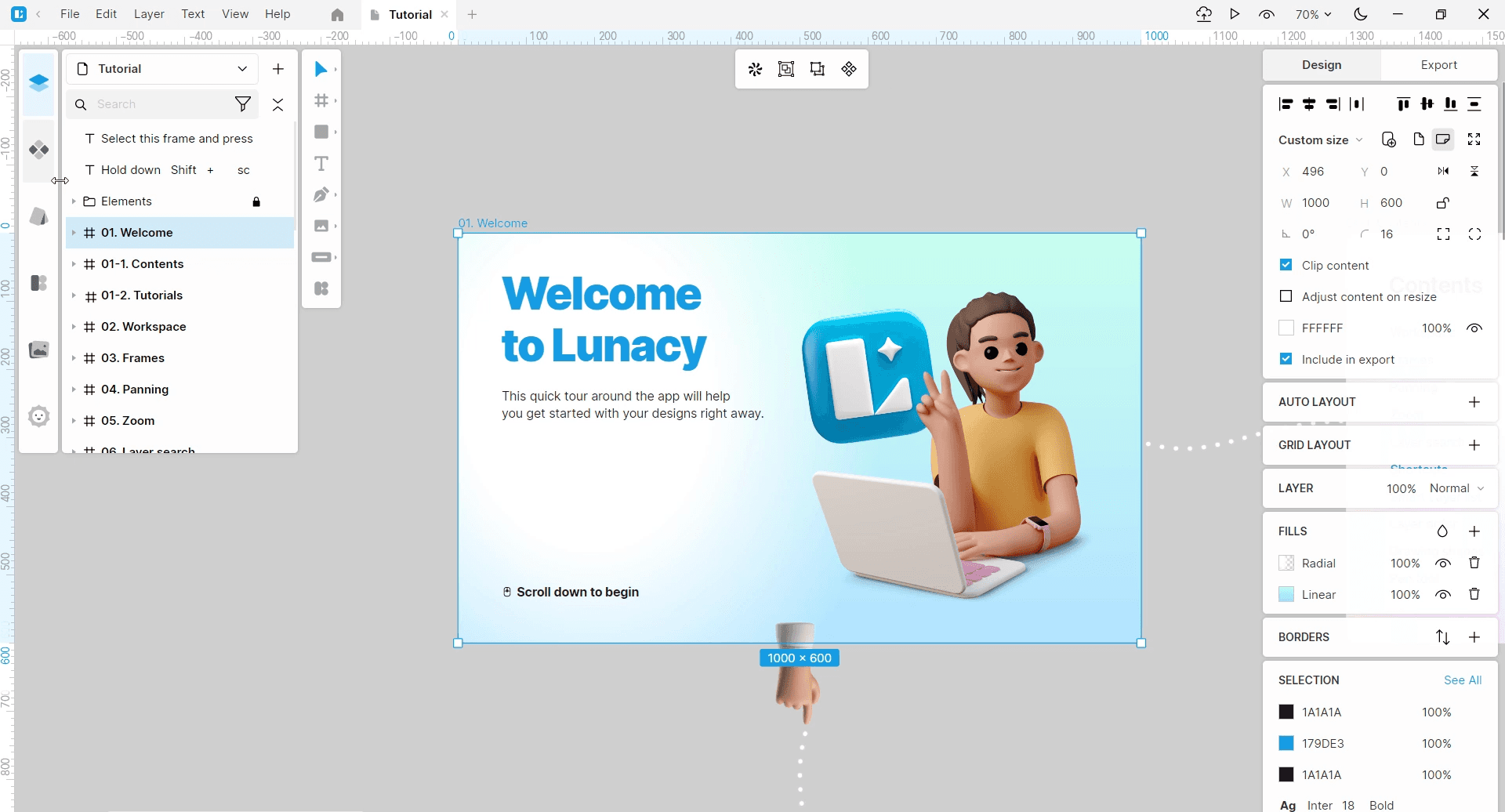
This makes it a practical alternative for designers who prefer offline access or who work on machines that struggle with browser-based tools.
The tool includes an AI suite designed to remove routine tasks from the workflow. Built-in image upscaling, background removal, text generation, and avatar creation help speed up early concepts without switching apps.
Because Lunacy is part of the Icons8 ecosystem, it also provides direct access to extensive libraries of icons, illustrations, photos, and UI kits. This built-in content can accelerate wireframing and mockup work when teams need quick visuals or consistent components.
Prototyping and collaboration capabilities place Lunacy in a similar category to Penpot and other mid-level UX tools.
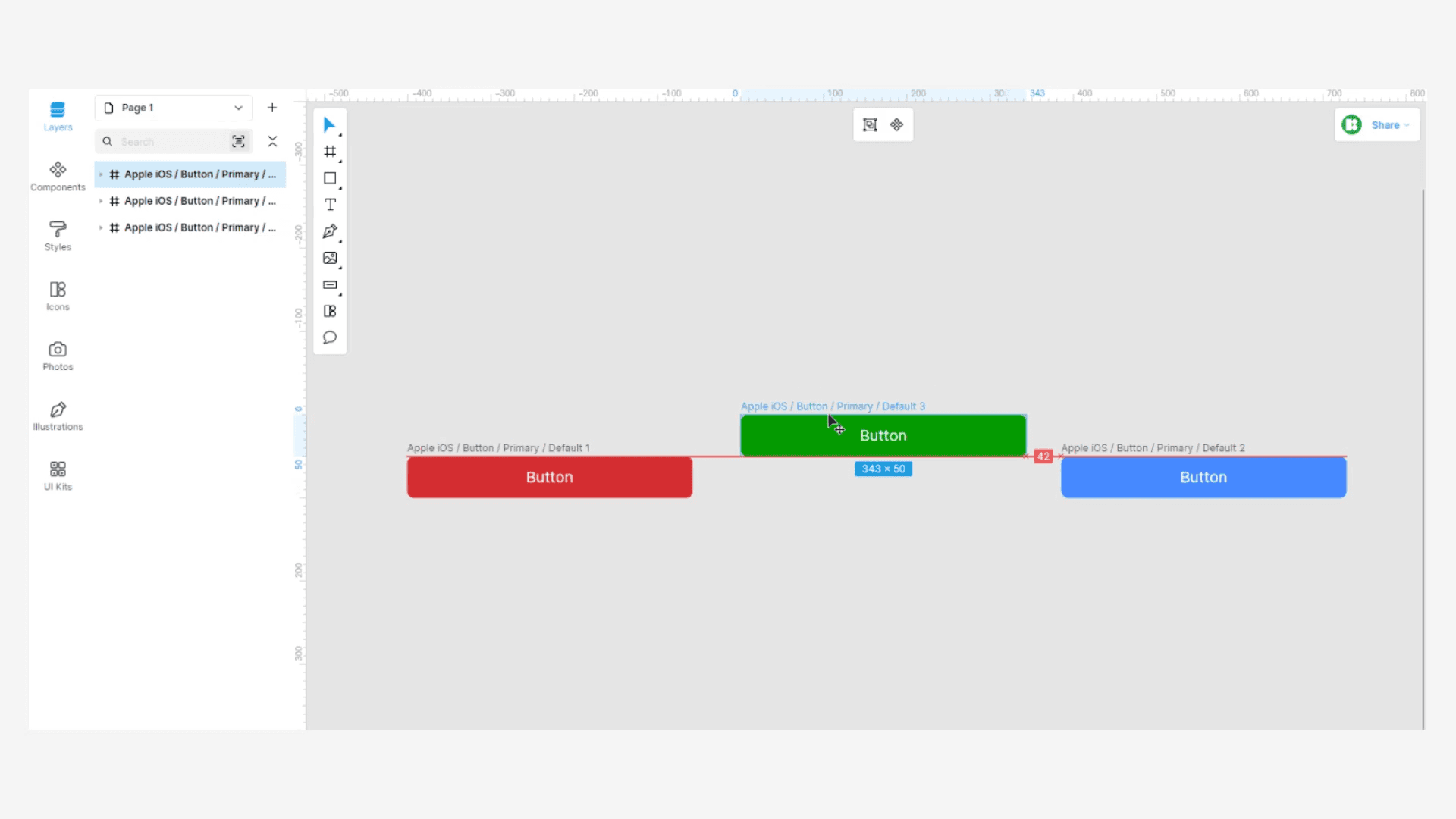
It supports clickable prototypes, real-time collaboration, and smooth handling of Sketch files. Importing from Figma is supported, although results may vary depending on the file’s complexity.
Lunacy lets your team:
Design on Windows, macOS, or Linux with fast native performance
Use built-in AI tools for upscaling, background removal, text, and avatars
Access free icons, illustrations, photos, and UI kits directly in the app
Prototype flows and collaborate in real time without relying on the browser
Open Sketch files and import from Figma for flexible file handling
Toolfolio’s Suggestions: Best Fits for Different UX Workflows
Framer for interactive UX and fast publishing
Framer is ideal when your project requires rich interactions, animated flows, or realistic prototypes that mirror how a final product behaves. It also suits teams that want to move from design to a live website without passing through traditional development steps.
Sketch for focused design with native performance
Sketch is a strong choice for designers who prefer a clean, distraction-free environment and value the speed of a native macOS app. It works best when your team needs reliable vector tools, easy offline access, and predictable performance across large files.
Penpot for open-source collaboration and dev alignment
Penpot is built for teams who want open standards, full ownership of their work, and tight alignment between design and development. Its CSS-based layout system helps designers create interfaces that behave like real code, reducing handoff issues and future inconsistencies.
Wrapping Up
Choosing the right UX design tool depends on how you work, what you need to deliver, and how quickly you want to move from idea to execution. The key is picking the option that fits your workflow and helps you stay productive.
If you found this guide useful, explore our other tutorials and resources:
You May Also Like












Featured Tools


Newest Additions













AI Image & Video Generation

















Vibe Coding Library



























Screenshot & Screen Recording Tools