How to Trim and Download YouTube Videos (For Free)
Learn how to trim and download YouTube videos in a simple step by step way so you can save only the part you need without wasting time or using complex tools.

Dudu
Dec 28, 2025

Last Updated Dec 28, 2025
Image Credit: Toolfolio
Cutting and downloading a YouTube video is useful when you only need a specific part of a clip.
Maybe it is a short highlight, a tutorial segment, or a memorable moment you want to save. Instead of downloading the whole video and editing it later, online tools let you trim first and download only what matters.
Most people want a simple process that works in the browser without installing heavy software. Online trimmers make this easy. You paste a YouTube link, choose the start and end time, preview the clip, and export the final cut. This saves time and storage while keeping the workflow smooth.
In this guide, you will learn how to trim and download YouTube videos using free online tools. The steps are beginner-friendly, work on any device, and help you extract clips quickly for study, reference, or personal use.
How to Trim and Download YouTube Videos
Online trimmers make it easy to extract only the part of a YouTube video you need.
SliceTube is one of the simplest tools for this. It runs in your browser, does not require sign up, and supports high resolution downloads. Follow the steps below to trim and save a video segment in minutes.
Step 1: Open SliceTube and paste your YouTube link
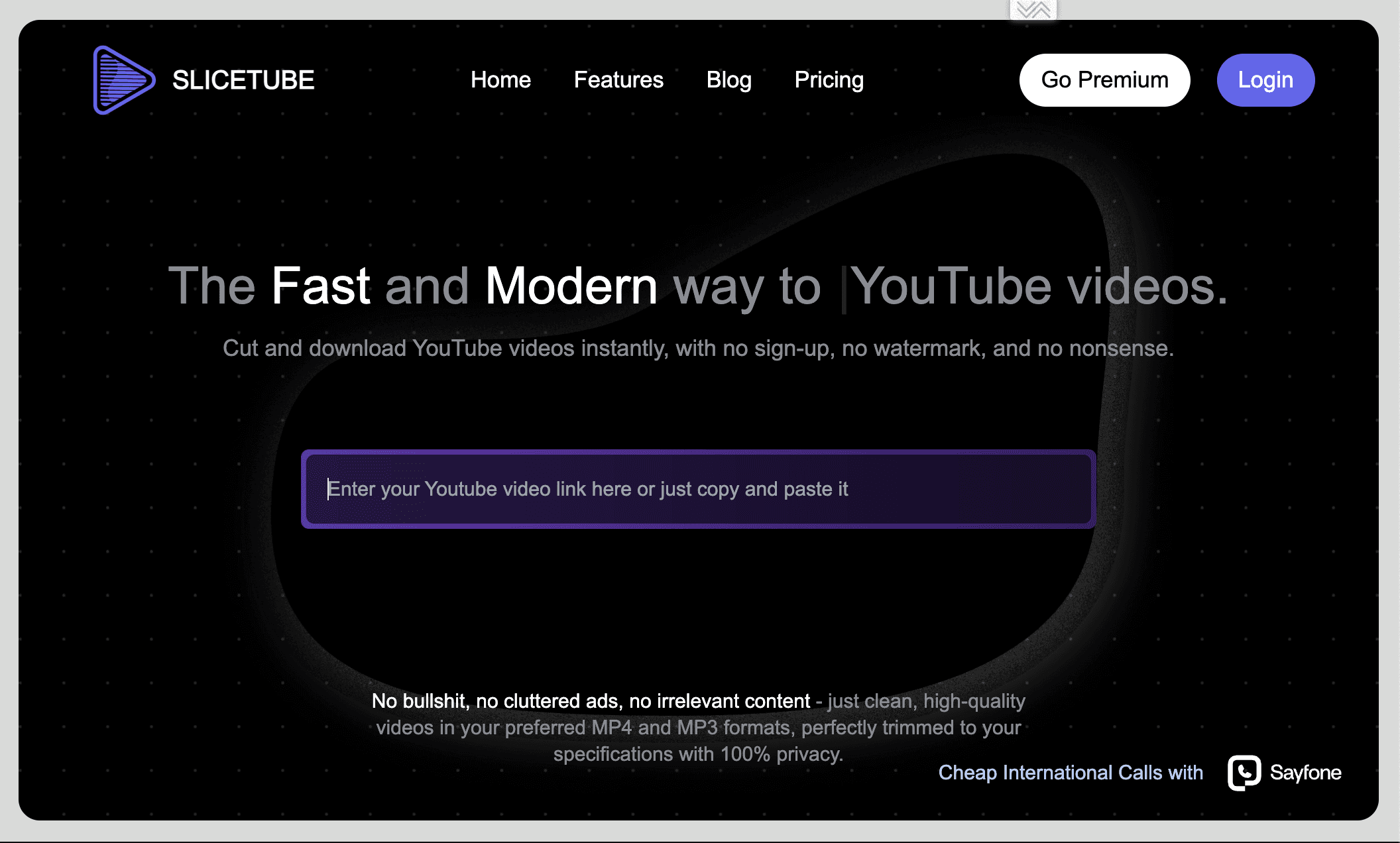
Go to the SliceTube website in your browser. Copy the URL of the YouTube video you want to trim and paste it into the input field on the homepage.
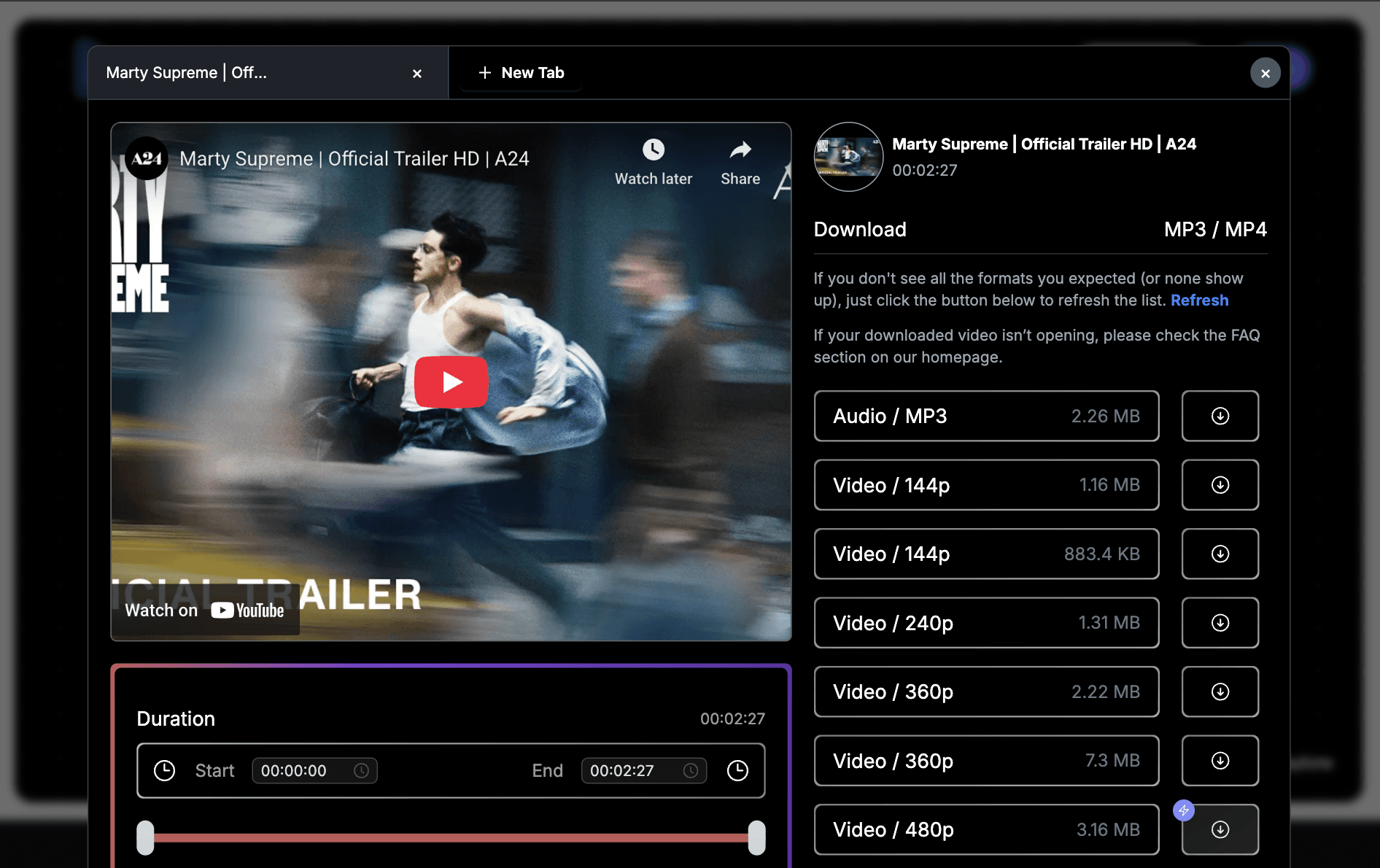
The tool will load the video preview so you can start selecting the portion you want.
Step 2: Select the exact part you want to keep
Use the timeline slider to choose the clip’s start and end times, or enter the timestamps manually if you need more accuracy.
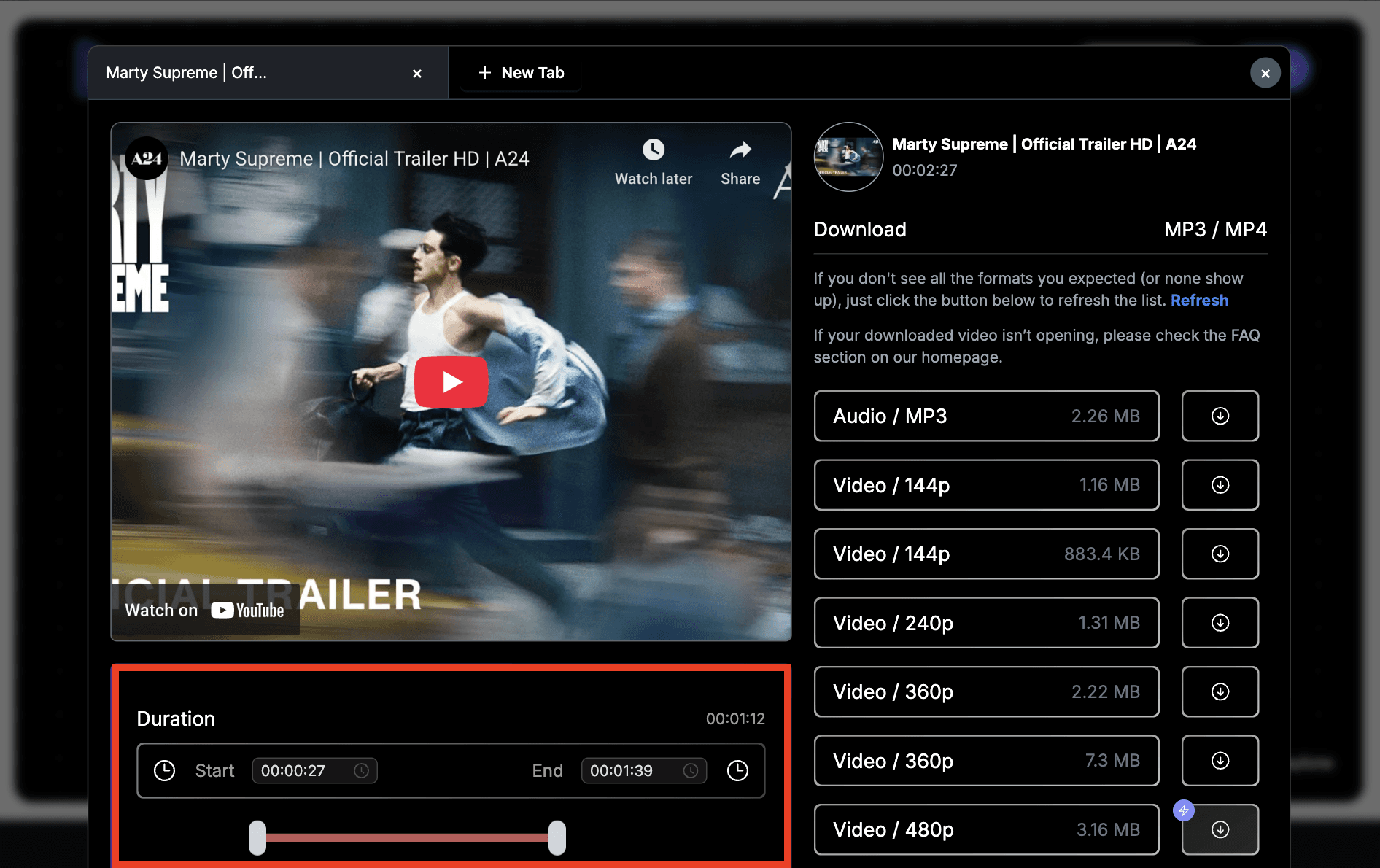
Preview the selection to make sure the trimmed segment begins and ends where you want.
Adjust the markers until the clip feels precise.
Step 3: Choose format and video quality
Select the output format that fits your needs. MP4 works best for most uses, while MP3 is suitable if you only need audio.
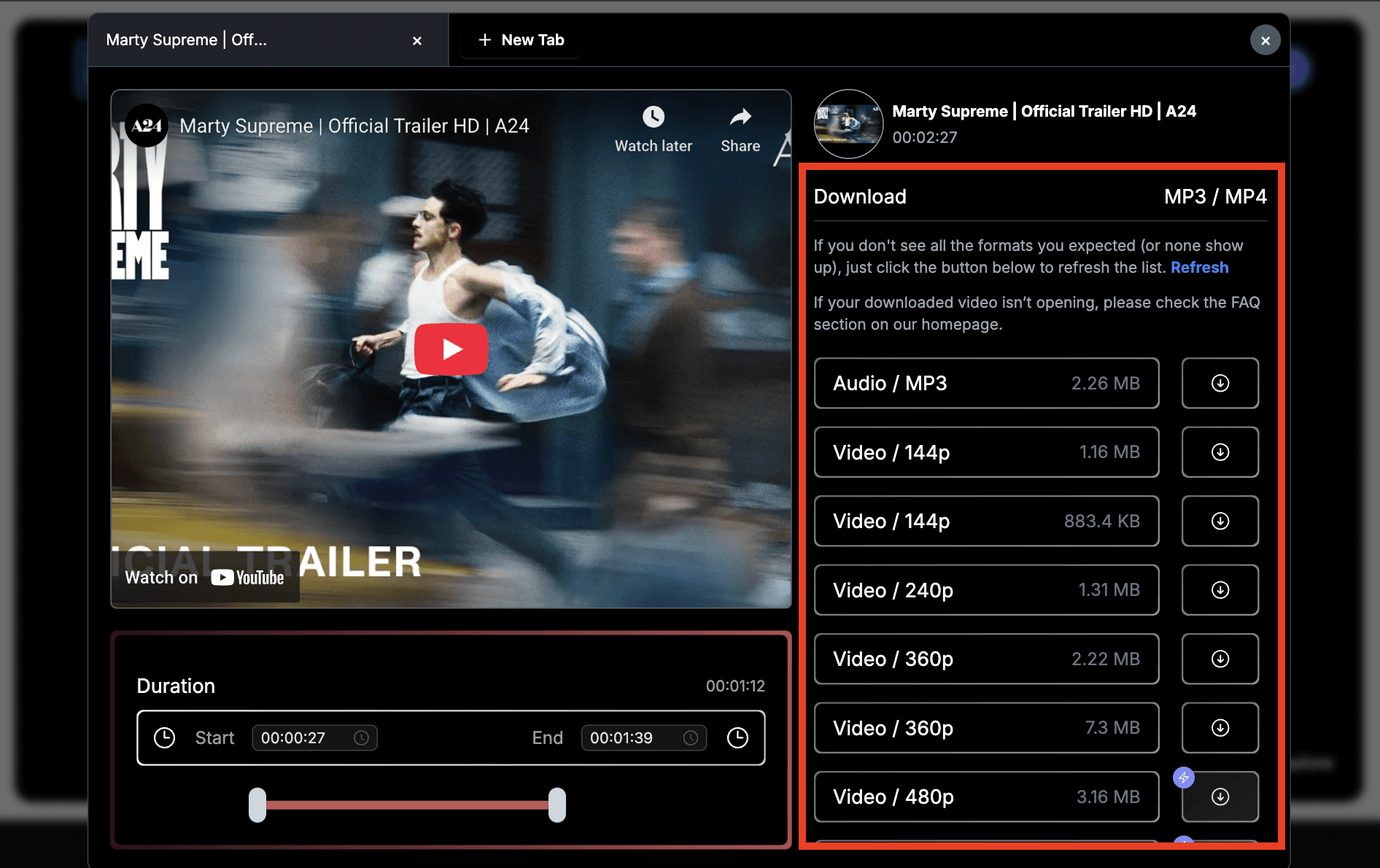
You can also pick the resolution, from lower sizes like 144p for small files up to 4K for higher quality playback.
Step 4: Trim the video and download your clip
Click the Trim or Create button to process your selection. SliceTube will prepare the clip based on the timestamps you set.
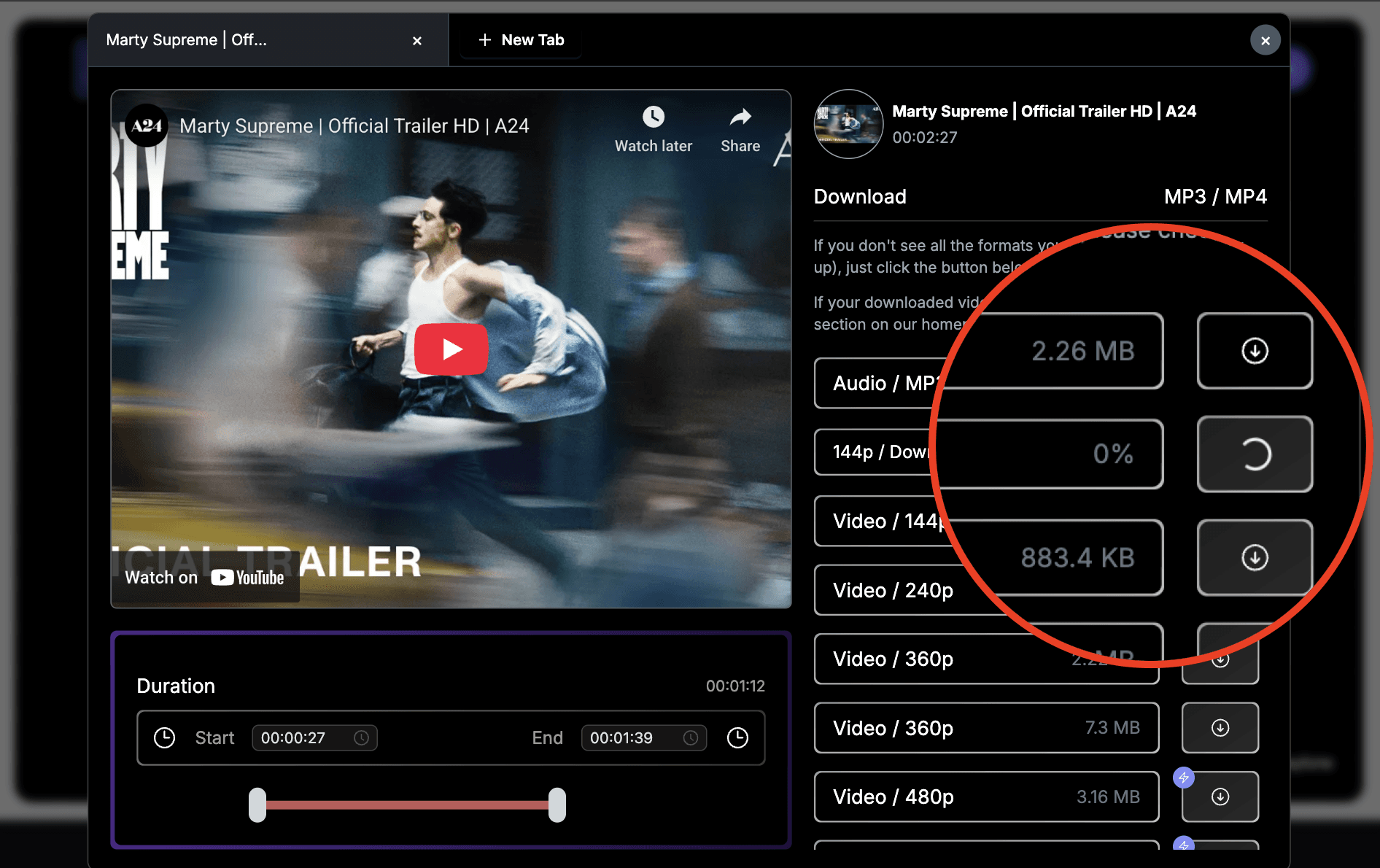
When it finishes, click Download to save the file to your device. The clip is now ready to use or share without any extra editing.
That’s all you need to cut and download the part of a YouTube video you want. It’s quick, works in the browser, and gets the job done.
For more useful tools like this, browse Toolfolio. Also do not forget to check out more resources:
You May Also Like













Featured Tools




Newest Additions

















AI Image & Video Generation


























Vibe Coding Library










































Screenshot & Screen Recording Tools