
How to Capture Scrolling Screenshots on Any Website (Guide)
Learn how to capture scrolling screenshots as videos, where the page records while you scroll. This guide shows simple tools and methods to create smooth, shareable scrolling captures instead of static full-page screenshots.

Dudu
Mar 27, 2026
Last Updated Mar 27, 2026
Image Credit: Toolfolio
Recording a scrolling screenshot is not the same as taking a full page screenshot.
A full page screenshot gives you one long, static image. It works for saving content, but it does not show how the page feels when someone scrolls through it.
Sometimes you need more than that. You may want to show a product page, a landing page, or a design in action. You want people to see the flow, the movement, and how everything connects while scrolling.
That is where scrolling screenshots as videos help.
They record your screen while you scroll, so you can capture the full experience of a website. This is useful for demos, sharing on social media, or showing work to clients.
In this guide, you will learn how to capture smooth scrolling screenshots as videos on any website, using simple tools and easy steps.
How to Capture Scrolling Screenshots as a Video (Online Tool)
Step 1: Open the scrolling screenshot tool
Go to the ScreenshotOne scrolling tool page in your browser.
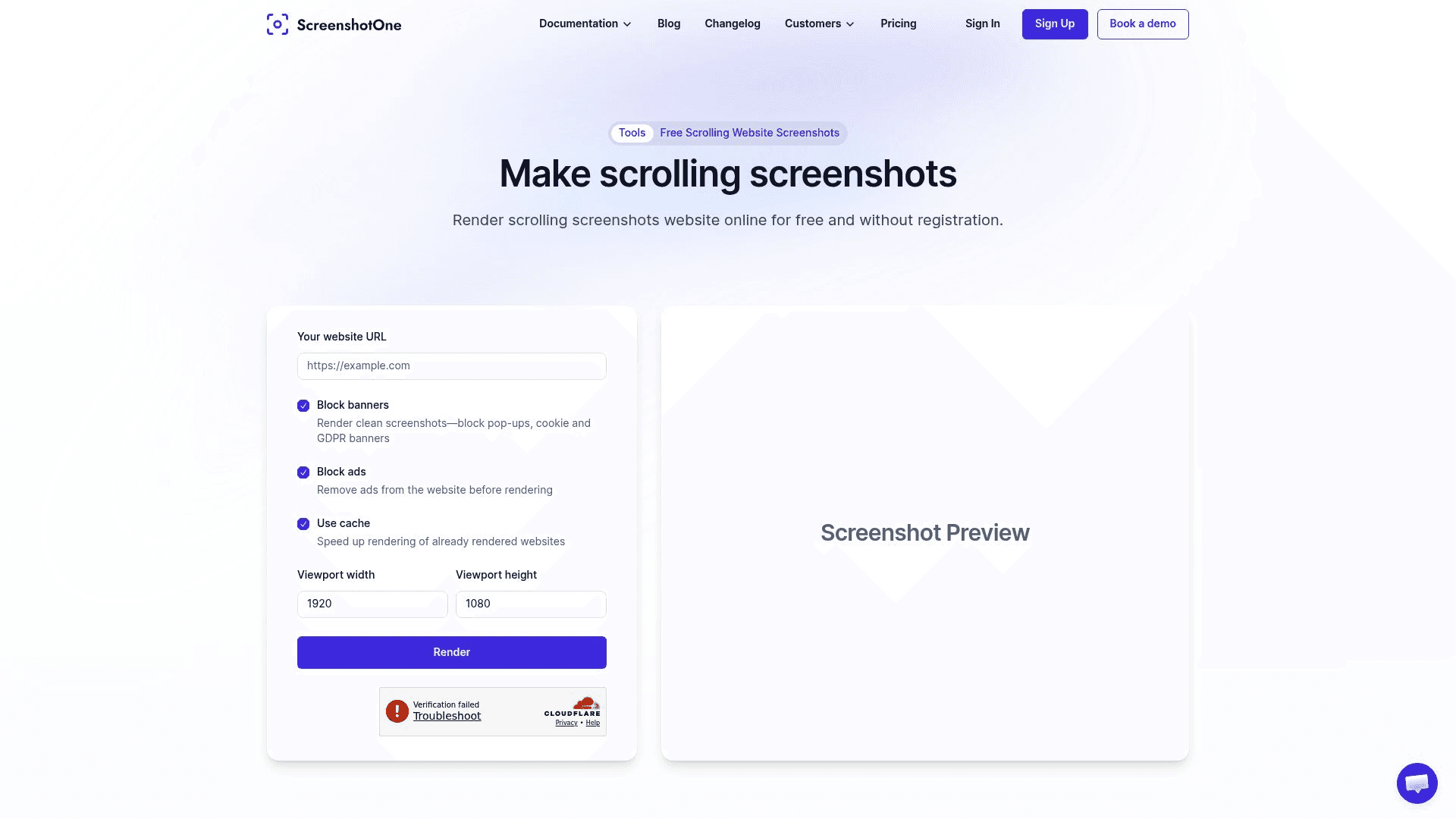
This tool lets you record a scrolling-style capture without installing anything.
Step 2: Enter your website URL
Paste the website link you want to capture, for example: https://toolfolio.io/.
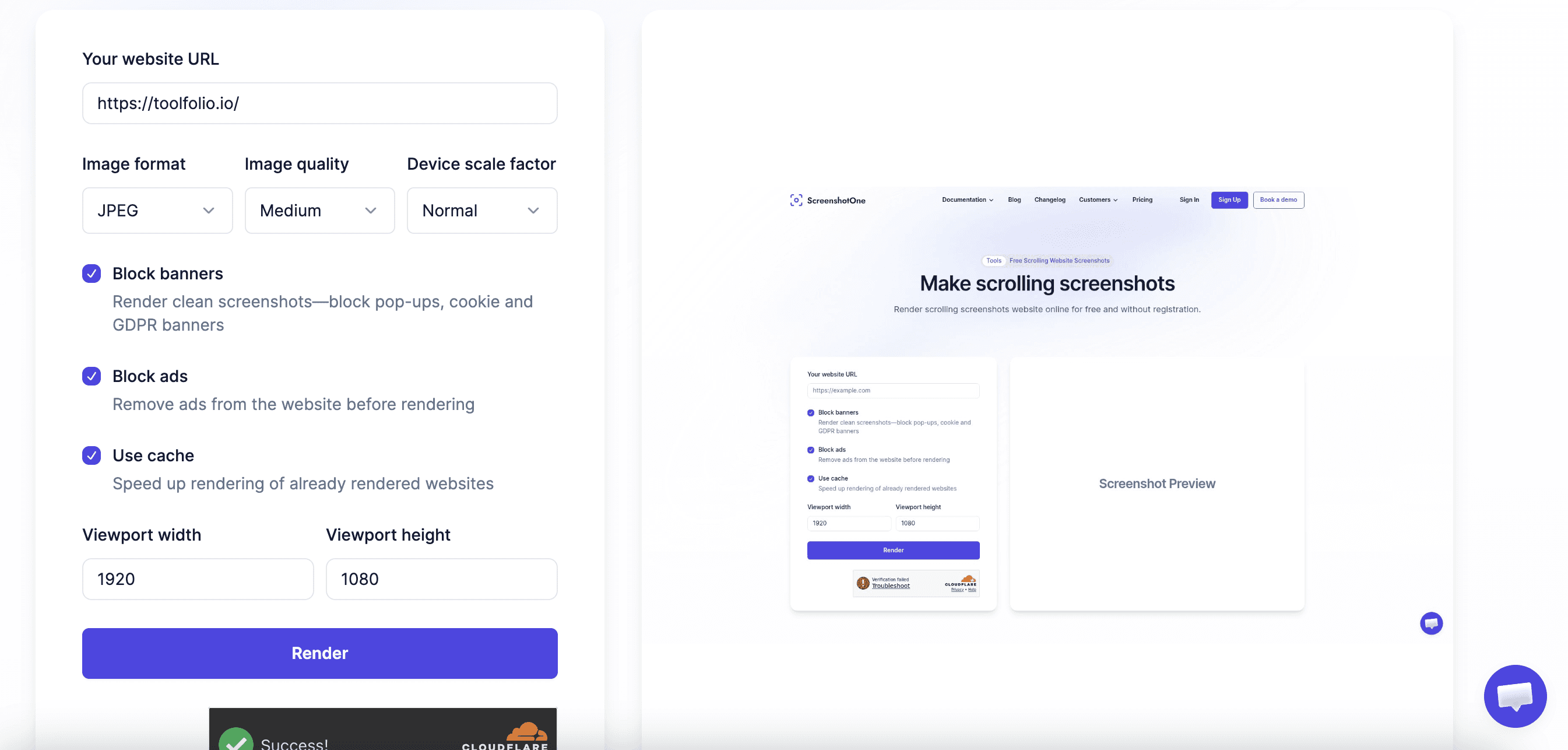
This tells the tool which page to load and record.
Step 3: Adjust basic settings
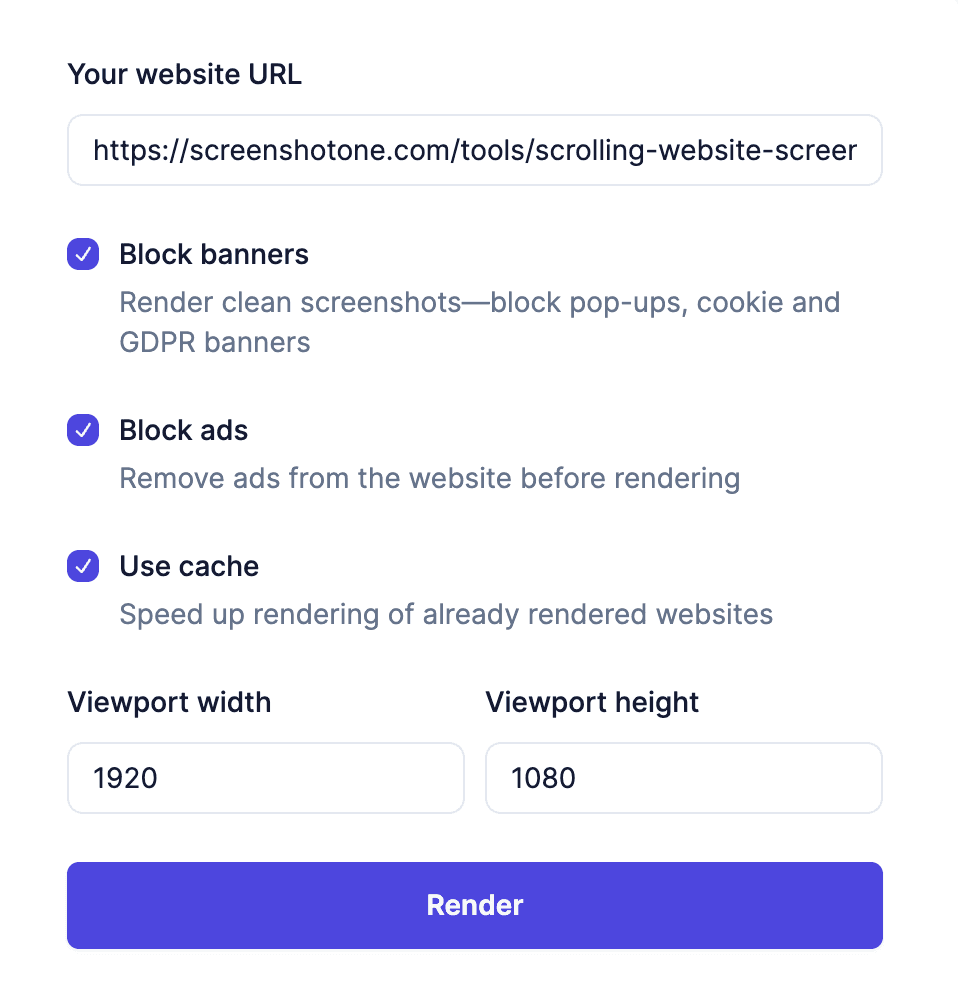
Turn on options based on your needs:
Enable Block banners to remove pop-ups and cookie notices
Enable Block ads to clean the page
Keep Use cache on for faster loading
Set the width to 1920 and height to 1080. This gives you a clean, standard screen size for recording.
Step 4: Click render
Click the Render button. The tool will process the page and create the scrolling capture.
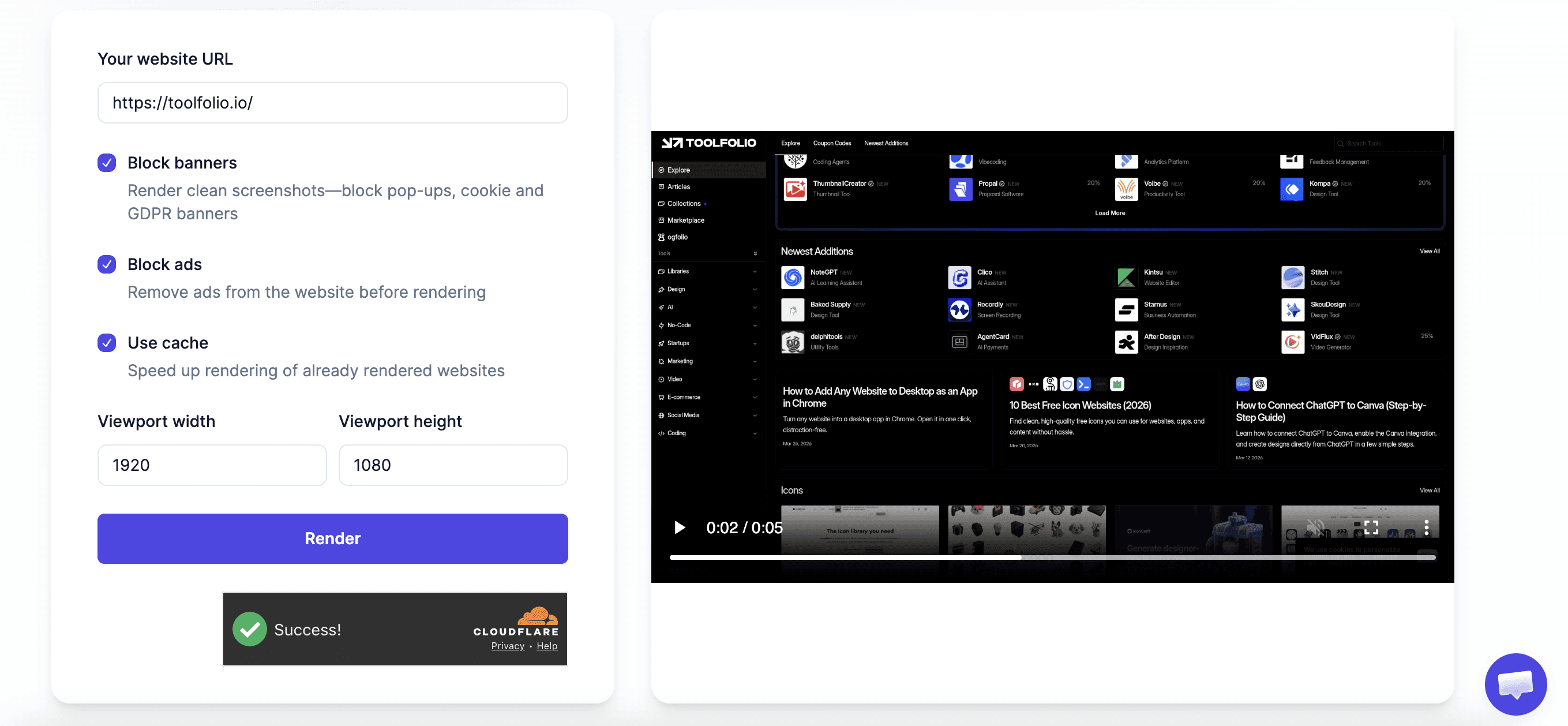
Click the three dots on the right side, then click Download. Your scrolling screenshot (video-style capture) will be saved.
How to Take a Static Full Page Screenshot (Chrome Extension)
Step 1: Install GoFullPage
Search for GoFullPage on the Chrome Web Store and install the extension.
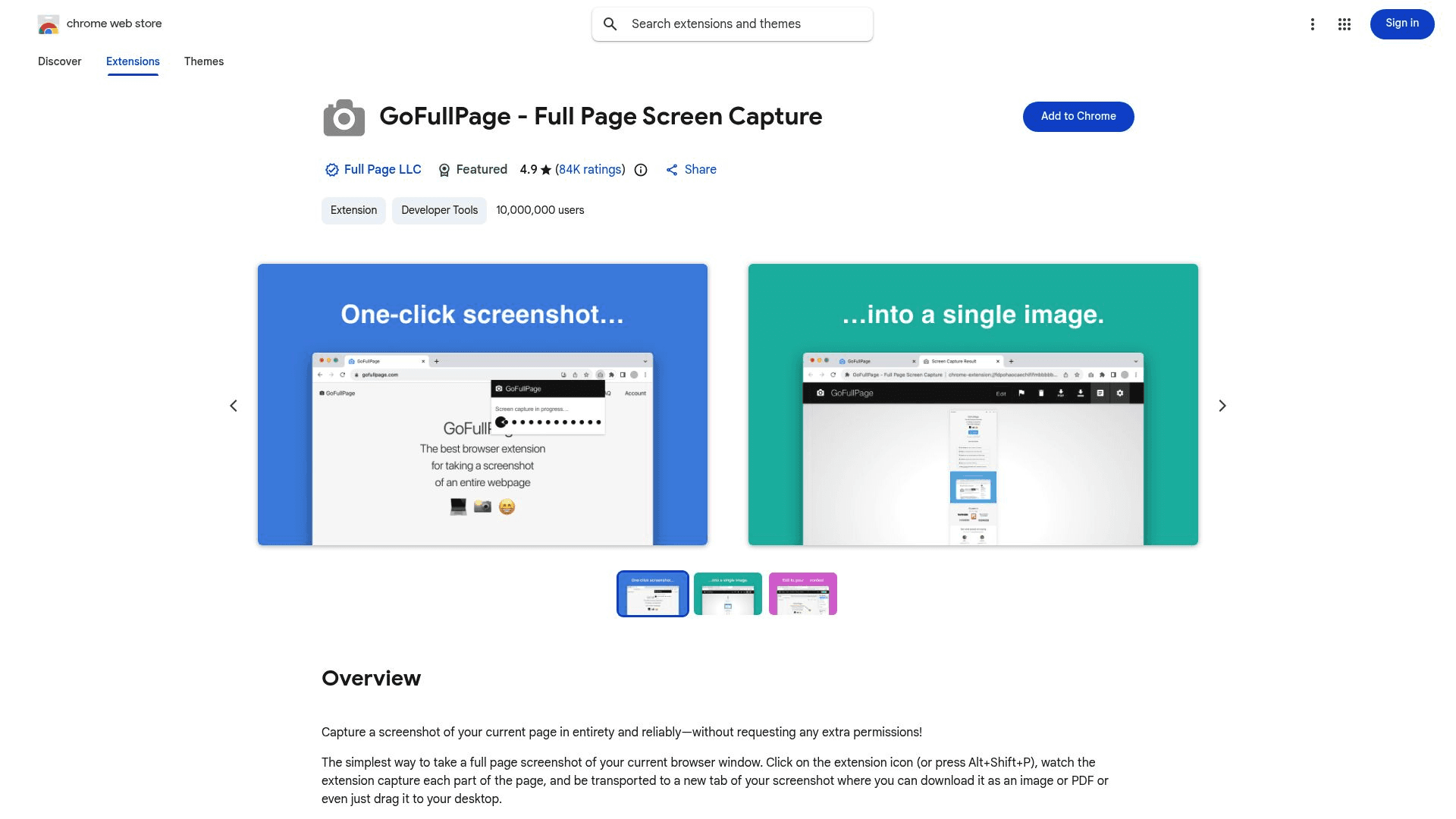
It works directly inside your browser.
Step 2: Open the website you want to capture
Go to any page you want to screenshot.
Make sure the page is fully loaded.
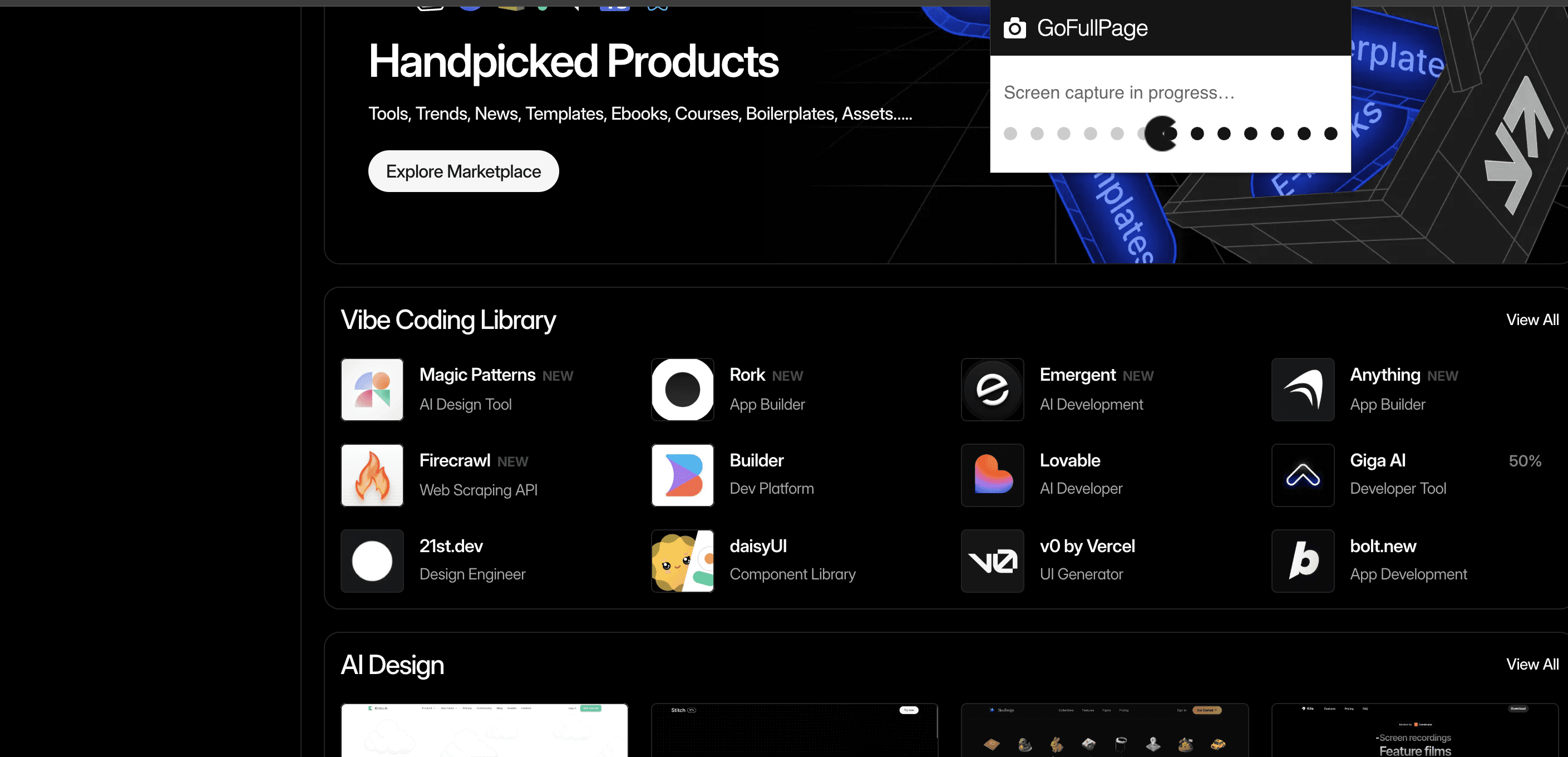
Click the GoFullPage icon in your Chrome toolbar. The tool will automatically scroll and capture the entire page.
Step 3: Review and edit the screenshot
Once captured, you can preview the full image. You can crop or make small edits if needed (premium features).
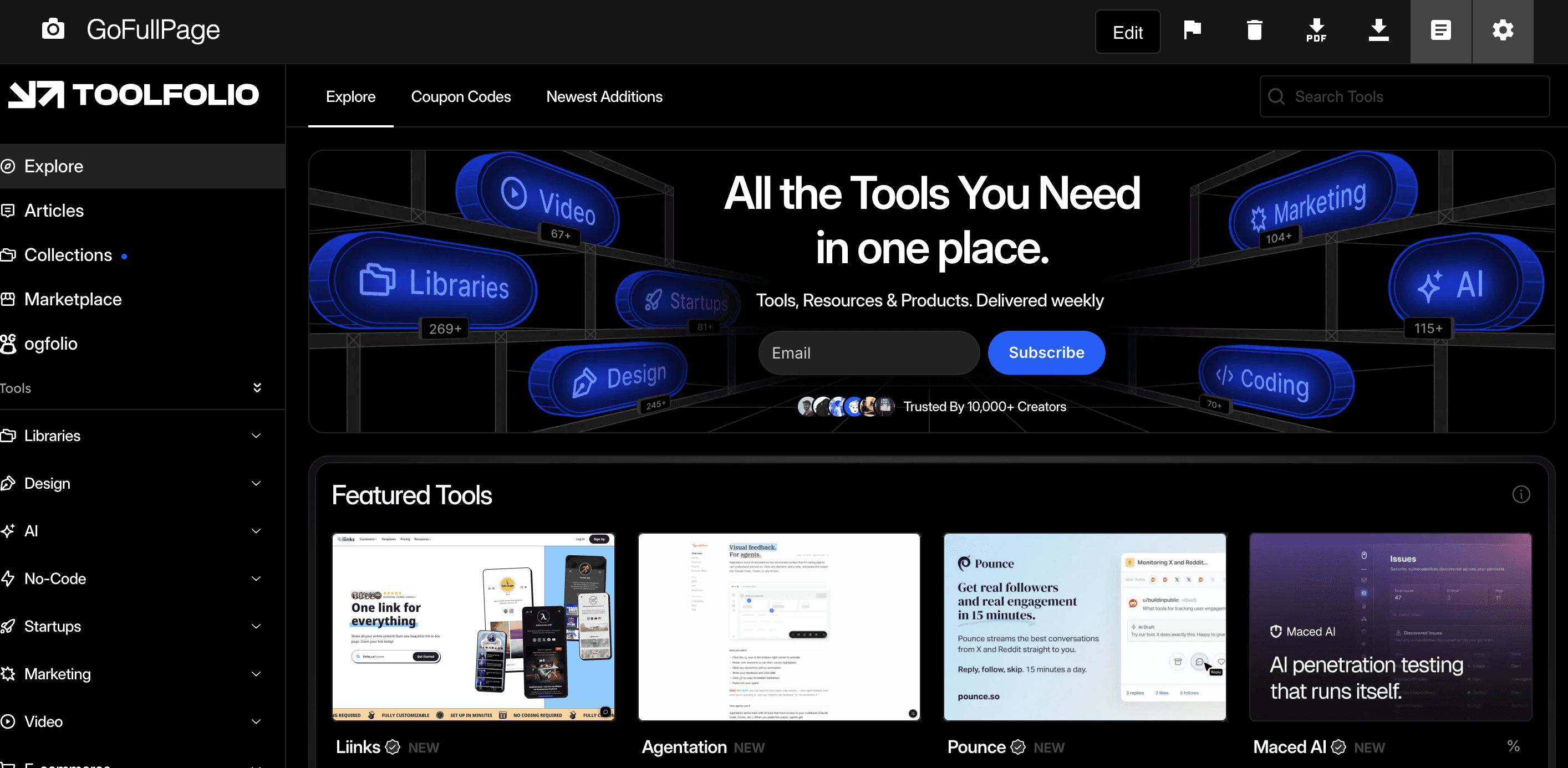
Download the file as PNG, JPEG, or PDF. Your full page screenshot is ready to use.
Wrap Up
Scrolling screenshots as videos help you show more than just content. They show how a page actually feels when someone scrolls through it.
If you want motion and context, use a tool like ScreenshotOne to create smooth scrolling captures. It works well for demos, social posts, and client sharing.
If you only need a static view, tools like GoFullPage are faster and simpler. They capture the entire page in one image with almost no setup.
Both methods are simple, quick, and work on almost any website.
You May Also Like













Featured Tools



Newest Additions

















AI Image & Video Generation
























Vibe Coding Library










































Screenshot & Screen Recording Tools