How to Add Any Website to Desktop as an App in Chrome
Turn any website into a desktop app in Chrome. Open it in one click, distraction-free.

Dudu
Mar 26, 2026
Last Updated Mar 26, 2026
Image Credit: Toolfolio
You open the same websites every day. Gmail, YouTube, WhatsApp Web, or the tools you use for work. Each time, you open Chrome, search or click a bookmark, and wait for it to load. It feels small, but it adds up and slows your flow.
Most people do not know this, but Chrome lets you turn any website into a desktop app. It opens in its own clean window, without tabs, bookmarks, or extra distractions. It feels like a real app and helps you stay focused on just that one task.
In this guide, you will learn how to add any website to your desktop as an app in Chrome, step by step. You can set it up in minutes and open your most-used sites in one click.
How to Add Any Website to Desktop as an App in Chrome
Step 1: Open the website in Chrome
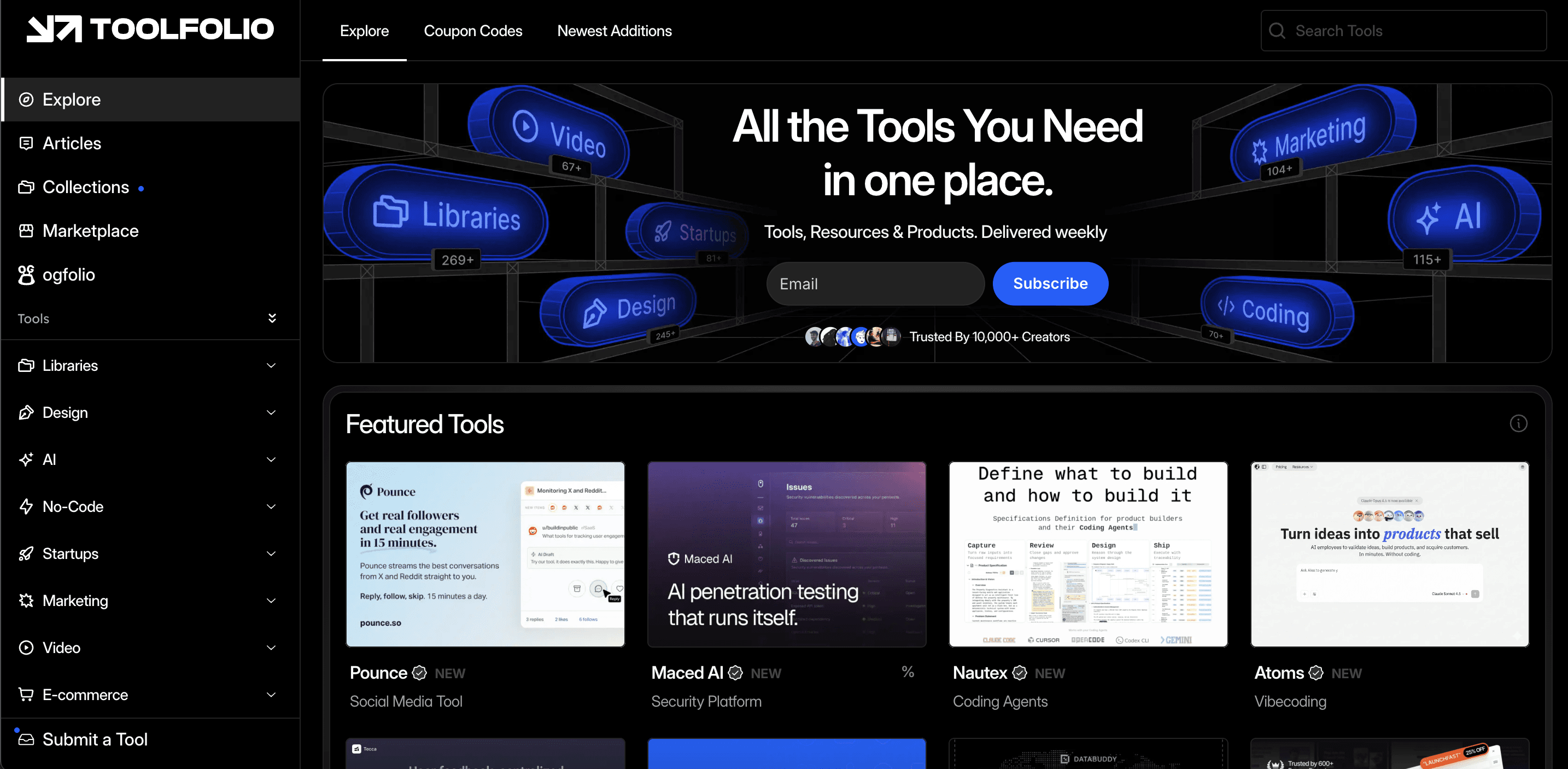
Open Google Chrome on your computer and go to the website you want to turn into an app. For this example, open Toolfolio in your browser. Make sure the site is fully loaded before moving to the next step.
Step 2: Open Chrome menu
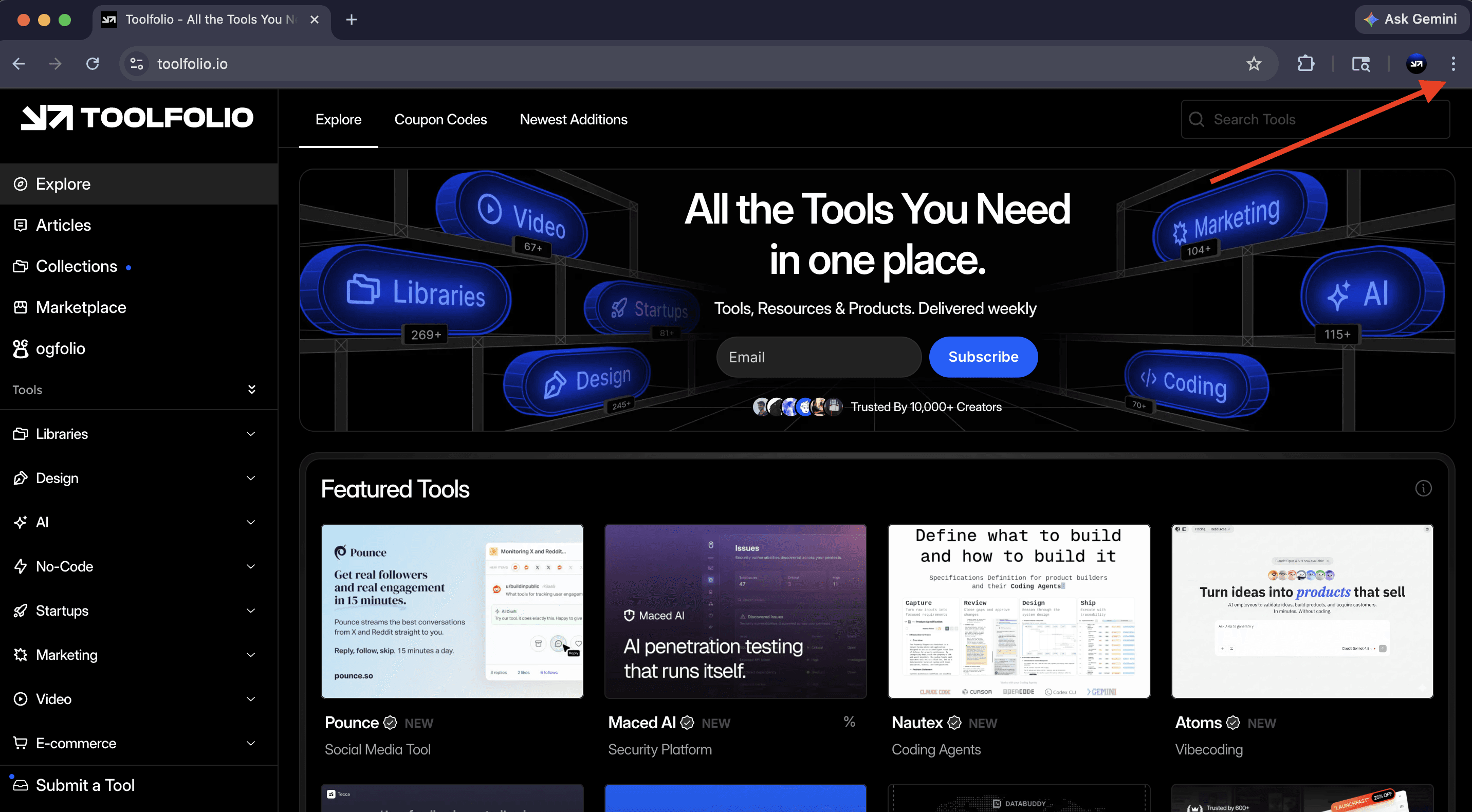
Click the three dots at the top right corner of Chrome. This opens the main menu where you will find options to install the website as an app.
Step 3: Click “Install page as app”
From the menu, go to Cast, save, and share, then click Install page as app.
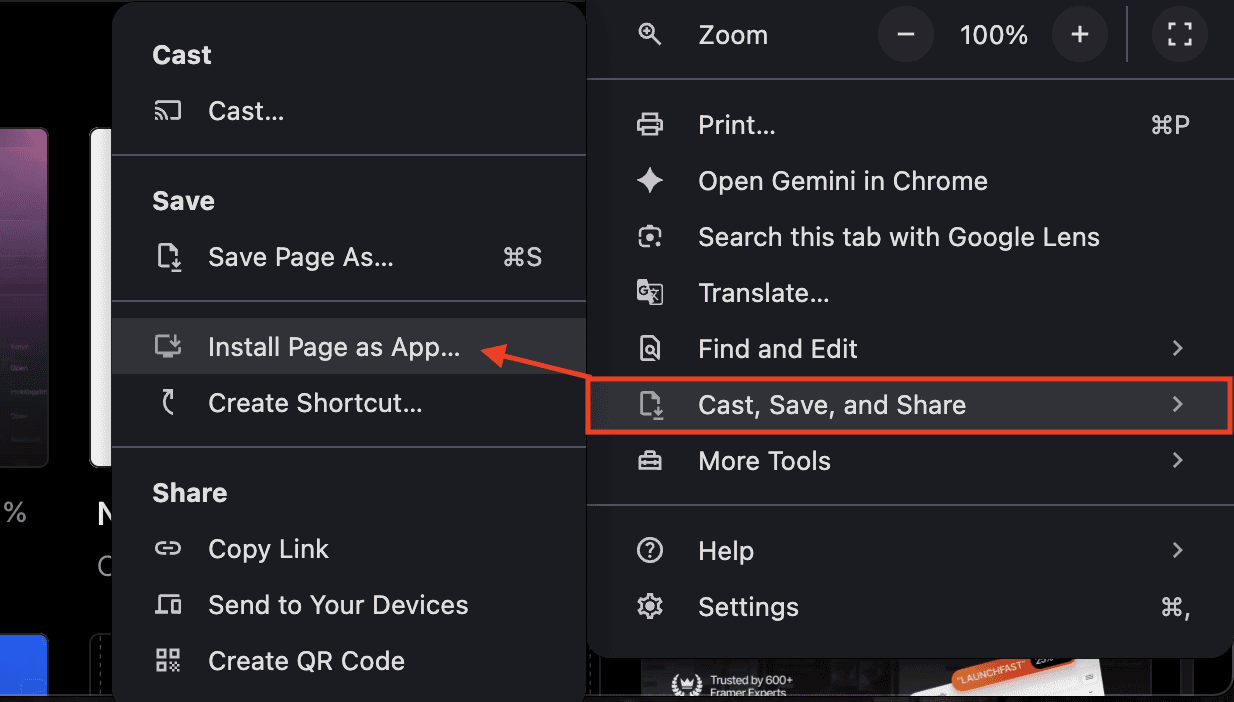
On some websites, you may also see a small install icon in the address bar. You can click that directly.
Step 4: Confirm installation
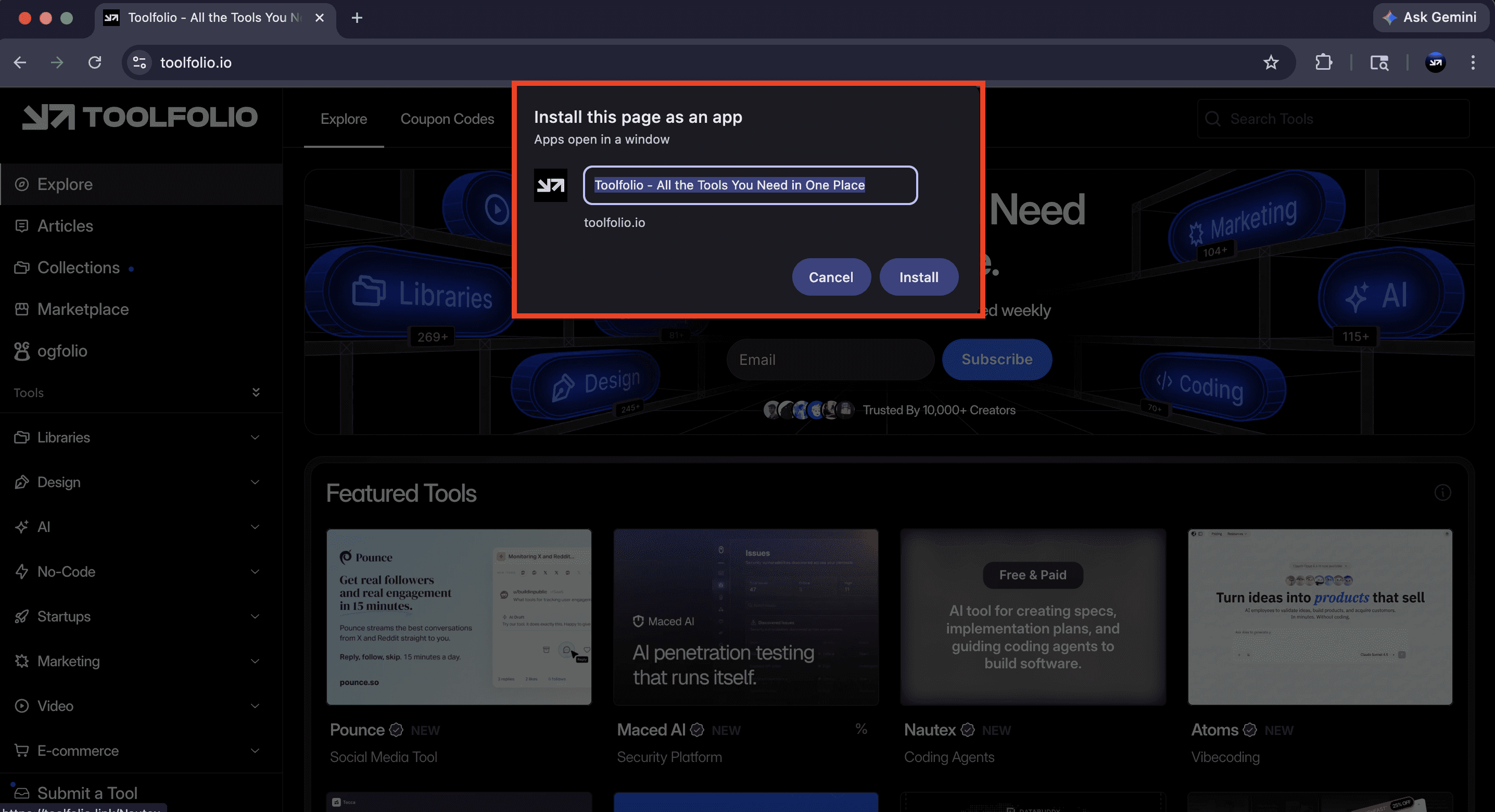
A small popup will appear asking you to install the app. Click Install to continue.
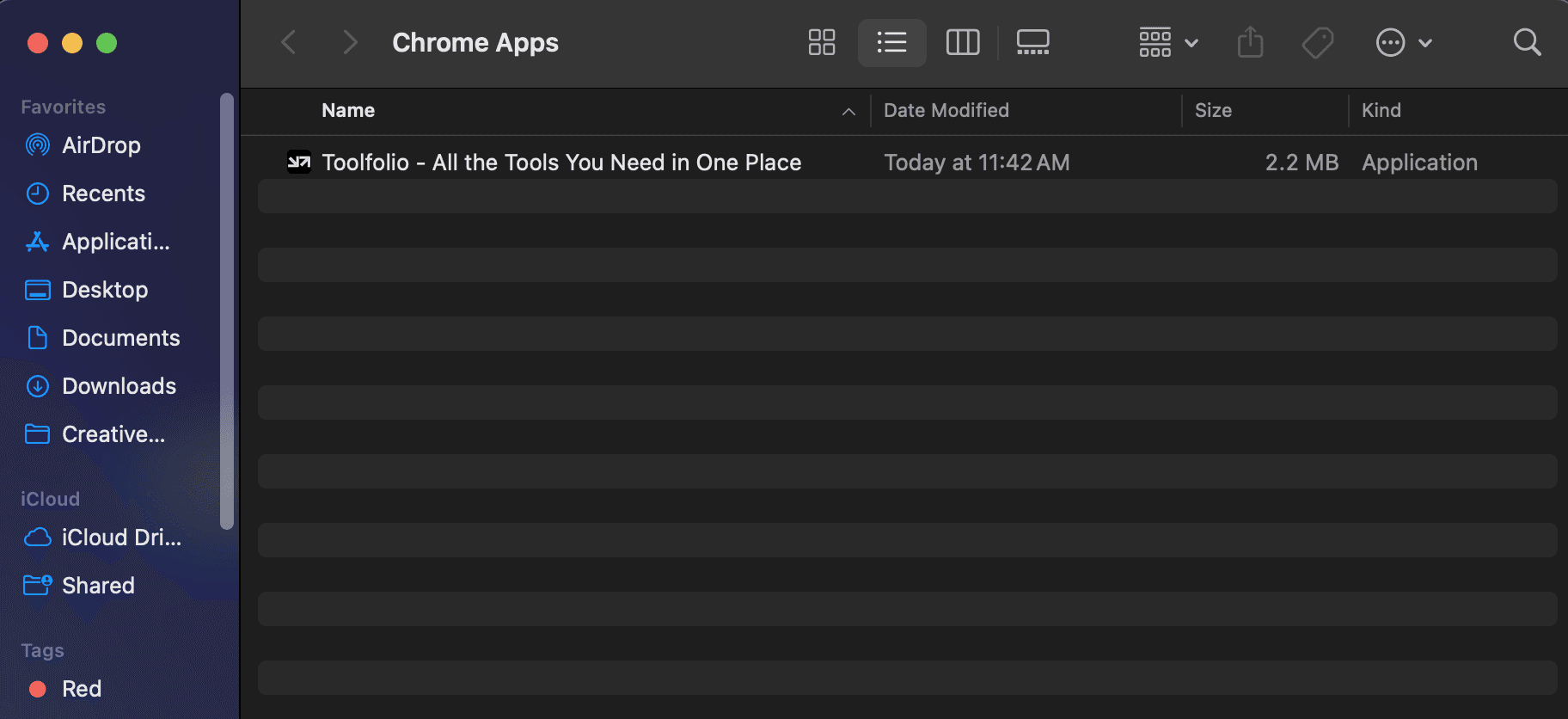
Chrome will now create a desktop-style app for that website.
Step 5: Open and use your app
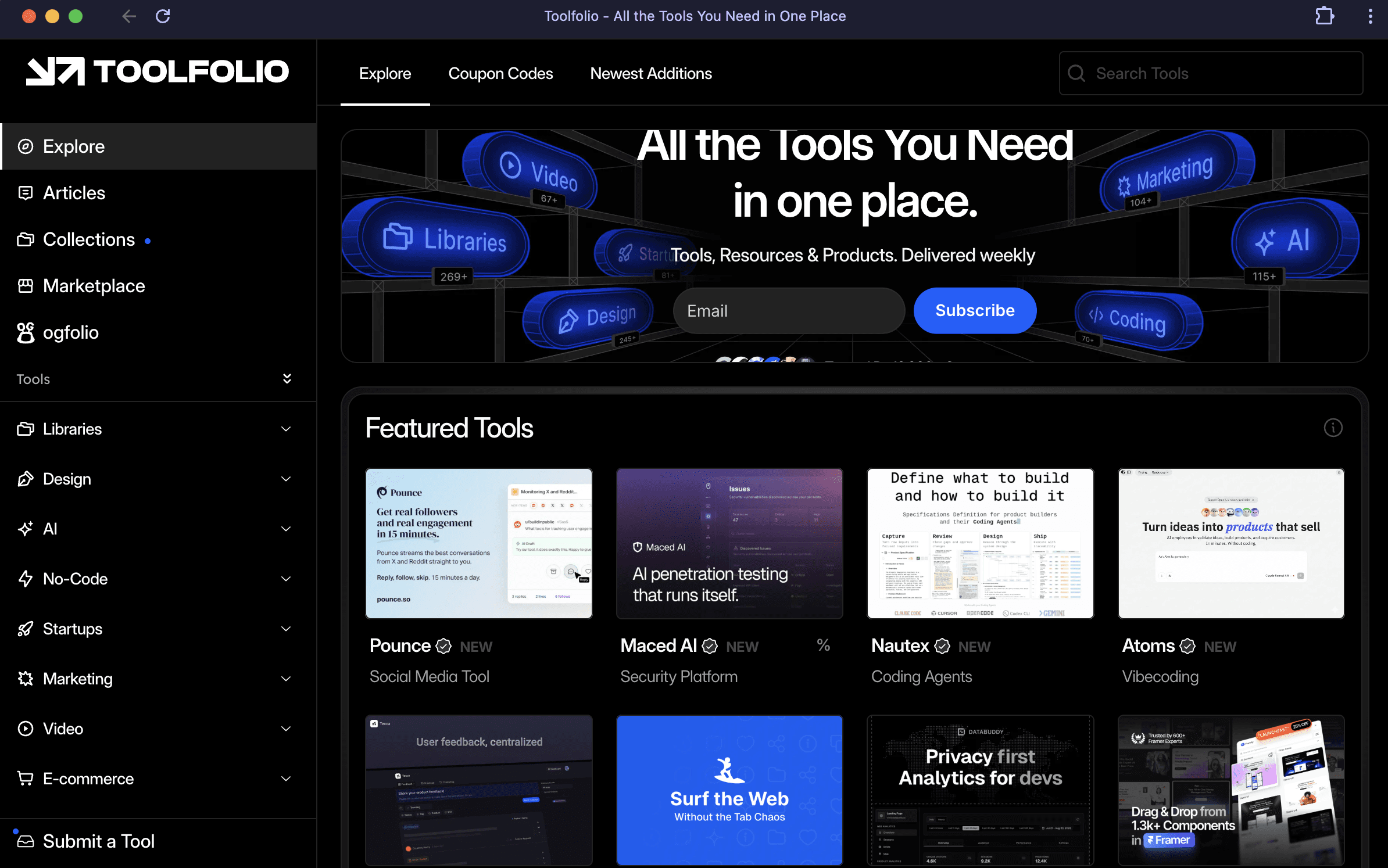
Once installed, the website opens in a clean window without tabs or bookmarks. It works like a normal app. You can pin it to your taskbar or desktop for quick access.
Step 6: Access it anytime
You can open the app from your desktop, start menu, or taskbar. It launches faster and keeps your workflow focused without extra browser clutter.
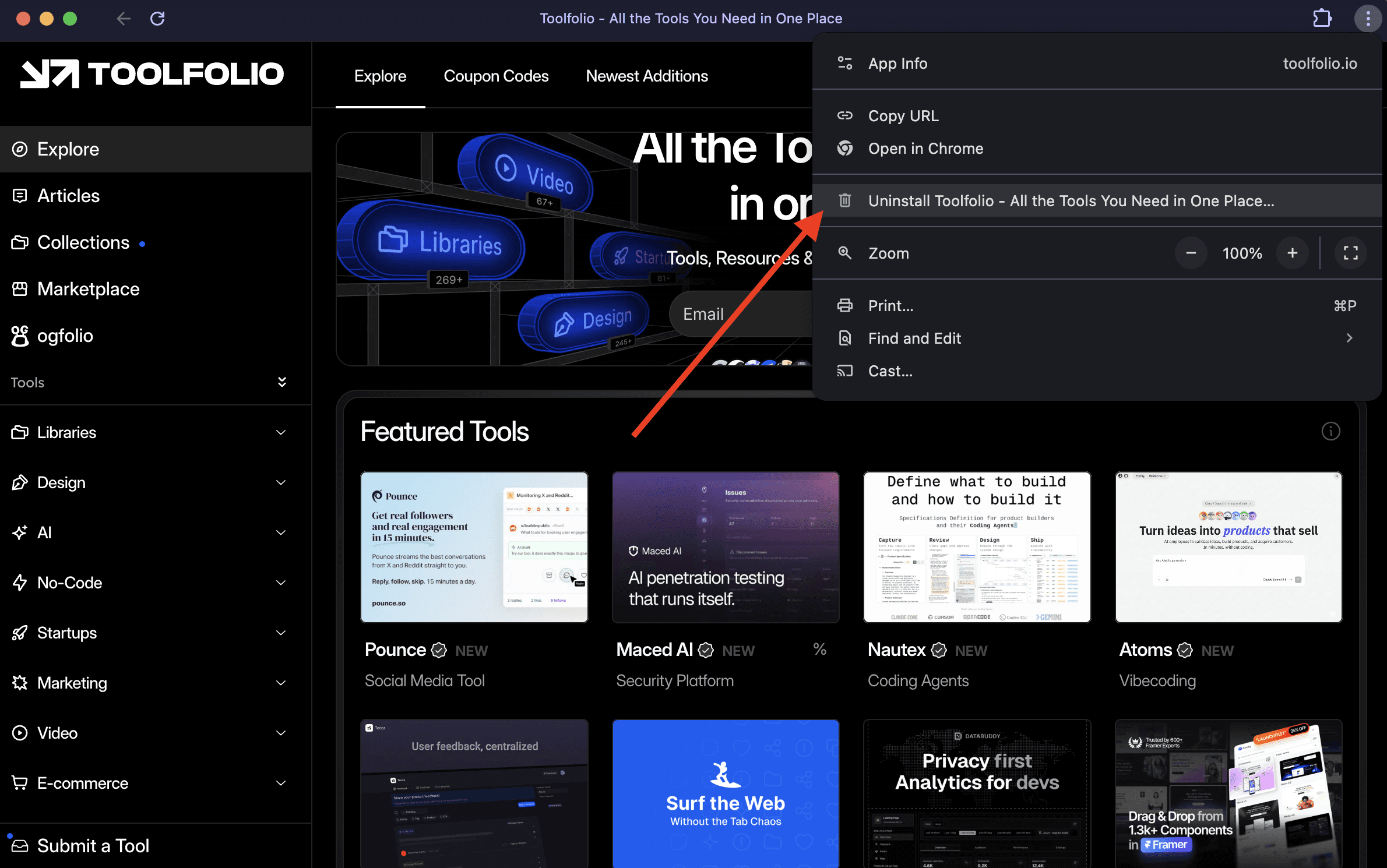
Note: To delete the app, click your Web app and click the three dots at the top right corner. Then click uninstall.
Wrapping Up
Turning a website into an app in Chrome is one of the simplest ways to save time and stay focused. You skip extra tabs, open your favorite tools faster, and keep your workspace clean.
It works well for sites you use every day like Toolfolio, Gmail, or any dashboard. Once set up, it feels just like a normal app on your desktop.
Try it with a few websites you visit often. It takes less than a minute and makes your daily workflow smoother.
You May Also Like













Featured Tools







Newest Additions
















AI Image & Video Generation





























Vibe Coding Library








































Screenshot & Screen Recording Tools